Troubleshooting & support
Employee Monitoring Not Working? Troubleshooting Guide
Find the cause of offline agents, blank screens, empty reports and unavailable recordings, then verify the fix on one affected computer.
If employee monitoring is not working, first identify what has failed: the connection to a company computer, its live screen, activity collection, or access to a saved recording. Each uses different settings, so a blank report does not necessarily mean the monitoring Agent is offline.
This troubleshooting guide explains how to isolate common problems in Net Monitor for Employees Pro, restore the affected feature, and verify the result. Start with one affected computer and one known working computer where possible. Change one setting at a time so you can tell which action resolved the issue.
01Identify the monitoring problem first
Record the computer name, user or session, exact status message, and when the problem began. Note whether it followed a password change, Agent update, device replacement, new VPN, or storage change. If every endpoint fails at once, check shared Console, network, account, or storage settings before changing individual computers.
Choose the symptom below. On a small screen, scroll the table horizontally to read all three columns.
| What you see | First check | What a successful test shows |
|---|---|---|
| Computer is offline | Power, Agent, connection mode, address and port. | The intended Agent connects to the Console. |
| “Not authenticated” | Agent password and any pending certificate approval. | The verified computer authenticates. |
| Blank, missing or frozen screen | Pause, filters, session, monitor and capture permissions. | A harmless desktop change appears after refresh. |
| Empty activity report | Logging, report filters, retrieval and retention. | A new, supported activity sample appears. |
| Recording unavailable | Capture settings, file location, storage access and encryption key. | A short new clip can be found and played. |
| RDP user missing | Agent on the server, terminal-server setting and account filter. | The expected user session appears. |
Keep the first test simple: use an authorized test account, open an ordinary application window, and note the time and time zone. Avoid testing with confidential employee information. A disconnected computer or missing record is a technical symptom, not evidence that someone was not working.
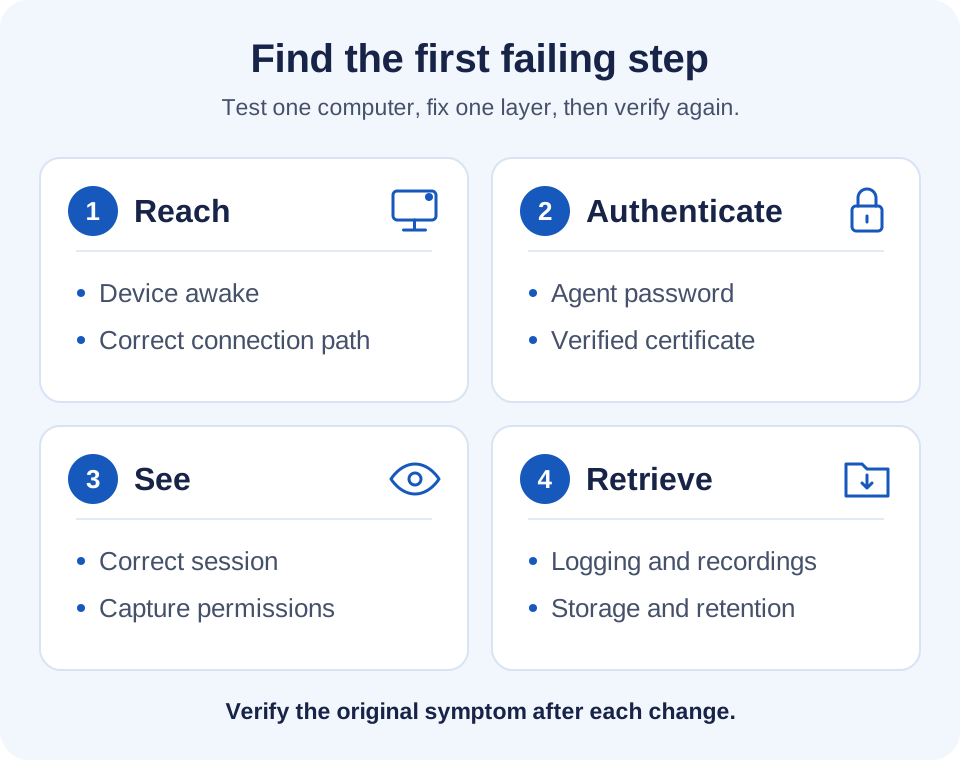
02Fix an offline Agent or failed connection
Confirm the computer can be reached
Check that the monitored computer is powered on, awake, connected to the expected network, and running the Agent. Installing the Console on an employee computer does not replace the Agent. An offline Agent cannot receive a remote restart command; resolve power or connectivity locally when necessary.
Open the computer’s Properties in the Console and compare its saved address with the actual device. For a Direct Connection, inspect Remote computer (host or IP) and TCP Port. If the current IP works but the hostname does not, investigate name resolution. Do not treat a changing DHCP address as a permanent repair.
Check the correct connection path
- Direct Connection: the Console connects to the Agent. The default Agent port is TCP 4495, but use the configured value. On a remote network, verify that the VPN actually routes to the employee computer’s subnet.
- Reverse Connection: the Agent connects to the Console’s Reverse Connection Server. Its default listening port is TCP 444. Check that the server is enabled and that the Agent has the correct Console address, configured port, and reverse-server password.
- Cloud Connection: confirm the correct account under Cloud / Configure cloud connection, the Agent’s registration, and its availability through Cloud / Add computers from Cloud. The Agent password is still required. Direct Connection port checks do not establish whether Cloud setup is correct.
Use the connection setup and computer properties help to compare the configured mode. For off-network devices, follow the Cloud connection instructions.
Test reachability without removing protection
For a Direct LAN or VPN connection from a Windows Console computer, this PowerShell command tests the default Agent TCP port. Replace the example name and port with the actual endpoint settings:
Test-NetConnection -ComputerName "employee-pc" -Port 4495Inspect TcpTestSucceeded and the resolved address. A successful TCP test confirms a reachable listening port; it does not verify the Agent password, certificate, or screen capture. A failed ping alone does not prove that the Agent’s TCP port is blocked. Microsoft documents the Test-NetConnection checks and output.
If the connection fails, inspect the applicable firewall profile, scoped inbound rule, VPN route, and security-software logs. Permit only the intended management traffic instead of disabling the firewall or antivirus. Keep the connection direction in mind: a Reverse Connection has a different destination from a Direct Connection.
An empty network scan is a separate discovery problem. Verify the network adapter, scan range, port and password, and clear Show only computers not yet added when looking for an existing entry. Try adding a known host manually to distinguish failed discovery from a failed Agent connection.
03Resolve password and certificate errors
If the device is reachable but shows Not authenticated, confirm its Agent password. The Agent password, Console unlock password, Cloud account password, and Reverse Connection Server password serve different purposes. Updating one does not automatically update the others.
Also inspect Connection security. The Console and Agent must use compatible settings. With TLS, a pending certificate approval or a changed pinned fingerprint requires an identity check, not repeated password guesses.
A legitimate reinstall or certificate replacement may explain a changed fingerprint. Verify the endpoint and compare the new fingerprint through a trusted channel before using Trust... or replacing stored trust. Do not blindly select Forget or weaken encryption to make an unexplained certificate warning disappear.
04Restore blank, frozen or missing employee screens
When the Agent is connected but the preview is wrong, check the view before reinstalling anything. In Remote Screens, confirm the selected computer or group, Filter, Show connected only, and Pause monitoring. Request Refresh, then watch for a harmless visible change on the test desktop.
For a computer with several displays, select the intended monitor. Check the per-computer Account filter if one user is missing: an excluded account is deliberately hidden. The live screen controls help explains refresh and display options.
Check capture and control permissions on the endpoint
- macOS: review System Settings → Privacy & Security → Screen & System Audio Recording for capture and Accessibility for input control. Older macOS versions use different labels, including Screen Recording. Approve the installed Agent in the logged-in session and follow any reopen prompt. Apple explains screen recording permission and Accessibility access.
- Linux: check the logged-in graphical session. On Wayland, verify that the desktop portal is available and the relevant sharing or control request has been approved. Capture and input control have separate requirements; behavior depends on the Agent and desktop environment.
- ChromeOS: check the extension’s connection settings and approved screen sharing. If sharing stopped, the user may need to approve it again. Follow the Chromebook monitoring setup rather than applying Windows Agent assumptions.
Find the correct RDP session
Install the Agent on the TS/RDP server, add that server to the Console, and enable Advanced Options → This computer is a terminal server (TS, RDP). Check the expected username, session state, and account filter. The server’s physical console desktop is not necessarily the employee’s remote session. See the RDP session monitoring instructions.
Separate slow updates from capture failure
If one screen updates correctly but a large grid lags, compare network and CPU load with fewer visible devices or smaller thumbnails. A longer Refresh interval can reduce update demand; in Remote Control, review Quality. Change one setting and compare responsiveness rather than assuming every delay is a network outage.
If the employee’s physical display is black while the Console still shows it, check whether Blank remote screen is enabled in Remote Control. That intentional privacy control differs from a black preview in the Console.
05Diagnose missing employee activity reports
A working live screen does not prove that historical logging was enabled. In Reporting, select the intended report and Time range:, check computer, user and application filters, and select Refresh. Confirm the relevant logging was enabled with Enable and saved with Save configuration.
Then test new activity that the Agent supports collecting. Note its time, allow collection and retrieval to occur, and refresh the matching report. If the new sample appears but yesterday’s history does not, investigate the old period’s logging settings, retention and available archives rather than changing a working connection.
Each Console maintains its own downloaded archive and synchronization progress. A second Console may not yet have the same records. Check connectivity, retrieval errors, Agent retention, and the Console database folder’s write permissions. An unsupported collection source or database error should be investigated as such; neither means that the employee had no activity.
The activity reporting help describes collection and retrieval checks. Data that was never collected cannot be reconstructed by refreshing, and retention-deleted records require an existing retained copy or backup.
06Trace missing recordings from capture to playback
Check whether recording actually started
In Desktop Recorder, select the intended computers and inspect Schedule recording, Monitors, Recording storage, and Record when console is running. Also check whether Use the same settings for all computers matches the intended scope.
Apply settings updates configuration; it does not itself start or stop recording. Use Start for the selected computers when an immediate test is appropriate. If recording stops when the Console closes, inspect Record when console is running and any active schedule before diagnosing a storage failure.
Locate the file and check storage limits
Distinguish a recording held on the Agent, a copy downloaded to the Console, and one stored externally. Check the selected time range and destination. Delete recording from agent after download can explain why an Agent copy is gone even though the Console has it. Also inspect Delete recordings older than (days), free space, and quota behavior.
Recording quota may stop new recordings or remove the oldest files, depending on configuration. Max file size (Mb) controls file splitting, not total archive capacity. For a recurring space problem, use the screen recording storage requirements guide to size the archive.
Test external storage from the right location
Under File / Configuration / External Storage, save the profile and use Test connection. Then select that profile in Recording storage and apply it to the intended Agents. The Console’s successful test does not prove that a remote Agent can reach the same destination. Check that Agent’s network route, DNS, storage permissions, endpoint settings and exact upload error.
Native Agents can keep failed uploads locally pending retry, so check their queue and available disk space. ChromeOS records directly to supported external storage and has no equivalent local recording archive. Use the external storage troubleshooting instructions for the configured provider and platform.
Verify playback and encryption separately
A listed recording is not necessarily a completed local download. Check where the playable copy resides and whether its transfer finished. For encrypted recordings, the Console needs the matching private key; use Import key... with the appropriate key backup. Resetting a password or generating a new key does not decrypt files protected by a missing older key.
Finish with a short authorized test recording: capture it, find it in the intended location, and play it. Follow the Desktop Recorder help and recording encryption help when the failure is specific to retrieval or keys.
07Verify the fix and prepare useful support details
Repeat the original failing action on the same computer, user and connection path. Confirm a current screen change, a new report entry, or a playable recording, depending on the problem. Reconnect and repeat the check so a temporary recovery is not mistaken for a lasting fix.
If the issue remains, collect a focused support package:
- The Console and Agent versions, operating systems, and connection mode.
- The affected computers or sessions, whether other devices work, and the last known working time.
- The exact error, timestamp and time zone, plus relevant redacted screenshots or logs.
- Recent network, password, certificate, update or storage changes.
- The checks performed and their actual results, including which step first fails.
Do not include passwords, private keys, or unrelated employee records. Preserve relevant configuration and retained data before a disruptive reset or reinstall. An update may be appropriate after checking compatibility, but it should address an identified issue rather than replace diagnosis.
08Employee monitoring troubleshooting FAQ
Why can I ping the computer but monitoring still does not connect?
Ping checks a different type of network traffic. The Agent’s configured TCP port may be blocked, the Agent may not be running, or authentication may fail. Test the appropriate connection path, then verify the Agent password and any certificate approval.
Why is the Agent connected but the employee screen is blank?
Check pause and display filters, the selected monitor and user session, and endpoint capture permissions. Test an ordinary desktop window. A successful connection proves communication with the Agent, not permission to capture every desktop or session.
Will reinstalling recover missing activity reports or recordings?
No. Reinstallation does not recreate uncollected activity, retention-deleted files, or a missing encryption key. First locate existing archives and backups, check filters and retrieval, and preserve settings before considering a reinstall.
Why does monitoring stop when an employee laptop sleeps?
A sleeping laptop generally cannot provide a current live desktop or respond like an awake endpoint. Check its power state and reconnect after wake. If unattended availability matters, validate the required power and network setup using the Wake-on-LAN requirements; waking over every remote connection is not guaranteed.