
Activity Monitoring Software for Employee Screen Monitoring
Using the Monitoring Console
Remote Screens can be used for live supervision of many remote computers at once without interrupting employees.
This feature allows managers to quickly notice unusual behavior and focus only on remote computers that need attention.
Typical use cases include:
- Watching employee screens live during normal work shifts.
- Checking if employees are using required work applications.
- Spotting non-work activity early and reacting quickly.
- Following remote employees during work-from-home hours.
- Verifying that restrictions and admin actions were applied correctly.
Remote Screens Overview
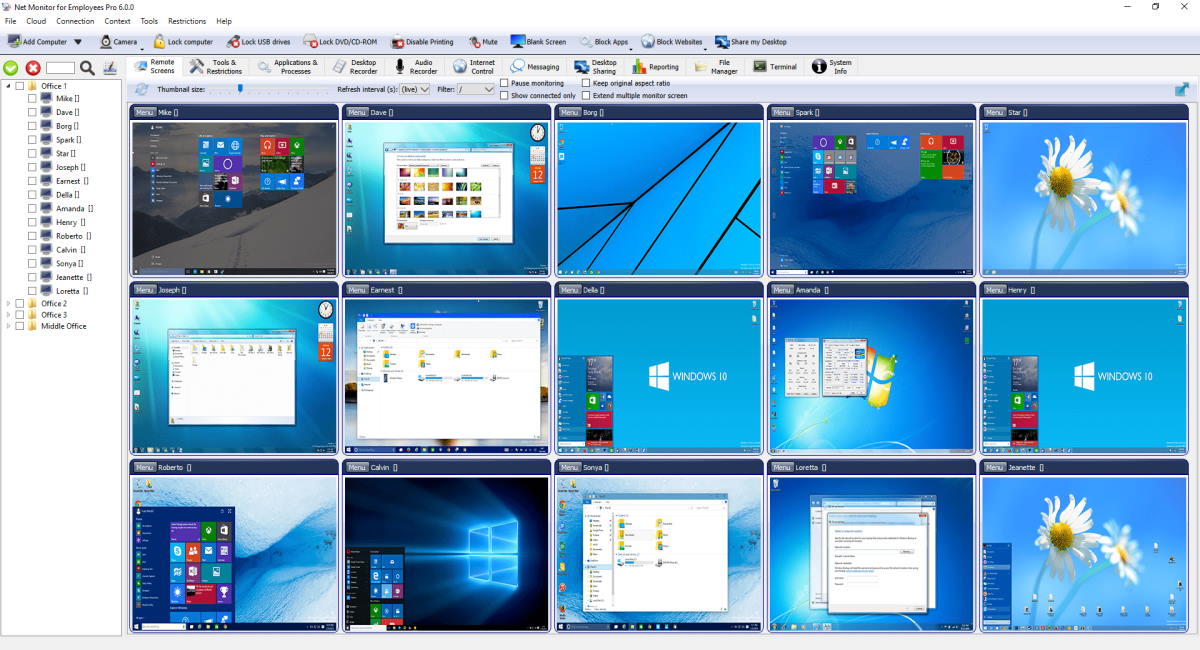
The Remote Screens tab displays live thumbnails of all selected remote computers. It is the main real-time monitoring workspace.
Toolbar Controls
- Refresh: request new frame immediately.
- Thumbnail size: tune layout density versus detail.
- Refresh interval: use live for highest fidelity or larger interval to reduce traffic.
- Filter: show only selected group.
- Keep original aspect ratio: avoids stretched thumbnails.
- Show connected only: hides disconnected computers.
- Extend multiple monitor screen: shows multi-monitor desktop as one extended area.
- Pause monitoring: temporarily freezes updates.
- Full screen: expands monitoring workspace.
Camera Tiles
If remote computers have available cameras, camera tiles can be shown near desktop thumbnails. Visibility can be switched globally to show configured cameras, show all, or hide all.
Recommended Workflow
- Select computers/groups in the tree.
- Set refresh interval and thumbnail size for current network conditions.
- Enable connected-only view in large environments.
- Use right-click Object Menu from a thumbnail for quick actions such as Remote Control.
Ready to start monitoring your employees?
Buy this application now. You will never regret your decision.
Buy Now