Recording & storage
How to Estimate Screen Recording Storage Requirements
Calculate how much space screen recordings need, plan each storage location, and check whether your upload connection can keep up.

01Screen recording storage requirements: start with this formula
Estimate screen recording storage requirements by multiplying measured recording size per hour by recorded hours, computer count and the number of recording days retained. Then budget separately for downloaded copies, backups, temporary files and spare capacity. Resolution alone cannot tell you how much disk space you need.
A quiet spreadsheet and a constantly changing screen can produce different file sizes even with the same recording settings. A useful estimate therefore starts with a short pilot on representative company computers, rather than a universal claim that one hour of screen recording always consumes a fixed number of gigabytes.
The archive calculation
Archive GB = measured MB per recorded hour × recorded hours per day × computers × retained recording days ÷ 1,000
Calculate each recording profile separately and add the results. This article uses decimal units: 1 GB = 1,000 MB and 1 TB = 1,000 GB. A tool reporting GiB uses a different unit, so convert before comparing figures.
For example, an observed rate of 100 MB per hour across 10 computers, recorded for six hours a day and retained for 20 recording days, produces a 120 GB archive. That figure describes one copy of the recordings. It does not include a second archive, backup history or free space needed to keep a storage system operating.
This guide covers capacity and transfer planning. For deciding what to record and how to review it, use the employee screen recording guide. For software licensing and operating expenses, use the employee monitoring cost guide.
02Measure recording size on representative computers
Select a small pilot group that represents your actual work: office documents, browser applications, technical tools, multiple monitors and any video-heavy tasks you intend to capture. Record several normal working days and at least one busy period. A short test on an idle desktop is a poor basis for sizing a production archive.
- Set the intended profile. Use the planned format, image quality, capture interval, monitor selection and schedule. Include encryption and audio in the pilot if they are part of the intended deployment, measuring audio separately when stored separately.
- Measure newly generated data. Add the sizes of completed recordings from the test period. Do not use net folder growth if old files were also deleted or moved during the test: that would understate production.
- Divide by actual recording time. If completed files total 480 MB over six recorded hours, the observed rate is 80 MB per hour. Do not divide by a full 24-hour day when recording ran for only six hours.
- Keep profiles separate. Record the device count and measured rate for each group. Avoid applying a quiet single-monitor result to a team using several changing displays.
- Test the result you need to read. Open recordings and check small text, application detail and the events your reviewers need. Smaller files are useful only if the retained material still answers the business question.
Keep both an average and a busy-day measurement. Use the higher observed demand where running out of space would interrupt required recording, and document the extra allowance. Re-measure when monitor layouts, working hours, software use or recording settings change.
Estimating video storage from bitrate
If you know the actual average bitrate of completed video, the conversion is GB per hour = Mbps × 0.45. One megabit per second sustained for an hour is 0.45 GB; 2 Mbps is 0.9 GB per hour. These are unit conversions, not expected Net Monitor for Employees Pro recording rates. Include all streams and file overhead, or measure complete files to capture them directly.
A quality percentage is not a bitrate. Do not substitute a quality setting of 50% into a bitrate formula or assume that halving it halves file size. JPEG sequences also need their own measurement: total the generated images rather than borrowing a video bitrate estimate.
03Calculate archive capacity and retention together
The following example covers 30 company computers and a retained window containing 22 recording days. Each computer records six hours per day. The measured rates are illustrative planning inputs, not product benchmarks or recommended defaults.
| Pilot group | Computers | Measured MB/hour | Fleet GB/day | Retained GB |
|---|---|---|---|---|
| Office work, one monitor | 20 | 80 | 9.6 | 211.2 |
| More active, multiple monitors | 10 | 180 | 10.8 | 237.6 |
| Combined archive | 30 | Measured by group | 20.4 | 448.8 |
The first row is 20 × 80 × 6 × 22 ÷ 1,000 = 211.2 GB. The second contributes 237.6 GB. Together they produce 20.4 GB per recording day and retain 448.8 GB in one archive. At the same settings, 10 retained recording days would need 204 GB; 44 would need 897.6 GB.
Recording days and calendar days are different. A weekday-only schedule produces no weekend footage, while a seven-day operation does. A 30-calendar-day retention window can contain different numbers of weekdays depending on its dates. Count the days and shifts that actually produce recordings within the retention window; do not automatically enter 30 for a weekday-only calculation.
Leave a defined amount of space free
If the planning rule is to keep 25% of usable capacity free, divide expected occupied space by 0.75. For the 448.8 GB archive, that gives 598.4 GB of usable capacity before separately budgeted temporary files or additional workloads. Adding 25% to the archive would give 561 GB and leave only 20% of that total free. State which method your budget uses.
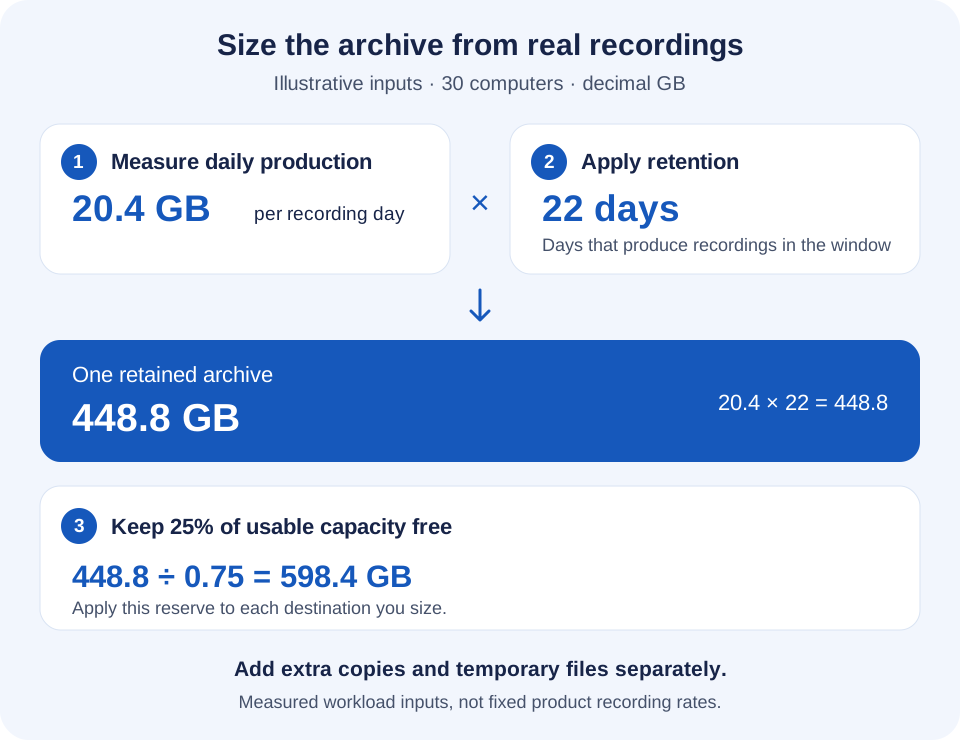
Use capacity available to the recording workload after filesystem, RAID and other storage overhead, not the sum of drive labels. RAID redundancy is not an independent backup. If two destinations each hold a complete 448.8 GB copy and each requires 25% free space, plan 598.4 GB at each location: 1,196.8 GB combined, distributed across those two systems.
04Budget every place a recording can occupy space
A single archive estimate is not necessarily the total storage footprint. Draw the actual path from capture to review, then list each place files remain and its cleanup owner. A local agent copy, an external object and a console download can represent the same recording while consuming capacity in different locations.
- Monitored computers: allow for local recording files and pending uploads where the platform supports them. Estimate a buffer from the device's measured generation rate and the outage duration you intend to tolerate.
- The central archive: include the retained recordings from all contributing groups, growth and a reserve for busy periods. Keep other applications sharing the same volume in the capacity plan.
- Administrator computers: budget downloaded recordings, working copies, temporary transfers and any exported clips. Multiple reviewers can create multiple local copies.
- Backups and provider history: check whether snapshots, previous object versions, replicas or retained deletions keep data after it disappears from the active archive. Their retention may differ from the recording application's.
For example, a device producing 1.08 GB per recording day needs 3.24 GB for three such days without a successful upload, before working space and reserve. This is an outage-buffer calculation, not a guarantee of offline recording behavior on every platform. ChromeOS recordings are uploaded directly to supported external storage rather than kept in a local Chromebook archive. Test that deployment separately using the ChromeOS recording documentation.
A deletion policy must work at the destination, not just in the application's list. Versioning or retention locks can leave objects stored or prevent removal. Review the external storage setup and quota guidance with the storage administrator. Count provider-retained history separately rather than assuming every deleted recording immediately releases billed capacity.
Also test access and recovery with the intended security settings. The recording encryption guide explains key backup and recovery requirements. Keeping enough disk space does not make an encrypted archive usable if the required decryption key is unavailable.
05Check upload bandwidth as well as disk capacity
An archive can have plenty of space while recordings wait on slow connections. For a given transfer window, calculate the minimum average payload throughput as Mbps = GB to transfer × 8,000 ÷ transfer-window seconds. This uses decimal GB and excludes protocol overhead, retries and other traffic.
The example fleet generates 20.4 GB per recording day. Moving that amount within six hours requires about 7.56 Mbps of sustained aggregate payload throughput. Moving it within a two-hour window requires about 22.67 Mbps. Real connections need additional capacity and must be tested during normal business traffic; the advertised Internet line speed is not a measured upload rate.
Plan the link where the traffic actually passes. An office may share one upstream connection, while home workers have separate bottlenecks. The storage destination must also accept the combined traffic. Staggered file completion, retries and accumulated offline recordings can create bursts that a daily average hides.
On agents that retain pending uploads locally, a queue will grow if uploads remain slower than recording generation. Measure whether it clears after a busy day or an outage, then adjust the recording profile, transfer arrangement or available bandwidth. The remote deployment guide covers connection and reconnect checks that should accompany this capacity test.
06Apply the estimate in Net Monitor for Employees Pro
In Desktop Recorder, match Monitors, Quality, Recording format and the recording schedule to the profile you measured. Record frames only when screen changes can reduce repeated captures; test its result on your actual work. The screen recorder settings guide explains these controls.
Set Delete recordings older than (days) to the approved elapsed-day retention period, not the number of scheduled recording days within that period. For a 30-day retention policy with 22 scheduled recording days, the age setting remains 30. A video Max file size (Mb) setting splits output into separate files; it is not a limit on the total archive. External-storage quotas can remove the oldest recordings or stop recording when capacity is reached. Confirm the selected behavior before rollout.
The external desktop recording quota is checked for each computer's recording area; it is not one shared capacity budget for the entire fleet. Size each computer's allowance and the combined storage destination separately. A quota sized below the required archive can shorten the available history or interrupt capture.
Keep age-based retention, storage limits and any provider cleanup rules consistent. Verify the oldest required recording remains available after cleanup runs, and that playback still works from the location reviewers will use.
Before expanding the deployment, record the pilot profile, observed daily production, archive capacity, spare-space rule and review date in a short capacity worksheet. Assign someone to check storage growth and upload progress. Revisit the estimate after adding computers, changing working patterns or enabling more detailed capture.
07Screen recording storage: common questions
How much storage does one hour of screen recording use?
There is no single reliable figure. Measure completed recordings produced by the intended profile and divide their total size by recorded hours. For video with a measured average bitrate of 1 Mbps, the stream alone is 0.45 GB per hour. Real file sizes also depend on what is captured and how it is encoded.
How much storage do I need for 30 days of recordings?
Multiply measured daily production by the recording days within the 30-calendar-day window. Then include extra copies, temporary work and free-space requirements at each destination. A schedule that runs every day and one that runs only on weekdays require different inputs.
Does a lower recording quality setting halve storage usage?
Not necessarily. Quality settings are not a linear file-size scale. Run the same representative workload with the proposed settings, compare completed file sizes and check readability before using the reduction in your capacity plan.
Does a smaller video file limit reduce total archive size?
Splitting the same recording into more files does not establish a smaller total archive. Plan total capacity from measured production and retention. File boundaries can help manage individual transfers, but they do not replace a retention or quota policy.
Should I count backup storage twice?
Count the copies your design actually retains. One primary archive plus one full independent copy usually means two sets of recording data before history and overhead. Different retention windows, deduplication or incremental backups need their own measured estimates; do not assume a universal multiplier.