Remote computer power management / Practical guide
Remote Computer Power Management That Cuts Costs
Reduce unnecessary powered-on hours without disrupting real work. Compare remote shutdown, restart, sleep, and Wake-on-LAN, build a safe policy, and measure the savings.

A workstation left running overnight can create more than an energy expense. It may have open applications, cached credentials, and network access, with no employee present to respond when something goes wrong. Remote computer power management gives IT and operations leaders control over when supported company devices shut down, restart, sleep, or wake. The connection, hardware, and power state determine which actions are available in the office, at home, or while traveling.
For small and midsize businesses, the value is practical. Administrators can reduce avoidable utility costs, restart systems that still respond to the management connection without a desk-side visit, prepare machines for scheduled maintenance, and enforce a consistent end-of-day policy. The key is to treat power control as part of endpoint administration, not as an isolated convenience feature.
What is remote computer power management?
Remote computer power management is the controlled use of shutdown, restart, sleep, hibernate, session-lock, and supported wake actions across company computers. A practical policy reduces unnecessary powered-on hours while preserving access for work, updates, and support.
01Why power control belongs in endpoint administration
A company computer is most useful when it is available at the right time and powered down when it is not needed. Without centralized control, that decision is left to every employee. Some workers shut down correctly. Others leave desktop PCs on for days, close a laptop lid without ending a session, or power off a machine before IT can apply an urgent update.
That inconsistency creates operational friction. A support technician may need a remote user to restart a computer before troubleshooting can begin. An overnight patch may fail because target devices were shut down. A finance workstation may remain powered on with sensitive records accessible in an unlocked session. Each problem is small on its own. Across dozens or hundreds of endpoints, it becomes an unnecessary cost and security exposure.
Remote control changes the operating model. Instead of asking employees to manage machines perfectly, IT can apply policies and issue commands from one administrative console. The organization gains a repeatable process and faster response when a device needs attention. Record the approval, target devices, action, and verified outcome in the service desk to maintain an operational audit trail.
02Choose the right remote power action
Effective remote computer power management needs more than a basic shutdown button. IT teams need controls that match actual conditions in a distributed workforce.
A useful system should allow administrators to shut down, restart, log off, lock, sleep, and wake supported devices remotely. Each action serves a different purpose. Locking protects an active system during a short absence. Logging off ends a user session before maintenance or reassignment. Restarting clears many common performance and connectivity problems. Shutdown reduces energy use and limits exposure after business hours.
The Tools and Restrictions help lists the controls available in Net Monitor for Employees Pro. The Tools tab sends immediate actions to selected computers. Availability and the resulting behavior depend on the operating system, hardware, and connection.
Shutdown, restart, sleep, and session controls compared
| Control | Use it for | Check first |
|---|---|---|
| Power Off | Shutting down an unneeded computer after work. | Saved work, completed jobs, and the next way to bring it online. |
| Reboot | Restarting a connected computer during approved support or maintenance. | User agreement, open work, and whether the device reconnects afterward. |
| Stand by / Hibernate | Reducing energy use while retaining session state on supported systems. | OS support and a tested resume or wake method. |
| Log off | Ending the current user session. | Unsaved work. Logging off does not power down the computer. |
| Lock workstation | Protecting an unattended user session while work continues. | Locking is an access control, not an energy-saving power state. |
| Power On | Waking supported, reachable hardware using Wake-on-LAN. | Firmware, network adapter, network path, and supported power state. |
Timing also matters. Where scheduling is available in the operating system or your endpoint-management tools, scheduled actions let IT set clear rules without manually touching every endpoint. For example, desktops in a call center can follow an end-of-shift shutdown plan and a tested wake-up process before the morning team arrives. Systems used for overnight processing may need different rules. Laptops assigned to remote workers should usually allow more flexibility, especially if employees work across time zones.
The right approach depends on the device’s role. A blanket shutdown policy may reduce power waste, but it can interfere with backups, software deployment, or remote support. Administrators should define exceptions for servers, critical workstations, executive devices, and systems that must remain online for approved business reasons.
Keep timing mechanisms distinct. The documented Time Restrictions feature uses daily active usage minutes per user and can run a chosen action when the limit is reached; Show message provides a notice before that action. This is different from a fixed 7 p.m. shutdown schedule. Validate any calendar-based automation separately in the tools you use for scheduling.
03Wake-on-LAN: verify remote wake-up before shutdown
Wake-on-LAN can start a supported computer remotely by sending a network signal to its network adapter. It is valuable when IT needs access to an office workstation outside business hours or wants machines ready before a scheduled task.
However, Wake-on-LAN depends on hardware settings, network design, power state, and connectivity. It is generally easier to use on a wired office network than on a laptop connected through home Wi-Fi. Remote employees may disconnect routers, move between networks, or use devices that do not support waking from every sleep state.
Plan for those limitations instead of promising always-on access. Verify device compatibility during deployment, document which power states can be awakened, and retain a process for employees to bring devices online when required.
Start with the LAN or VPN connection requirements and the device manufacturer’s wake guidance. Record the target adapter’s MAC address, enable the supported firmware and adapter settings, and test from the network where the wake request will actually originate. Do not assume a VPN carries wake packets between subnets without network configuration.
Microsoft’s Windows 10 Wake-on-LAN documentation distinguishes sleep and explicit hibernation from Fast Startup shutdown, and notes hardware-dependent exceptions. Test the exact OS, firmware, and power state in your fleet instead of assuming that waking from sleep proves waking from shutdown.
For distributed devices, the documented Cloud connection provides Internet access to an online agent with the appropriate subscription-based Cloud license. An Internet connection to the management service is not evidence that a powered-off home computer can be awakened. Keep an employee-assisted recovery route for devices without a verified wake path.
04Build a safe shutdown and maintenance policy
Automation without policy can interrupt legitimate work. A designer rendering a large file, an accountant running a report, or an employee working late may lose time if a fixed shutdown schedule ignores their needs. Power controls should be firm, but they should also reflect business operations.
Start by grouping endpoints according to use. Office desktops, shared kiosks, remote laptops, lab machines, and administrative systems should not all receive the same schedule. Define standard working hours, approved after-hours access, maintenance windows, and ownership for exceptions.
Then decide what should happen before a device powers down. A warning message gives users time to save work and complete a task. A forced shutdown may be appropriate for unattended shared systems, but it carries a risk of unsaved data on user-assigned computers. A staged policy is often more practical: notify the user, allow a short grace period, then lock or shut down according to the device category.
Document these rules in your acceptable-use and endpoint-management policies. Employees should understand that company devices are managed assets, not personal equipment. Clear notice also reduces disputes when a system is logged off or shut down outside normal operating hours.
How to shut down a remote company computer safely
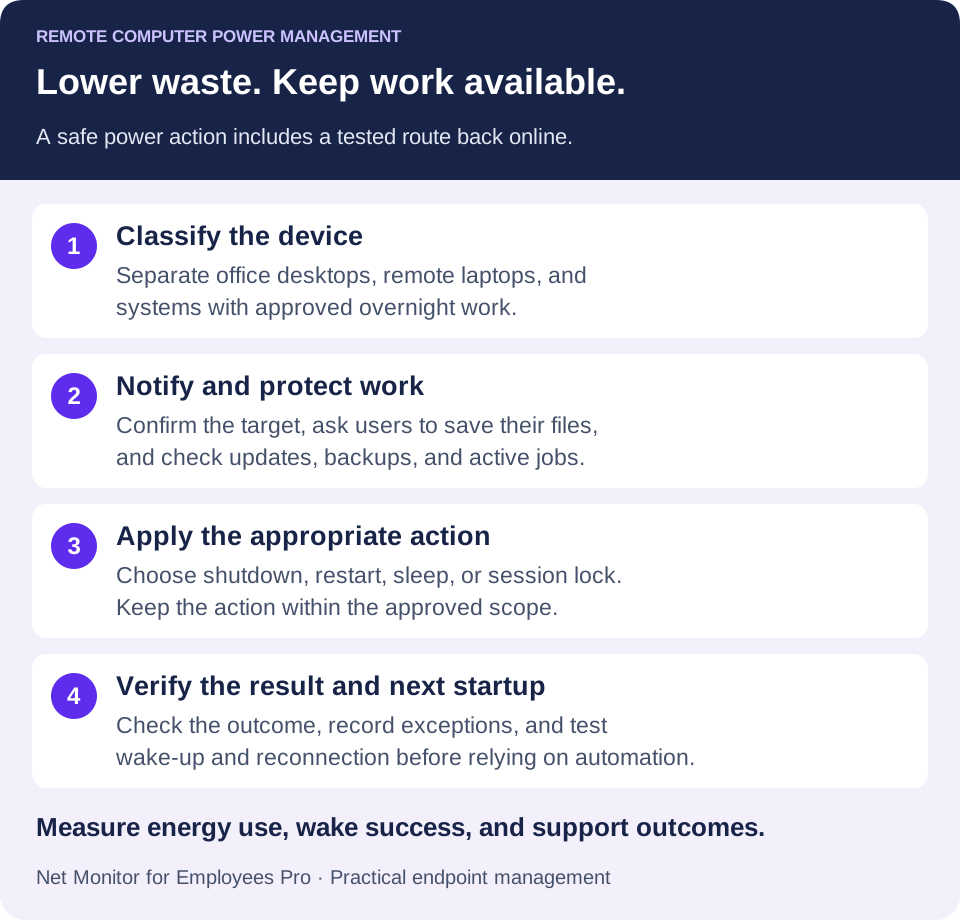
- Confirm the target and connection. Select only the authorized computer or group. Check the device identity, local working hours, and any approved after-hours exception.
- Check for work that must continue. Ask the user to save files. Check for backups, transfers, updates, rendering, or other jobs that the action would interrupt.
- Notify and agree on timing. Use your normal support channel or the employee messaging tools to agree on the action. A manual warning is not an automatic cancellation or deferral feature.
- Send the appropriate action. In Tools, use Power Off for shutdown or choose the control appropriate to the approved task. Avoid force-closing work unless your procedure specifically permits it.
- Verify the outcome and recovery. A lost connection alone cannot distinguish shutdown from a network failure. Confirm the result through the available device evidence or the user, record it, and test the next startup before relying on an unattended schedule.
05Use remote restarts to shorten support delays
Remote rebooting is one of the fastest ways to resolve routine endpoint issues. A system that is slow, disconnected from a business application, or behaving unpredictably may recover after a controlled restart. Without remote power tools, support staff must wait for the employee to be available, explain the process, and hope the restart actually occurs.
With centralized management, IT can verify the device state, notify the user, and issue the needed action. This is especially useful for unattended office computers and remote users who are not technically confident. It also helps distinguish a completed restart from closing an application or putting the device to sleep: reconnect and check the affected service before closing the ticket.
Power control becomes more valuable when combined with live screen viewing, desktop recording, remote command execution, and file management. If a restart does not solve the issue, the administrator can continue investigating instead of switching between disconnected tools. That reduces downtime and preserves a clearer record of what occurred.
A software restart command requires a responsive agent and working management connection. If the operating system is completely frozen, the network is down, or the machine has lost power, a console command may not reach it. Escalate through your approved local or separately provisioned hardware-management process. After a successful reboot, verify both reconnection and the original application problem.
06Protect company computers after hours
Power management supports security, although it is not a replacement for endpoint protection, access controls, disk encryption, or patching. A workstation that is fully shut down is unavailable for normal interactive use and no longer maintains its running user session. Its stored data still needs protection, and supported hardware may retain wake or management capabilities. Treat shutdown as one layer in the endpoint policy.
For devices that must stay on, locking the session and applying screen-lock policies are essential. IT should also monitor for unusual after-hours activity, unauthorized applications, and connections to prohibited websites. If a device remains active without a business reason, administrators need the ability to investigate and take action quickly.
This is particularly relevant for organizations handling customer records, financial data, proprietary files, or regulated information. An employee who leaves a computer running in a shared space creates risk even if no malicious intent is involved. Consistent power and lock policies reduce the chance that an avoidable oversight turns into a reportable incident.
Preserve the maintenance window. Shutting down too early can prevent security updates, backups, or a planned support session from completing. Keep required systems online under the approved exception, lock unattended sessions, and apply the power action after the job is verified. Give every exception an owner and a review date.
07Measure energy savings and support outcomes
Power management should produce evidence, not just good intentions. Track how many devices remain powered on after scheduled hours, how often reboot commands resolve support tickets, and which departments require repeated exceptions. These numbers reveal whether policies are working or simply being bypassed.
Energy savings vary based on device type, local utility rates, monitor configuration, and existing sleep settings. Do not make inflated claims before collecting data. Instead, establish a baseline for after-hours device activity, apply a policy to a defined group, and compare results after several weeks.
The U.S. Department of Energy’s computer-efficiency guidance recommends using built-in power management in a way that matches operating needs and checking that it stays enabled. For your own estimate, use measured or manufacturer-supported power figures for the device and monitor configuration you actually manage.
A simple energy-saving estimate
Energy saved (kWh) = devices × reduction in watts × hours reduced per day × days ÷ 1,000. Multiply the result by your electricity price per kWh to estimate the energy cost avoided.
For illustration only: 20 workstations using 40 W less for 10 extra hours on 220 days would save 1,760 kWh. At an assumed US$0.20 per kWh, that is US$352 before software, deployment, or support costs. These are example inputs, not measured product savings or a guaranteed result.
Measure computer and monitor consumption consistently, and subtract savings already delivered by existing sleep settings. Activity logs can help explain when computers are used, but they are not electricity meters. Compare measured power, after-hours checks, wake success, and support tickets before and after the pilot. Account for seasonality, changing shifts, and approved exceptions.
The same reporting can reveal accountability issues. If a workstation repeatedly stays active late at night, determine whether it supports approved work, a failed automation process, or an employee ignoring policy. Context matters. A control that flags exceptions is useful; a control that assumes every exception is misconduct is not.
08Pilot power management in the same console as oversight
Use a separate result for each trial device: action requested, connection before the command, observed power state, wake method, and successful return to the business task. Compare those results with the administration acceptance checklist. A disconnected thumbnail alone cannot prove shutdown or energy savings.
Net Monitor for Employees Pro supports this workflow by pairing remote power actions with live screen viewing, activity logging, desktop recording, remote file access, and device controls. An administrator can review the visible activity, check with the user before a restart, and apply an appropriate action to selected computers. Keep the approval and outcome in your service desk alongside relevant activity evidence.
Start with a limited rollout rather than changing every endpoint at once. Test shutdown schedules, Wake-on-LAN behavior, user notifications, and maintenance windows on a representative group of devices. Correct the exceptions, then expand the policy with confidence.
Use a representative set of office desktops and remote laptops for the trial. Document the supported power actions for each platform, test a real shutdown-and-return cycle, and check a maintenance exception. Include a failed-connection case so the team knows what to do when a command cannot reach the target. The remote computer administration guide explains the broader support workflow.
The goal is to have company devices available when work requires them, in an appropriate lower-power state when it does not, and covered by a tested process for maintenance, wake-up, and recovery.
09Remote computer power management questions
Can I shut down several company computers remotely?
Net Monitor for Employees Pro documents immediate Tools actions for selected computers. Select the intended devices, check their connection and work status, and use Power Off only after the approved notice and maintenance checks. Confirm results per device rather than assuming a group action succeeded everywhere.
Can Wake-on-LAN turn on a computer over the Internet?
Only when the hardware and network path support the intended wake operation. An online management connection does not by itself provide a wake path to a powered-off machine. Test the target’s firmware, adapter, power state, and actual network route, especially for home laptops and separate subnets.
Does locking a workstation save electricity?
Locking protects the user session but does not itself put the computer into a low-power state. Sleep, hibernate, and shutdown serve different energy and availability needs. Select the supported state that preserves the required work and a reliable way to resume.
Can I remotely restart a completely frozen computer?
A software reboot needs a working connection and a responsive agent. It can help when an application is stuck but the management service still responds. A completely unresponsive operating system may require an approved local intervention or separately configured hardware-management capability.
Are daily time limits the same as a shutdown schedule?
No. The documented Time Restrictions feature responds to daily active usage minutes per user. A fixed time-of-day schedule is a separate requirement. Check the scheduling tools you plan to use, the local time zone, user notices, and maintenance exceptions before enabling automation.
How much can remote power management save?
Savings depend on the number of devices, their actual power use, unnecessary powered-on hours, current sleep policies, and electricity rates. Establish a baseline, pilot a representative group, and compare energy use and support outcomes. Include the cost of deployment and any impact on morning availability.