Application access control / Practical guide
How to Block Unauthorized Software on Computers
Control which applications employees can run, reduce unapproved installations, and keep legitimate work moving with tested rules and clear exceptions.

An employee installs a free PDF converter, a browser extension, or a remote-access utility because it seems useful. By the time IT finds it, that tool may have exposed company data, introduced malware, or created an unapproved path into a company device. The ability to block unauthorized software on computers is a direct control over security, productivity, licensing costs, and accountability.
For small and midsize businesses, the goal is to ensure that company-owned endpoints run approved tools with known security settings and a clear business purpose. That requires more than telling staff not to install software. It requires technical enforcement, visibility into what is running, and a process for approving legitimate exceptions.
01Identify unauthorized software and the risk it creates
Unauthorized software rarely arrives with a warning label. It can be a consumer cloud-storage app used to share files with a client, a screen-recording tool installed for training, a game downloaded during downtime, or an unlicensed copy of paid software. Each case creates a different problem, but all of them reduce the company's control over its endpoints.
Unvetted applications may contain malware, collect credentials, transmit files outside approved storage, or conflict with security software. Remote-control utilities deserve special attention because they can allow an employee or outside party to access a workstation without IT oversight. Even legitimate software can create risk when it is outdated, misconfigured, or installed from an unofficial source.
There is also an operational cost. Unapproved apps consume bandwidth, disk space, and support time. Employees may use personal messaging, file-sharing, or AI tools to handle company information without knowing where that data is stored. Maintaining accurate software and license records also makes it easier to respond to vendor licensing reviews.
Create an approved software baseline
Record the application name, publisher, supported version, business owner, approved source, and teams that need it. Compare that baseline with installed-software inventories and application usage records. An installed application may be unused; a portable executable may run without appearing in a conventional installed-programs list. Both are relevant to the review.
Start with the categories that create the greatest exposure: unapproved remote-access tools, consumer synchronization clients, unlicensed software, games, and unfamiliar executables. Confirm the business purpose before making a rule. A specialist utility required by engineering should have a defined owner and scope, rather than being treated the same as an unknown download.
02Restrict software installation with least-privilege access
Standard users should not have local administrator privileges on company computers unless their job truly requires them. Administrative rights allow users to install many applications, change security settings, and weaken existing protections. Review everyday accounts separately from accounts used for approved administration.
This does not mean IT must slow down the business. Establish a defined approval path for software requests, then deploy approved tools through your managed installation process or provide controlled, temporary elevation when justified. Strict privilege control can frustrate technical staff or employees who need specialized software. Those roles need tailored permissions and a practical support process.
Blocking installation is different from blocking execution
Removing administrator rights is an important starting point, but it is not a complete application policy. Some software installs within a user's profile, and portable applications can run without a conventional installation. Microsoft also notes that standard users can install packaged apps in its AppLocker policy planning guidance. Decide what may run as well as who may install software.
For example, denying permission to install a personal file-sync client does not remove a copy that is already present. Check the existing software inventory, restrict unapproved execution with the appropriate control, and remove unwanted installations through your administration process.
03Choose application allowlisting or targeted blocking rules
No single setting will stop every unapproved application. A practical program combines prevention with detection. Prevention limits what users can install or run. Detection identifies policy gaps, repeated attempts, and software that was already present before controls were introduced.
Use a blocklist for specific prohibited applications
A blocklist restricts named applications while leaving other programs available. It is a practical starting point when a team needs varied tools and IT has identified specific unwanted software. Examples include unauthorized remote-access utilities, peer-to-peer clients, games, and unapproved cloud drives.
A denylist requires ongoing maintenance. New applications, renamed files, updated executables, and companion processes can change the result, depending on how the control matches software. Verify the actual executable and the rule's matching behavior rather than assuming a display name covers every related component.
Use an allowlist for a defined set of work tools
An allowlist permits an approved set of applications and restricts others within the scope of the chosen control. It can suit kiosks, shared workstations, or departments with a stable set of business tools. Plan for dependencies such as sign-in helpers, printing components, update services, and accessibility software before enforcing the list.
A strict allowlist takes more preparation, especially for teams using specialized line-of-business applications. Begin with a well-understood device group, document required programs, and expand after the pilot demonstrates that legitimate work continues. Keep a tested way to restore the previous policy.
Match the policy to the enforcement technology
On managed Windows devices, dedicated application-control systems may support rules based on publishers, file hashes, or paths. Microsoft documents App Control for Business and AppLocker as Windows application-control options. Review the supported rule types, operating systems, and deployment requirements for the tool you choose. Where audit mode is available, review its results before enforcement.
File-type or folder restrictions need particular care. Rules for installers, scripts, or files in download and temporary folders can affect legitimate setup and maintenance tasks. A desktop application's name-based restriction is not automatically equivalent to publisher validation, script control, or a security policy that prevents code from executing.
04Control browser extensions and software download sources
Browser extensions require their own managed-browser policy and verification. Keep executable rules here and extension/profile settings in the browser baseline; neither automatically configures the other.
For managed Chrome browsers, Google's app and extension policy guidance describes allow and block settings. Apply policies to the intended users or browsers and check their actual coverage. Also decide which browsers the organization supports; a policy in one managed browser does not automatically configure another browser.
Web filtering can reduce unwanted software downloads. Restrict download sources and services that create a documented business risk, while keeping approved vendor and update locations available. A design team may need a vendor download page that is unnecessary for accounting.
Use website blocking on work computers as a complementary control. Blocking a download website does not prevent a program already on the device from running. Review application restrictions, browser policies, and website access together without treating them as interchangeable.
05Block unauthorized applications with Net Monitor for Employees Pro
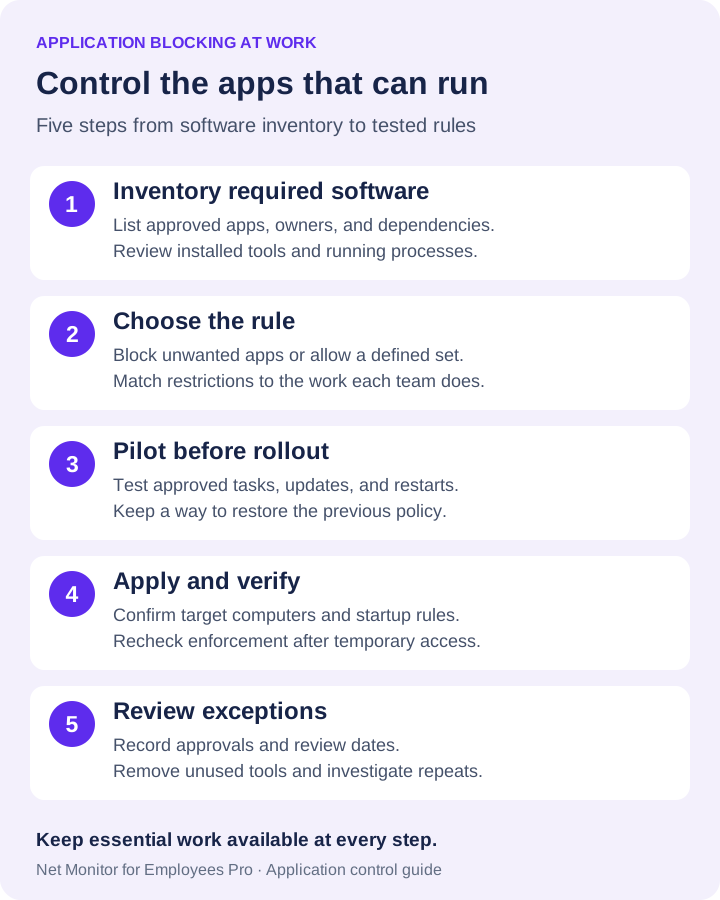
Net Monitor for Employees Pro gives administrators a central place to inspect running applications and processes and apply application restrictions. The Applications and Processes help documents the controls below. Begin with a pilot computer and a harmless test application before applying a policy to a department.
- Inspect the application and its process. The Applications tab lists visible application windows or tasks. Use the Processes tab for background processes and details such as the PID and command line. Confirm the item belongs to the unwanted application before acting on it.
- Build the appropriate list. Use Add to blocked/allowed list to copy application names from selected rows into the policy lists. Keep essential business applications and supporting components in mind when preparing an allowlist.
- Select the rule mode. In Blocking Applications, choose Block list to restrict the listed applications or Allow list to permit the listed set. The tab also provides Allow all and Block all; understand their effect before applying either mode.
- Check the computers in scope. Use same settings for all computers applies a shared policy globally. With shared settings off, policy can be loaded for the current computer and applied to selected computers. Confirm the scope before changing access.
- Apply and test the rules. Select Apply settings, then try launching the test application and the approved programs employees need. Check related processes and work tasks, not just whether one window closes.
- Verify startup behavior and temporary access. Configure Automatically start rules when restrictions must start with the remote computer, then test after a restart. Temporary allow all disables enforcement while preserving the lists. Restore the intended policy after troubleshooting and verify it again.
Closing an app once does not replace an ongoing rule
End Task closes the selected application on the current computer; End all tasks with same name targets that application on all selected computers. The process controls provide Kill process and Kill all processes with same name. These are immediate administrative actions. Persistent restrictions are configured separately in Blocking Applications.
Before closing a task, consider unsaved work and confirm the affected computers. Application restrictions do not uninstall a program, classify it as malware, or replace endpoint protection. Verify supported behavior on each platform and configuration you manage. For administration over the Internet, follow the remote connection and Cloud licensing guidance.
06Monitor application activity and respond to unauthorized software
Blocking without visibility creates blind spots. IT needs to understand which applications run on each endpoint and whether unwanted software continues to appear. Process inspection is especially useful for portable applications or utilities with no visible window.
Use the Application usage report and report filters to review recorded activity by computer, user, and time range. Combine that history with relevant live screen viewing when you need to verify the current state. Keep application usage records separate from installation events and blocked-launch logs: consult the operating system or enforcement tool for those records when available.
Monitoring should be tied to written company rules and applied consistently. Employees should understand that company devices are managed assets, what activity is recorded, and how an exception can be requested. Limit access to activity records to staff who need them for the defined task.
Investigate before deciding on a response
Do not treat every discovery as a disciplinary event. First, determine what the software is, who installed it where records establish that, what permissions it has, and whether it accessed or transmitted company data. A calculator app presents different questions from a remote desktop tool, credential manager, cloud-sync client, or unknown executable.
For potentially dangerous software, follow the organization's incident-response procedure. That may include isolating the endpoint, preserving relevant records before changes, removing the program, changing exposed credentials, and scanning for related components. Check whether the same application appears on other devices; one installer may have been shared across a department.
For lower-risk violations, remove the software through your approved administration process, document the incident, and explain the approved alternative. Repeated violations call for a review of permissions, training, and the circumstances. Consistent enforcement matters: if unauthorized software is routinely ignored on some devices, the policy becomes difficult to maintain.
07Build a software approval process employees will use
Employees bypass policy when getting approved software takes days and they need a solution now. A short, predictable request process reduces that pressure. Require the requester to identify the software, its business purpose, the vendor, the data it will access, and the urgency of the request.
IT can then evaluate whether the application is legitimate, licensed, compatible with existing systems, and acceptable for the data involved. Where possible, offer an approved alternative. If a team requests a public file-sharing tool, point them to the company storage platform instead of issuing a vague rejection.
Set response targets for ordinary and urgent requests. Not every tool deserves immediate approval, but employees need to know that a legitimate business need will be reviewed. A fast approval process makes strict blocking easier to maintain.
- Keep exceptions specific. Record the application, requesting team, affected computers, business owner, and approving person.
- Set a review or expiry date. A temporary project tool should not become a permanent, unowned exception.
- Record the policy change. Note which rule or list changed and how to restore the previous configuration.
Maintain this approval record in your support or change-management process. A software allowlist and a temporary bypass control do not themselves provide an approval workflow.
08Test the rollout and measure whether the controls work
A blocking program should improve over time. Review blocked-launch or installation attempts where the relevant control records them, repeat unauthorized application usage, exception requests, approval turnaround, and legitimate work interrupted by a rule. These measures show whether policies are too loose, too restrictive, or unclear.
For the pilot, test a prohibited application, approved applications, supporting processes, an ordinary software update, and a restart. Include representative employee accounts and device configurations. For remote laptops, verify the policy in the connection conditions employees actually use.
Also review the approved software inventory at regular intervals. Remove applications that are no longer needed, patch those that remain, and verify that licenses match actual use. Every unused application adds another potential attack surface and support obligation.
Start with the devices and software categories that create the greatest exposure, then expand based on verified results. Clear policies, restricted privileges, tested application controls, and useful activity records help keep company computers focused on company work.
Application-rule acceptance checks
- Installed, portable, and user-profile copies: test each relevant launch path with a standard employee account.
- Helper processes and updates: confirm sign-in, printing, accessibility, and the next approved software update still work.
- Restart and recovery: verify that intended rules resume, test the documented temporary exception, then restore and recheck enforcement.
For each test, record the executable, computer, account, expected result, actual result, policy owner, and rollback. A single closed window is not proof that every launch route is controlled.
09Questions about blocking unauthorized software on computers
How do I stop employees from installing unapproved software?
Remove unnecessary administrator rights and provide an approved software request and deployment process. Also configure application and browser policies for your environment. Installation permissions alone do not cover every user-level application, extension, or portable program.
Can I allow only approved applications on a work computer?
Yes, with an allowlist supported by your chosen application-control tool. Net Monitor for Employees Pro includes an Allow list mode in Blocking Applications. Test required helper programs and everyday work before applying a restrictive list broadly.
Does blocking an application uninstall it?
No. A restriction controls application use within the scope of its rule. Removing installed software is a separate administrative action. After removal, check that the rule still addresses any remaining or reintroduced copies.
Can portable applications run without administrator rights?
Some can. Review running processes and use appropriate execution controls alongside installation restrictions. Test the specific application and device policy; do not assume that the absence of an installer makes the program approved.