Website access control / Practical guide
How to Block Websites on Work Computers Safely
Choose targeted website rules, keep essential business tools accessible, and test restrictions before rolling them out across office and remote computers.

A single streaming site open across ten employee desktops can cost more than it appears. The visible distraction is one problem. Unmanaged browsing can also expose a business to malicious sites, unapproved file sharing, and bandwidth pressure. To block websites on work computers effectively, businesses need more than a long blacklist. They need targeted controls, visibility, and a process for legitimate exceptions.
01Start with a clear website blocking policy
Website restrictions work best when they support a defined operational goal. That goal may be reducing non-work browsing during scheduled shifts, preventing access to gambling or adult content, limiting social media use in a customer service department, or blocking known phishing and file-sharing sites that create security exposure.
A vague rule such as “no personal internet use” is difficult to enforce consistently. Employees, supervisors, and IT staff need to know what is restricted, when it is restricted, and why. A policy can allow reasonable personal access during breaks while restricting high-risk or high-distraction sites during working hours. The right balance depends on the role. A marketing team may need social platforms for customer research, while a payroll team may have no business reason to access them from a company endpoint.
Put the rule in writing before applying technical controls. State that company-owned computers and accounts are for authorized business use, explain what web activity may be monitored, and identify the process for requesting a site review. Have the appropriate HR and legal reviewers check the policy for the locations where employees work, including remote staff.
02Identify which websites need blocking
Blocking every non-business website is rarely practical. It creates support tickets, interrupts legitimate research, and encourages employees to use personal devices or mobile data for tasks that should remain within approved company systems. Focus on the services that create a measurable productivity, security, or compliance problem.
Common targets include entertainment and streaming platforms, gambling sites, adult content, unauthorized cloud storage, peer-to-peer downloads, web proxies, cryptocurrency mining pages, and known malicious domains. Some businesses also restrict webmail, messaging platforms, and generative AI tools when they could be used to move confidential information outside approved systems.
The distinction between categories matters. Blocking all cloud storage may limit unauthorized file transfers, but it can also stop a sales representative from accessing an approved client portal. Block the specific risky service where possible, then maintain access to approved business tools. Category filtering and automatic threat lists are capabilities to check in your chosen filtering system; they are different from maintaining a manual list of website addresses.
Use website activity reports to find the real problem
Do not build restrictions from assumptions alone. Review website usage reports, application activity, and relevant screen evidence. Where available, consult bandwidth data from your network tools to identify repeated patterns. If one department spends extensive time on video platforms, determine whether the cause is entertainment, required training, or a poorly organized internal knowledge base.
This evidence-based approach prevents overblocking. It also gives managers a factual basis for coaching and helps IT explain a restriction when a user asks why access changed. A filtered activity report is more useful than a general complaint that people are “wasting time online.” Website visits and time totals still need context; neither proves poor performance on its own.
Choose a blocklist or an allowlist
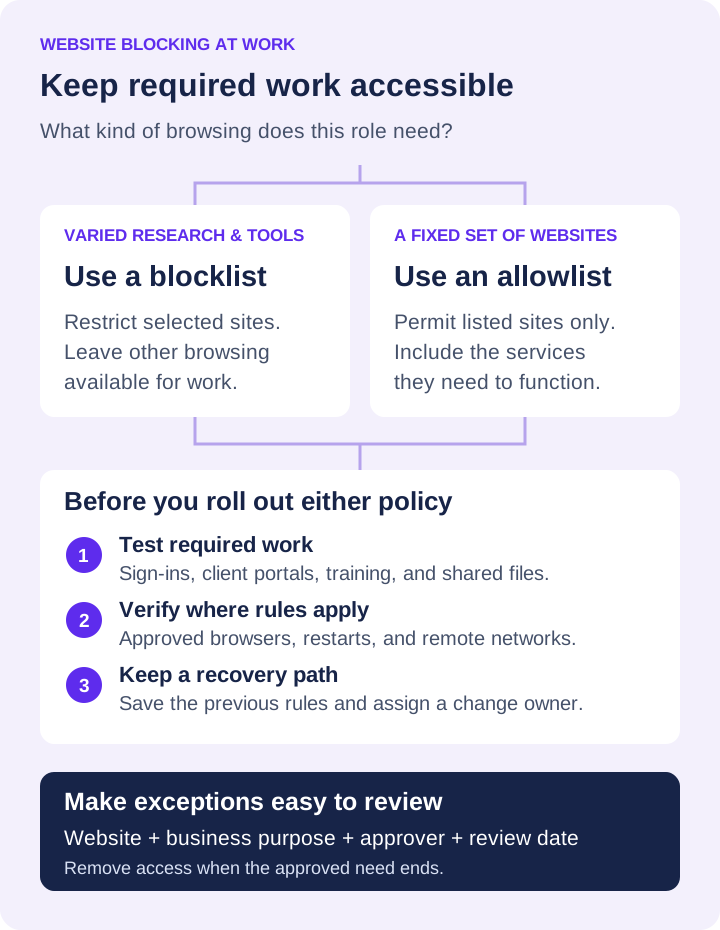
- A blocklist restricts selected websites while leaving other browsing available. It usually suits teams that need varied research, customer portals, and changing business resources.
- An allowlist permits only the websites you specify. It can suit a kiosk, shared workstation, or narrowly defined task, but requires more testing because sign-in services, embedded content, and related domains may also be needed.
Start with the mode that fits the job. A support workstation with three required services has different needs from an analyst’s research computer. Keep a copy of the previous list so you can reverse a rule that interrupts work.
03Choose how to block websites on work computers
There is no single best control point for every business. The right method depends on whether devices are office-based, remote, centrally managed, or used across several networks.
Network filtering for office locations
A firewall, secure web gateway, or DNS filtering service can restrict websites for devices whose traffic uses that control. This is efficient for an office, call center, or branch location because IT can apply policy centrally. Confirm what the service filters: a domain-level rule is not the same as a rule for an individual page within a website.
The limitation is coverage. An office-only network rule does not automatically follow a laptop home, to a hotel, or onto a phone hotspot. Remote traffic needs to pass through an enforced company connection or a separately configured roaming or endpoint control. Test the actual connection path rather than assuming office filtering protects every device everywhere.
Managed browser policies for Chrome and Edge
Managed browsers offer another control point. Administrators can configure URL block and allow policies, but those policies apply within the managed browser and their supported scope. Review Google’s Chrome website access policy guidance and Microsoft’s Edge URLAllowlist documentation before configuring exceptions. Test URL matching and required sign-in flows; a browser policy does not automatically restrict every other browser or application on the computer.
Endpoint website restrictions for mobile teams
Endpoint controls are installed on the company computer and can provide enforcement beyond the office network when supported and configured for that environment. They are useful for hybrid staff, traveling employees, and remote workers. Evaluate website rules alongside application restrictions and device administration, then confirm which operating systems, browsers, and connection conditions are covered.
Endpoint blocking requires careful deployment and testing. Browser updates, encrypted traffic, alternate browsers, and changing web domains can affect results. Apply a pilot policy to a small group first, confirm that required sites remain available, and then expand the rule to the appropriate department.
Pair website blocking with visibility and response
A blocked-site message stops an action within the scope of the rule. It does not explain the business purpose of the attempted visit or establish whether someone used another route. Monitoring and endpoint administration provide context. Use blocked-request logs where your filtering system supplies them, and keep those separate from reports of websites actually visited.
Net Monitor for Employees Pro combines website restrictions with live screen viewing, website and application reports, desktop recording, and remote control functions. An administrator can review relevant activity, check whether it is work-related, and choose an appropriate response. For administration over the Internet, configure the Cloud connection and subscription-based Cloud license. Validate website enforcement on your own endpoints rather than assuming that remote connectivity proves every rule is active.
Compare the point where the website rule is enforced
- Network or DNS: covers traffic through the configured service; verify the remote connection path and whether matching is domain-level. Keep exceptions with the network policy owner.
- Managed browser: covers the managed browser and policy scope. Verify the effective policy, profiles, and other browsers; follow Chrome and Edge policy verification.
- Endpoint URL control: verify supported browsers, startup, and rule scope on the computer. Test the blocked site and an approved portal, including redirects; do not assume content-aware data protection.
Record the owner, affected devices, exception, and rollback for each layer. One successful test at the office does not establish enforcement on a home network.
04Set up website blocking in Net Monitor for Employees Pro
The Internet Control help documents URL and keyword lists, allow and block modes, startup behavior, and blocked-site actions. Use the following sequence on a test computer before changing access for a whole team.
- Choose the computers and policy scope. Open Internet Control for the managed computers. Check Use the same settings for all computers carefully: a global profile is appropriate only when those computers need the same rules.
- Select an access mode. In Blocking Websites, choose to allow all websites, block all websites, block only listed websites, or allow only listed websites. A short blocklist is often a useful starting point for a pilot.
- Add the required addresses. Build the relevant website list. Load... and Save... let you import or export lists. Use Block sites that contain those words cautiously: broad words in an address can also match legitimate business websites.
- Choose what the employee sees. The Settings tab offers Show message, Redirect, or Close browser. A clear message with an exception contact can explain the restriction. Test browser-closing behavior carefully because it may interrupt other open work.
- Apply and verify the configuration. Use Apply settings. Test one blocked site and several approved work flows. If policy must persist after restart, configure Automatically start rules when computer is started and verify the result after rebooting the test device.
- Check advanced and temporary settings. Test Use Advanced Blocking on the intended endpoint configuration before a wider rollout. Temporary allow all websites bypasses blocking until policy is re-applied; use it deliberately and confirm that the restrictions are restored afterward.
These are website access controls, not an automatic approval workflow. Record approvals, expiry dates, and change ownership in your support process. Test supported behavior on each endpoint platform you plan to manage.
05Apply rules by role, device, and working time
A restriction that is sensible for one group may block legitimate work for another. Apply policies by job function instead of treating every workstation identically. Finance, customer support, warehouse operations, engineering, and marketing often have different browser requirements and different levels of risk.
Working-time rules can also reduce friction. A business may restrict entertainment sites during shifts but allow limited access during lunch periods. Another may enforce stricter restrictions on public-facing computers, shared workstations, or regulated departments while allowing broader access on research devices. If your chosen filtering system supports schedules, test them; otherwise define who changes the policy and when. Do not assume that a written break-time exception is automatically enforced by the software.
Device groups make a rollout easier to organize. Separate office desktops, executive laptops, remote employees, kiosk systems, and administrative workstations as appropriate. Test new rules on a pilot group. Document the policy version, affected computers, purpose, and approving person. When using a global configuration, confirm that it does not override the differences you intended between groups.
06Review attempts to bypass website restrictions
Potential gaps include alternate network connections, unapproved browsers, proxy services, VPN extensions, and remote-access applications. Whether one bypasses a rule depends on where that rule is enforced. Blocking the original site without checking the intended coverage can produce a false sense of control.
This does not mean IT should chase every possible workaround with increasingly invasive restrictions. It means the organization should set a clear standard: employees may not use unapproved tools or alternate connections to defeat controls on company-owned systems. Use approved browser management, application restrictions, and relevant activity records to investigate repeated problems.
Treat every suspected bypass in context. An employee attempting to access a blocked news site may need a reminder or a legitimate exception. Repeated use of an unapproved service to transfer company files may require a security investigation. The response should match the risk and the evidence. Website blocking is one layer of protection; it does not replace endpoint security or controls over how sensitive files are shared.
07Keep website exceptions specific and documented
Every blocking program needs a fast, documented path for legitimate access. Without one, employees either wait for IT, abandon useful work, or find their own workaround. A simple request should identify the website, business purpose, requesting employee, manager approval when appropriate, and requested duration.
Time-limited exceptions can reduce unnecessary long-term access. A researcher may need a site for one project, while a vendor portal may be required only by a specific team. Set an expiry or review date in your request system, and assign an owner to remove the exception if the filtering tool does not expire it automatically.
Keep the approval decision separate from technical implementation. Managers should confirm the business need. IT or security should assess the site's risk and the scope of the change. This division prevents convenience from becoming the only standard.
Approve the narrowest workable change. If a vendor login fails, identify the required sign-in or supporting domain before permitting an entire category. Test the exception with the employee, record what changed, and retain the previous configuration so you can restore it.
08Test the rollout and measure business impact
The goal is not to accumulate blocked-page counts. A high count may indicate that a rule is working, that a list is too broad, or that one user is repeatedly retrying a page. Where those counts are available, look at them alongside work output, incident tickets, malware alerts, bandwidth use, and manager feedback.
A website blocking test checklist
- Essential work: can employees sign in to email, customer portals, training, and approved cloud tools, including their supporting pages?
- Rule accuracy: are intended sites restricted while similarly named business sites remain accessible?
- Coverage: does the policy behave as expected on approved browsers, after restart, and on the office and remote connections employees use?
- Recovery: can IT restore the previous configuration promptly if a rule disrupts an important task?
- Exceptions: is there a named reviewer, an expiry or review date, and confirmation that temporary access has ended?
Review the data at set intervals. If a restriction produces frequent legitimate requests, refine the policy. If repeated access attempts involve one team or location, investigate the workflow behind the behavior. Sometimes the fix is a block. Sometimes it is better training, an approved alternative tool, or a manager addressing workload and accountability.
Website blocking is most effective when it is clear, specific, and enforceable. Set the rule, apply it where the device operates, preserve relevant evidence, and make legitimate work possible. That gives managers control without turning every routine web request into an operational obstacle.
09Common questions about blocking websites at work
Can I block websites on work computers without blocking the whole Internet?
Yes. A blocklist restricts selected websites while leaving other access available. Net Monitor for Employees Pro provides a mode to block only listed websites. Begin with specific addresses, test the results, and expand the list only when the business need is clear.
Will the same website restrictions work when employees are at home?
That depends on the control point and configuration. An office network rule alone does not cover a laptop using an unrelated home connection. Evaluate endpoint or roaming filtering, or an enforced company connection, and test the rule on the supported devices and networks your remote team actually uses.
How do I allow a business website that has been blocked?
Confirm the business need, identify the exact website and required dependencies, and adjust the relevant list or rule for the appropriate computers. Record the approval and review date. A temporary bypass of all websites is broader than a specific exception and needs careful restoration of the policy afterward.
Does website blocking show how productive employees are?
No. Access rules enforce browsing policy; they do not measure work quality. Use activity reports as context and compare them with assigned work, completed tasks, and legitimate exceptions before making a performance decision.