
Application and Process Restrictions for Employee Computers
Using the Monitoring Console
Applications and Processes can be used to discover and control running apps and background processes on remote computers.
This feature allows managers to quickly stop unwanted apps and keep employees focused on approved work tools.
Typical use cases include:
- Stopping unauthorized chat, game, or remote-access tools.
- Closing blocked applications on all selected computers.
- Ending stuck background processes that slow employee computers.
- Building an allow-only list for exam, kiosk, or focused-work mode.
- Checking which applications employees actually use during shifts.
Applications Tab
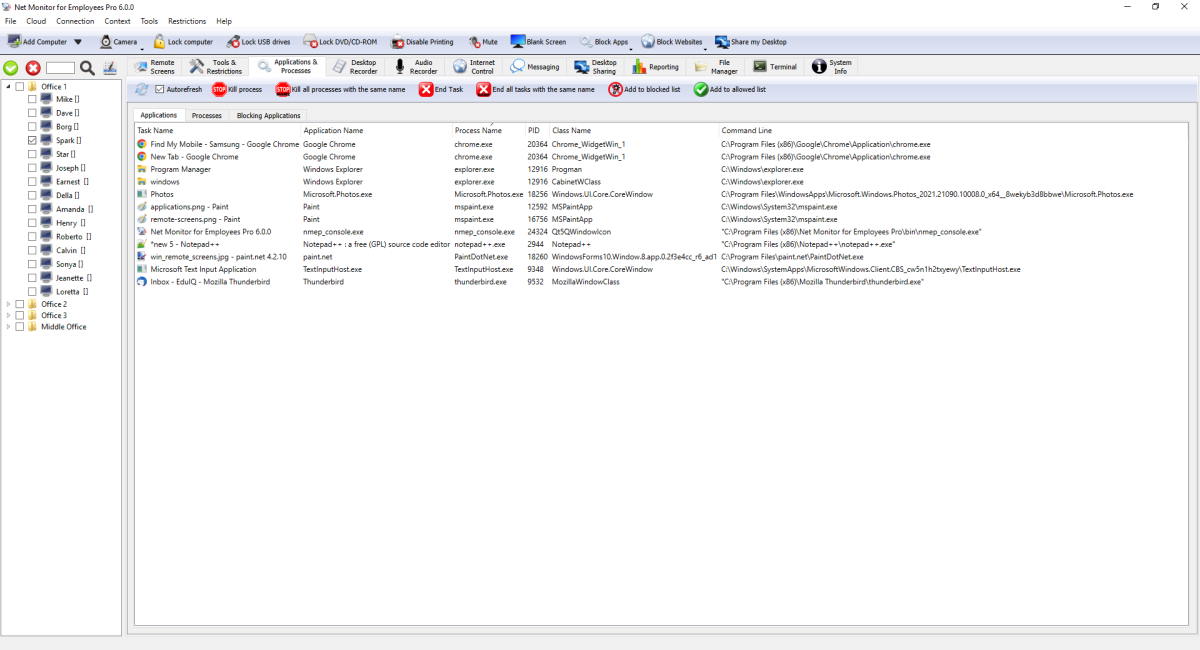
This tab shows visible application windows/tasks. Use it when you need to act on user-facing apps.
- End Task closes the selected app on the current remote computer.
- End all tasks with same name closes the same app on all selected computers.
- Add to blocked/allowed list copies app names from selected rows into policy lists.
Processes Tab
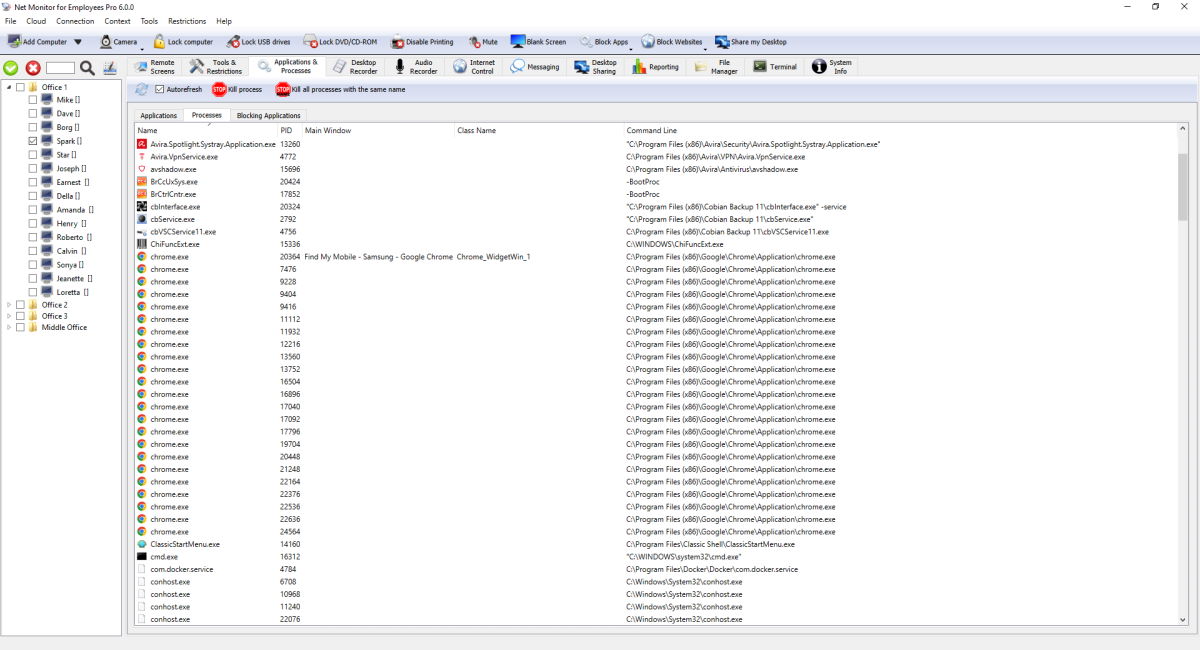
This tab is process-level administration (PID, class, command line). It is useful when applications have no visible task window.
- Kill process targets selected PID on current computer.
- Kill all processes with same name stops that process on all selected computers.
- Autorefresh runs every 5 seconds and keeps list current while this context is active.
Blocking Applications Tab

This tab defines remote computer run policy. The rule set is saved and sent as settings.
- Allow all, Block all, Block list, or Allow list.
- Automatically start rules starts automatic blocking when the remote computer starts.
- Use same settings for all computers keeps one shared policy and applies it globally.
- When shared settings is off, policy can be loaded per current computer and applied only to selected computers.
- Temporary allow all disables enforcement but keeps blocked/allowed lists intact.
- Apply settings applies current rule mode and list settings immediately.
Ready to start monitoring your employees?
Buy this application now. You will never regret your decision.
Buy Now