
Staff Monitoring Tools and Computer Restrictions
Tools and Restrictions can be used to run immediate actions on employee computers and apply rules that stay active.
This feature allows managers to react fast during incidents, enforce work policy, and keep employee computer use under control.
Typical use cases include:
- Showing an urgent message on all selected computers during an incident.
- Locking USB, printing, or Task Manager during exams, audits, or sensitive projects.
- Setting daily time limits so employees log off after allowed usage time.
- Quickly restarting or locking selected computers when policy is violated.
- Applying temporary controls while managers investigate suspicious activity.
- Restoring normal access after the monitoring or incident action is finished.
Tools Tab (Immediate Actions for Employee Computers)
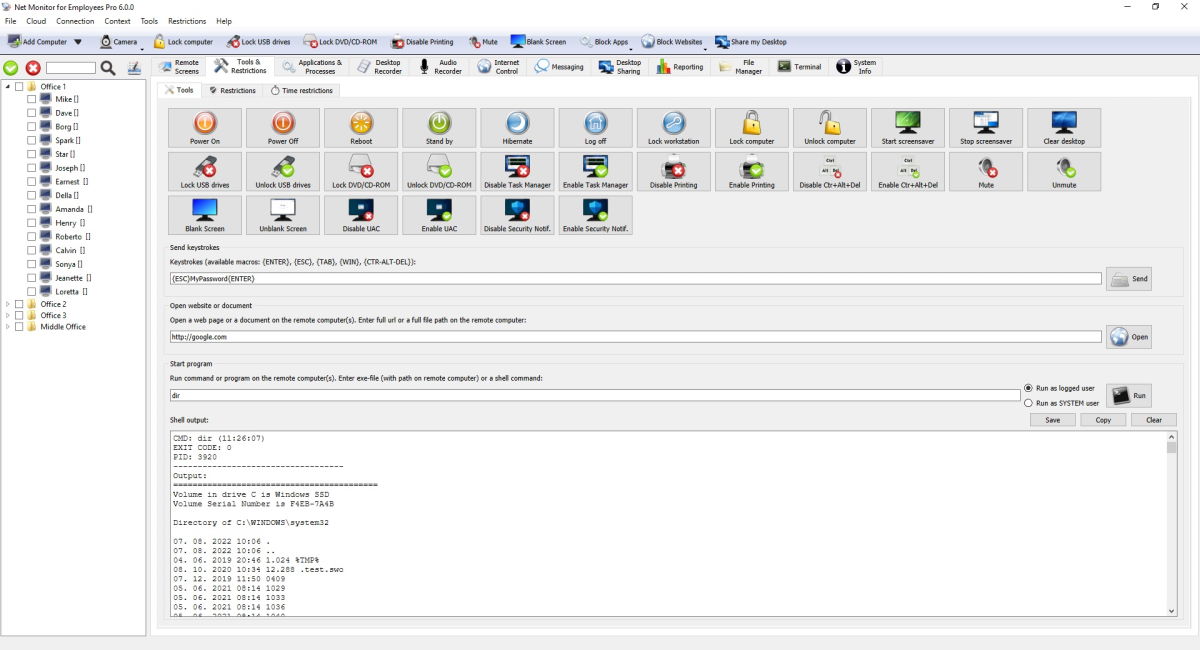
This tab executes actions immediately on selected computers. The console executes actions directly on selected employee computers.
Tools tab actions and what each action does:
| Action | What it does |
|---|---|
| Power On | Turns on selected computers (Wake-on-LAN, if available). |
| Power Off | Shuts down and powers off the computer. |
| Reboot | Restarts the computer. |
| Stand by | Puts the computer to sleep. |
| Hibernate | Saves current work and powers down. |
| Log off | Signs out the current user. |
| Lock workstation | Locks the current user session. |
| Lock computer | On Windows, blocks the physical keyboard, mouse, and laptop trackpad, including on sign-in and security screens, until an administrator unlocks it. |
| Unlock computer | Removes the lock set by Lock computer. |
| Start screensaver | Starts the screensaver on the remote computer. |
| Stop screensaver | Stops the screensaver on the remote computer. |
| Clear desktop | Clears desktop items from view (depends on OS support). |
| Lock USB drives | Blocks USB storage use. |
| Unlock USB drives | Allows USB storage use again. |
| Lock DVD/CD-ROM | Blocks DVD/CD drive use. |
| Unlock DVD/CD-ROM | Allows DVD/CD drive use again. |
| Disable Task Manager | Stops users from opening Task Manager. |
| Enable Task Manager | Allows Task Manager again. |
| Disable Printing | Stops printing. |
| Enable Printing | Allows printing again. |
| Disable Ctr+Alt+Del | Turns off Ctrl+Alt+Del options on supported systems. |
| Enable Ctr+Alt+Del | Turns Ctrl+Alt+Del options back on. |
| Mute | Mutes system sound. |
| Unmute | Unmutes system sound. |
| Blank Screen | Shows a blank screen to the user. |
| Unblank Screen | Shows the normal screen again. |
| Disable UAC | Turns off UAC prompts on supported Windows computers. |
| Enable UAC | Turns UAC prompts back on. |
| Disable Security Notif. | Turns off security notifications on supported Windows computers. |
| Enable Security Notif. | Turns security notifications back on. |
Additional commands in this tab:
| Command | What it does |
|---|---|
| Send Keystrokes | Sends keyboard input to selected computers. Supported macros are {ESC}, {TAB}, {ENTER}, {WIN}, {CTR}, {CTR-ALT-DEL}, {BACKSPACE}, {INSERT}, {DELETE}, {HOME}, {END}, {PGUP}, {PGDN}, {LEFT}, {UP}, {RIGHT}, {DOWN}, and {F1} to {F12}. {CTR-ALT-DEL} sends the real secure key combination (it is not typed as text). |
| Open Website or Document | Opens a website URL or document path on selected computers. |
| Start Program | Runs a command on selected computers as logged user or SYSTEM and shows command output. |
Restrictions Tab (Persistent Employee Computer Restrictions)

Use this tab for restrictions that stay active. Unlike Tools, these settings are applied globally to all employee computers (not only currently selected computers).
Persistent restrictions available in this screen:
| Restriction | What it does when Enabled |
|---|---|
| Lock computer | On Windows, keeps the physical keyboard, mouse, and laptop trackpad blocked across desktop, sign-in, and security screens until you disable this restriction. |
| Lock USB drives | Keeps USB storage blocked. |
| Lock DVD/CD-ROM | Keeps DVD/CD drive use blocked. |
| Disable Task Manager | Keeps Task Manager disabled. |
| Disable Printing | Keeps printing disabled. |
| Disable Ctr+Alt+Del | Keeps Ctrl+Alt+Del options disabled on supported systems. |
| Mute | Keeps sound muted. |
| Blank Screen | Keeps screen blank. |
| Set Audio Volume | Keeps a fixed sound level. |
When you enable a restriction, the action is applied right away. When you disable it, the reverse action is sent (for example lock USB / unlock USB). Settings are stored on the remote computer and applied again after reconnect.
Time Restrictions Tab (Daily Computer Time Limits)
This tab is based on daily active usage minutes per user.
Time-restriction actions available in this screen:
| Action | What happens after the configured daily usage threshold |
|---|---|
| Power Off | Shuts down the computer. |
| Reboot | Restarts the computer. |
| Stand by | Puts the computer to sleep. |
| Hibernate | Puts the computer into hibernation. |
| Log off | Signs out the current user. |
| Lock workstation | Locks the current user session. |
The agent checks usage regularly. When daily limit is reached, it runs the selected action. If Show message is enabled, users first see your message, then the action runs. Restrict Administrator accounts decides if admin sessions are also limited.
Remote Login to Windows Employee Computers
Use Login to sign in to or unlock selected Windows employee computers. Enter Username and Password. Domain is optional; when it is empty, each remote computer uses its detected Windows domain or workgroup.
If Username or Password is empty, the console shows a warning and focuses the missing field.
- Select connected employee computers.
- Enter Username, Password, and an optional Domain.
- Click Login, review the confirmation, and choose Yes.
The password is cleared after the request. Successful computers show no message. If login fails, the red Status line lists each affected computer and the reason. If Windows is showing an incorrect-password message with an OK button from an earlier attempt, send Login again.
Remote Login requires a current Windows Agent and an authenticated, encrypted service connection. Use it only on computers and accounts you are authorized to access.
Ready to start monitoring your employees?
Buy this application now. You will never regret your decision.
Buy Now