
Remote System Information and Employee Computer Inventory
Using the Monitoring Console
System Info can be used to collect hardware, software, and network inventory from remote computers into one report.
This feature allows managers to collect clear computer details for support, audits, and employee follow-up without checking each machine manually.
Typical use cases include:
- Checking employee computer details before remote troubleshooting.
- Finding missing software, outdated versions, or unsupported hardware.
- Troubleshooting network and account configuration problems.
- Preparing compliance and asset-inventory reports.
- Comparing multiple employee computers to spot configuration differences.
System Info Reports
Generate structured system/inventory reports from selected remote computers. Reports are built step by step and update as each remote computer sends data.
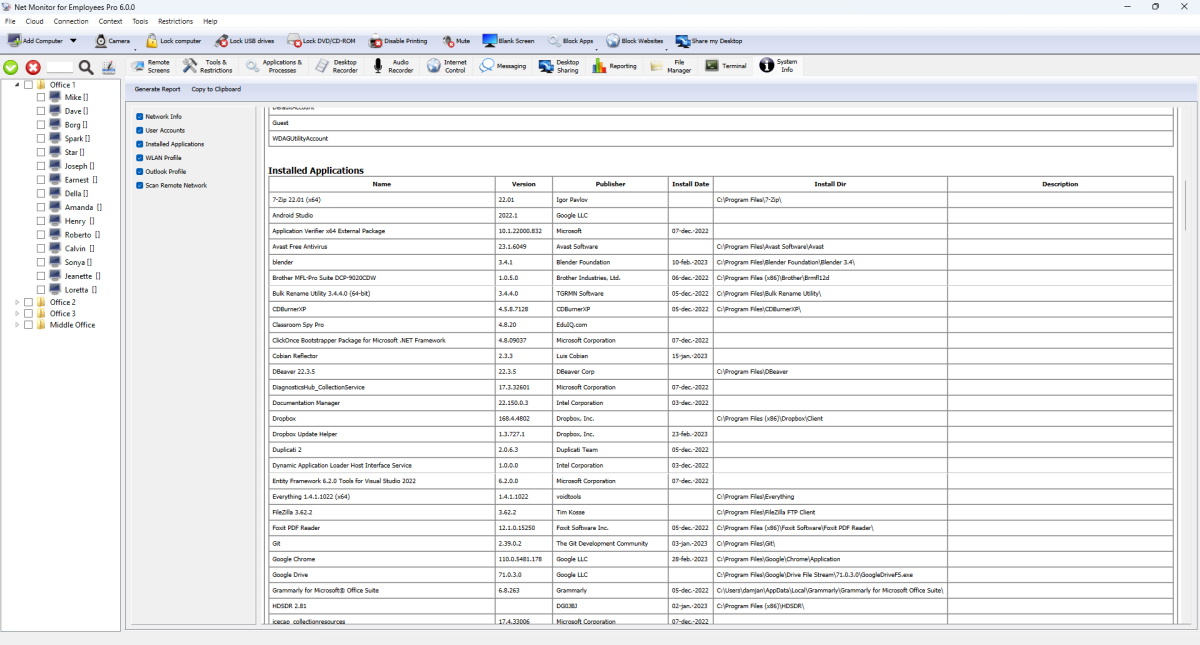
What This Screen Gives You
- Generate Report requests selected sections from all selected connected remote computers.
- Copy to Clipboard copies current report output for ticketing, audits, and documentation.
- Checkboxes control exactly which report sections are queried.
Report Sections Explained
- Network Info: external IP plus network interfaces and IP/subnet details.
- User Accounts: local user accounts found on remote computer.
- Installed Applications: app name, version, publisher, install date, directory, description.
- WLAN Profile: profile name, authentication, encryption, and key fields.
- Outlook Profile: account and server profile data.
- Scan Remote Network: discovered hosts with IP, host name, MAC, and vendor mapping.
Recommended Workflow
- Select target remote computers in the tree.
- Check only reports needed for this task.
- Click Generate Report and wait for responses.
- Export quickly with Copy to Clipboard.
Important Notes
- Remote network scan can run longer than other sections and results appear progressively.
- Some sections may include sensitive values (for example WLAN keys/profile credentials).
Ready to start monitoring your employees?
Buy this application now. You will never regret your decision.
Buy Now