
Remote Terminal CMD PowerShell Bash for Employee Computers
Using the Monitoring Console
Terminal can be used to check problems and run commands directly on remote computers.
This feature allows managers and support staff to troubleshoot quickly without opening full remote control.
Typical use cases include:
- Running quick checks on employee computers without opening full remote control.
- Collecting logs and service status during incident investigation.
- Running shell commands on selected computers.
- Applying fast fixes when employees report technical issues.
- Verifying that policy or software changes were applied correctly.
Remote Terminal
Terminal opens an interactive shell on the selected remote computer (for example cmd.exe on Windows or /bin/bash on Linux/macOS).
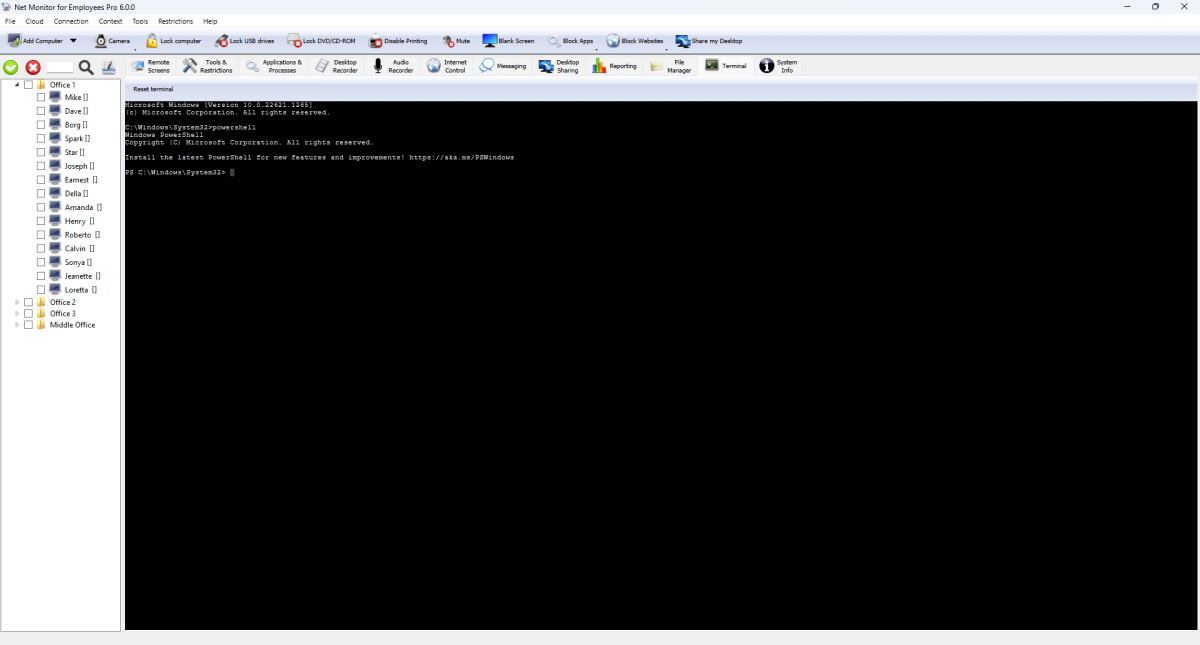
What You Can Do In This Screen
- Run commands interactively on the selected connected computer.
- Use Reset terminal to stop current shell and start a clean shell session.
- Switch between computers while keeping each session output separated.
How Terminal Sessions Work
- When Terminal tab is selected, the console starts terminal session automatically for current connected remote computer.
- Keyboard input is sent directly to the remote computer shell, and results appear in real time.
- Terminal window resize keeps the shell display readable in full-screen and split views.
- Each remote computer keeps its own command output, so switching computers does not mix history.
When To Use Reset terminal
Use Reset terminal when the shell looks stuck, prompt is broken, or output stops unexpectedly. Reset starts a fresh shell. If the remote computer shell exits on its own, the terminal session is restarted automatically.
Ready to start monitoring your employees?
Buy this application now. You will never regret your decision.
Buy Now