
Remote Desktop Control for Employee Computers
Remote Control can be used for direct hands-on support when a manager or technician needs to use keyboard and mouse on a remote computer.
This feature allows you to reduce time to resolution by fixing issues in the exact user context.
Typical use cases include:
- Helping an employee fix a problem in real time.
- Completing blocked updates or configuration steps remotely.
- Showing an employee the correct workflow step by step.
- Verifying suspicious behavior while the employee is online.
- Confirming immediately that a fix worked before ending the session.
Remote Desktop Control
Open a live keyboard and mouse session for the selected remote computer. You can start from Object Menu in computer tree or from remote-screen actions.
Start Session From Object Menu
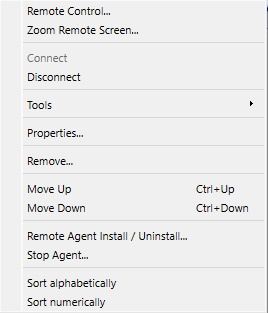
- Right-click connected computer/session and choose Remote Control....
- Console asks for confirmation before taking over keyboard and mouse.
- Use Zoom Remote Screen... when you need view-only mode.
Remote Control Window Controls
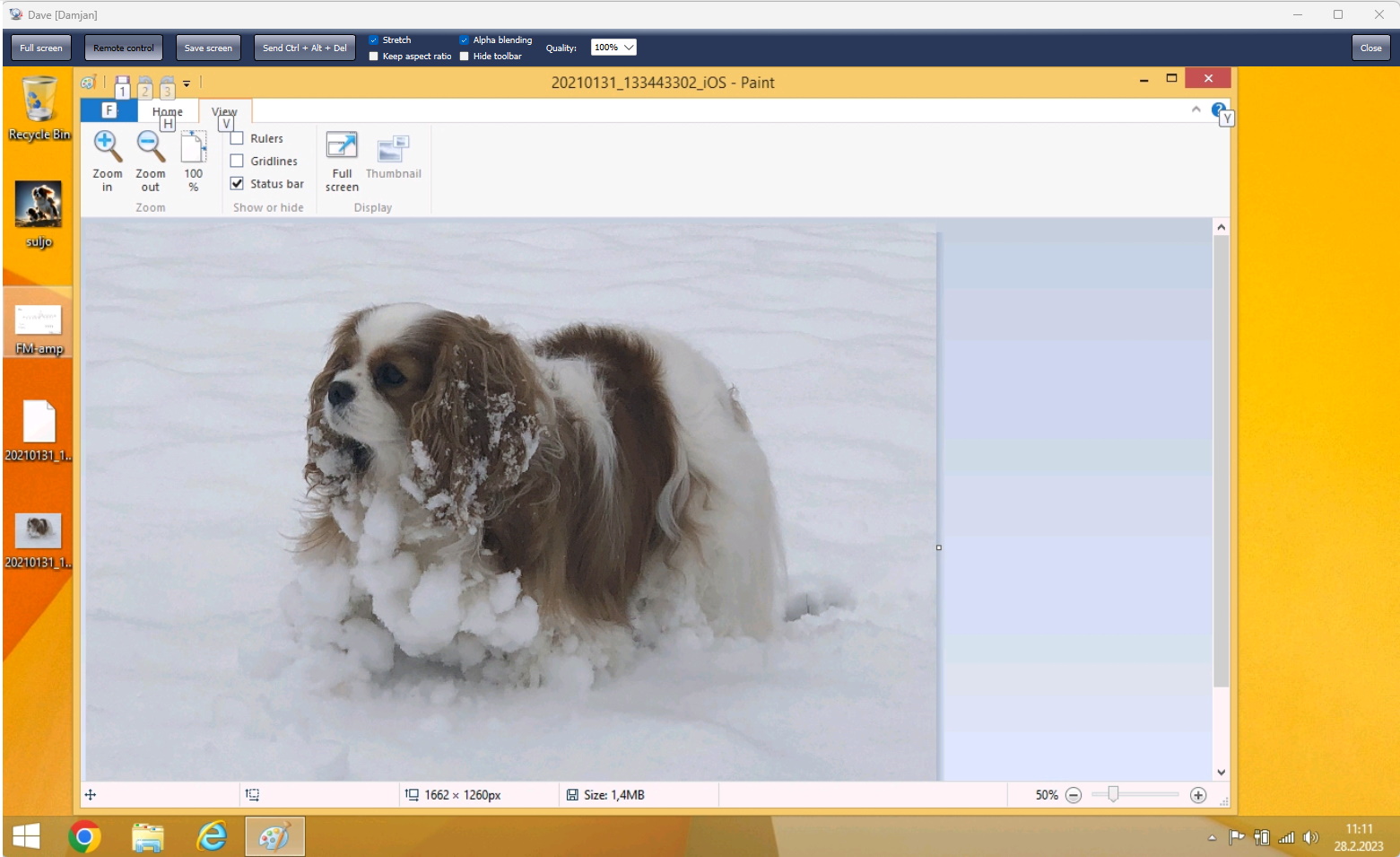
- Full screen toggles fullscreen mode.
- Remote control enables/disables keyboard and mouse takeover during session.
Blank remote screen: Shows black on the remote displays while the console keeps showing the desktop, and automatically locks local input. Off by default.- Lock remote mouse and keyboard blocks the physical keyboard, mouse, and laptop trackpad on a Windows remote computer while the console operator can still control it. This option is off by default.
- Synchronize clipboard automatically exchanges clipboard data between the console and remote computer. This option is on by default.
- Send clipboard sends the current console clipboard to the remote computer when automatic synchronization is off.
- Retrieve clipboard copies the remote computer clipboard to the console when automatic synchronization is off.
- Send Ctrl + Alt + Del sends this key combination to the remote computer.
- Display selects monitor when remote computer has multiple displays.
- Stretch, Keep aspect ratio, Alpha blending, and Quality adjust image look and speed.
- Hide toolbar auto-hides controls and shows them again when cursor reaches top edge.
- Save screenshot saves the current remote screen image.
Mobile Console
During Remote Control on iOS or Android, open the object menu to use Lock remote mouse and keyboard, Synchronize clipboard, Send clipboard, and Retrieve clipboard. The defaults and behavior are the same as in the desktop console.
Session Notes
- Common display quality/aspect options are reused in next sessions.
- On Windows, remote-input locking is reapplied if the computer switches to the security or sign-in screen, including after Send Ctrl + Alt + Del.
- Closing remote-control window releases control and console monitoring continues.
Frequently Asked Questions
How can I stop a remote user from using the keyboard, mouse, or trackpad without losing console control?
Select Lock remote mouse and keyboard during Remote Control. Local physical input is blocked on the Windows remote computer, but input sent by the console continues to work. Clear the option when the user should regain control.
How can I transfer clipboard data only when I choose?
Clear Synchronize clipboard, then use Send clipboard to send the console clipboard or Retrieve clipboard to copy the remote computer clipboard to the console.
Does input blocking continue on the Windows sign-in or security screen?
Yes. Remote Control input locking and Lock computer block the physical keyboard, mouse, and trackpad across Windows desktop changes. Remote Control still accepts console input; Lock computer blocks all input until Unlock computer is used.
Screen blanking FAQ
How can I blank the remote screen while keeping my console view?
Enable Remote control and select Blank remote screen. The remote displays turn black while you continue to see and control the desktop. In Desktop Console, use the checkbox in the third toolbar column. In Mobile Console for iOS or Android, select the same option from the remote-control menu. Blanking is off by default.
Do I need to lock the remote mouse and keyboard separately?
No. Lock remote mouse and keyboard is checked automatically and cannot be cleared while blanking is active. The remote user's keyboard, mouse, and trackpad are blocked; console input continues to work. Ending blanking restores the previous manual input-lock setting.
Why is Blank remote screen unavailable?
The remote computer must run Windows 10 version 2004 or newer, including Windows 11, with an updated Windows Agent started by its service. Connect to the computer and enable Remote control. Update both Console and Agent and restart the Agent service if needed. Remote screen blanking is not supported on macOS, Linux, or ChromeOS agents.
How do I restore the remote display?
Clear Blank remote screen, turn off Remote control, or close the remote-control window. If screen refresh requests stop, blanking ends automatically after about 10 seconds. A blanking-failure warning means the remote user may see the desktop; check the blanking state before continuing.
Ready to start monitoring your employees?
Buy this application now. You will never regret your decision.
Buy Now