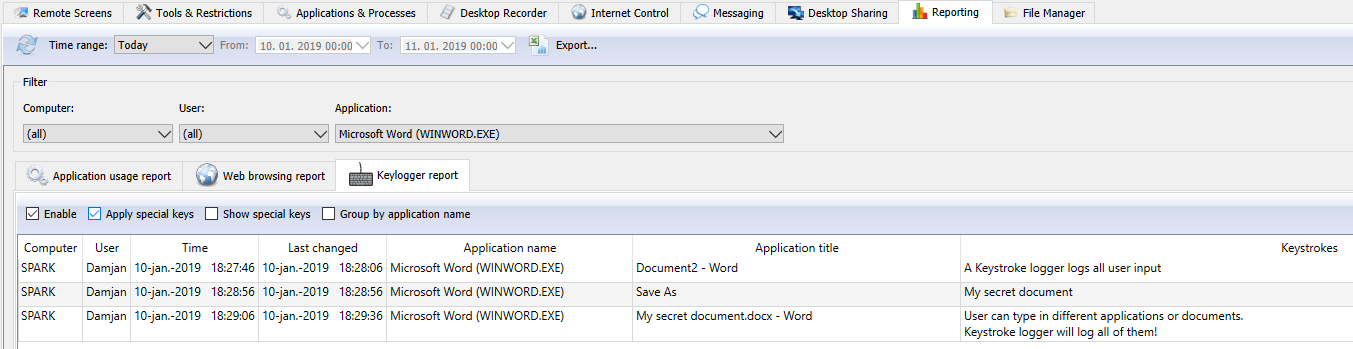
What can a keystroke logger record?
Keyboard activity can include text entered into documents, business applications, web forms, messages, and browser address fields. The report also records special key sequences, such as Enter, Alt, Ctrl, and Delete, which can help make typed activity easier to interpret.
A record of typing is one part of an activity timeline. It does not, by itself, confirm that a document was saved, a message was sent, or a task was completed. Compare it with the relevant application activity or screen recording before drawing a conclusion.
How to review keystroke activity efficiently
- Choose the computer and time period. Start with the device and work event you need to investigate. Use a time-range preset or a custom range.
- Focus on the relevant application. Filter the report where appropriate to separate activity in a business tool from unrelated keyboard input.
- Review the entries in context. Read typed text and key sequences alongside application and website reports. Use screen recordings when you need the visual sequence of events.
- Export the relevant report. Use Export... in the Console to save the current report output for an authorized review or internal case record.
Practical uses for a business keylogger
Investigate a reported error. Review keyboard activity around a data-entry mistake or unexpected change in a business application. Check the surrounding activity to distinguish a mistake, an interrupted workflow, and an intentional action.
Follow up on a policy concern. Review the relevant application and period when a company device may have been used outside its intended purpose. Keep the review focused on the issue you are trying to establish.
Support an internal investigation. Combine keystroke records with other monitoring evidence when reviewing suspected misuse or potential data leakage. Retain the context that explains the entries rather than relying on an isolated phrase.
Control logging and retention
Keystroke logging is optional, and logged keystrokes are stored in encrypted form. In reporting settings, use Enable to control logging and Save configuration to persist the settings. Retention options can remove old records from remote computers and the local Console archive.
Define who may review and export keyboard activity, which devices are covered, and how long records are needed. Explain your monitoring policy to your team and keep access to sensitive records limited to the people responsible for the review.
Part of a wider employee monitoring toolkit
The keystroke logger works alongside live screen monitoring, activity reports, recording, and remote administration. Use the level of detail that answers your business question, then follow up with the employee or IT team to resolve the issue.