Remote file management / Practical guide
7 Remote File Management Controls for Employees
Send the right file, retrieve business records, and check before you delete. These seven controls help IT manage employee files remotely with clear approvals and verified results.
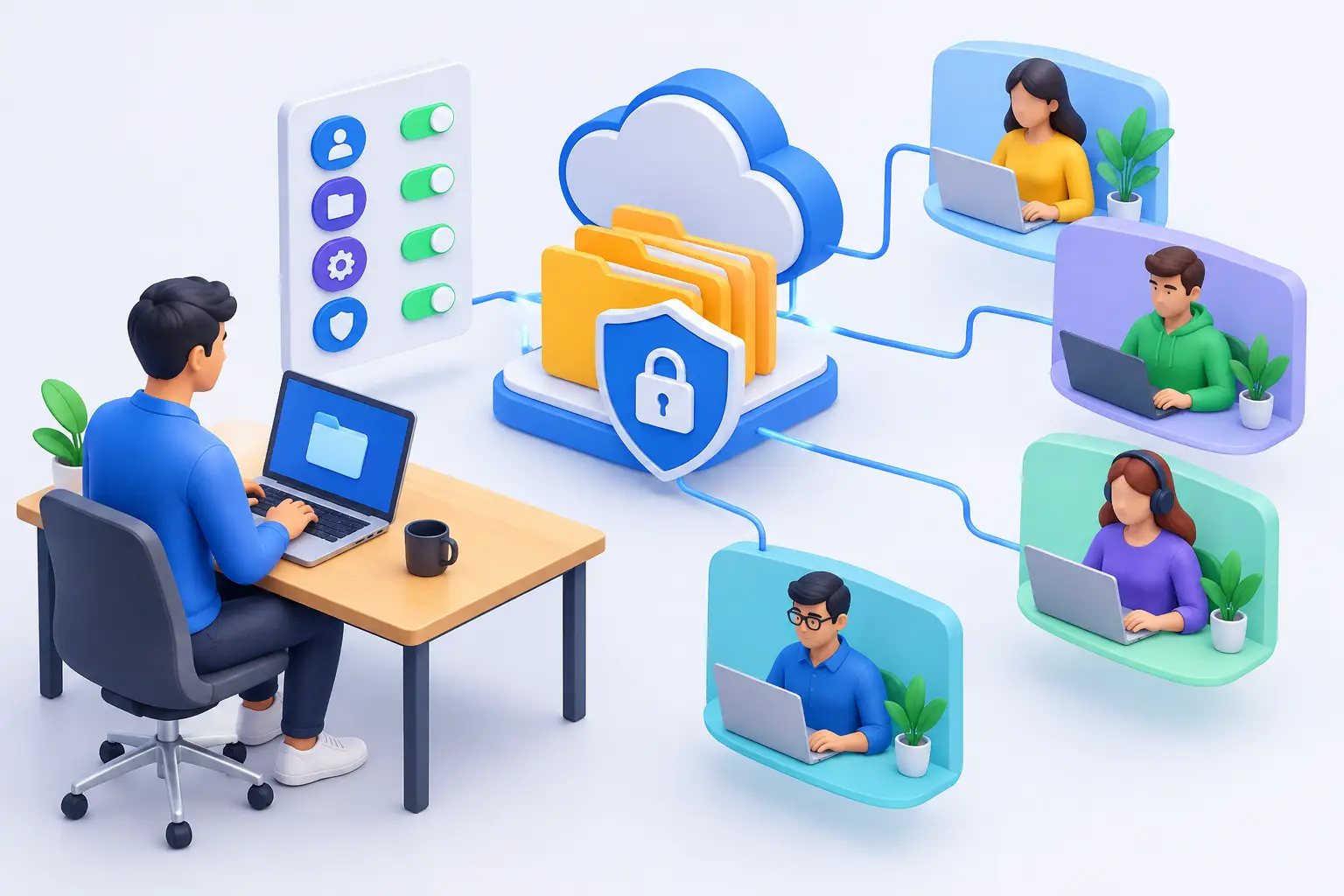
A departed employee still has a project folder on a laptop. A remote salesperson needs a revised proposal before a customer call. A manager discovers that sensitive files were copied to an unapproved location. These are not minor file-sharing inconveniences. They are operational and security problems. Remote file management for employees gives administrators a direct way to move, retrieve, organize, and control company data without waiting for a device to return to the office.
For small and midsize businesses, the goal is not to watch files for its own sake. The goal is to keep work moving, protect business records, and maintain authority over company-owned endpoints wherever employees work. The right controls reduce downtime when a user needs help and reduce exposure when an employee ignores policy or leaves the business.
01Why remote file management is an IT requirement
Remote work changed where files are created, stored, and copied. It did not reduce the need for management. Employees may work from home, customer sites, hotels, or a branch office with inconsistent access to shared resources. When IT has no practical way to manage files on those endpoints, routine support turns into a chain of emails, screenshots, and delays.
A centralized file management capability lets authorized administrators access the endpoint directly. They can send a required document, retrieve a report, delete an outdated installer, or inspect a folder related to an incident. That matters when local users are unavailable or unable to troubleshoot, provided the access is authorized and within the company’s policy.
It also supports accountability. If company documents exist only on individual devices, management may not know whether critical work is stored correctly, whether an employee is using personal storage, or whether sensitive files remain after a role change. Endpoint-level access helps IT investigate and correct those gaps; it does not automatically discover every copy of company data.
Net Monitor for Employees Pro brings file operations and endpoint visibility into one console. File Manager handles Send Files, Collect Files, Copy Files, and Delete Files without requiring a full remote-control session. Use your configured remote employee connection and test the workflow on the platforms you actually manage.
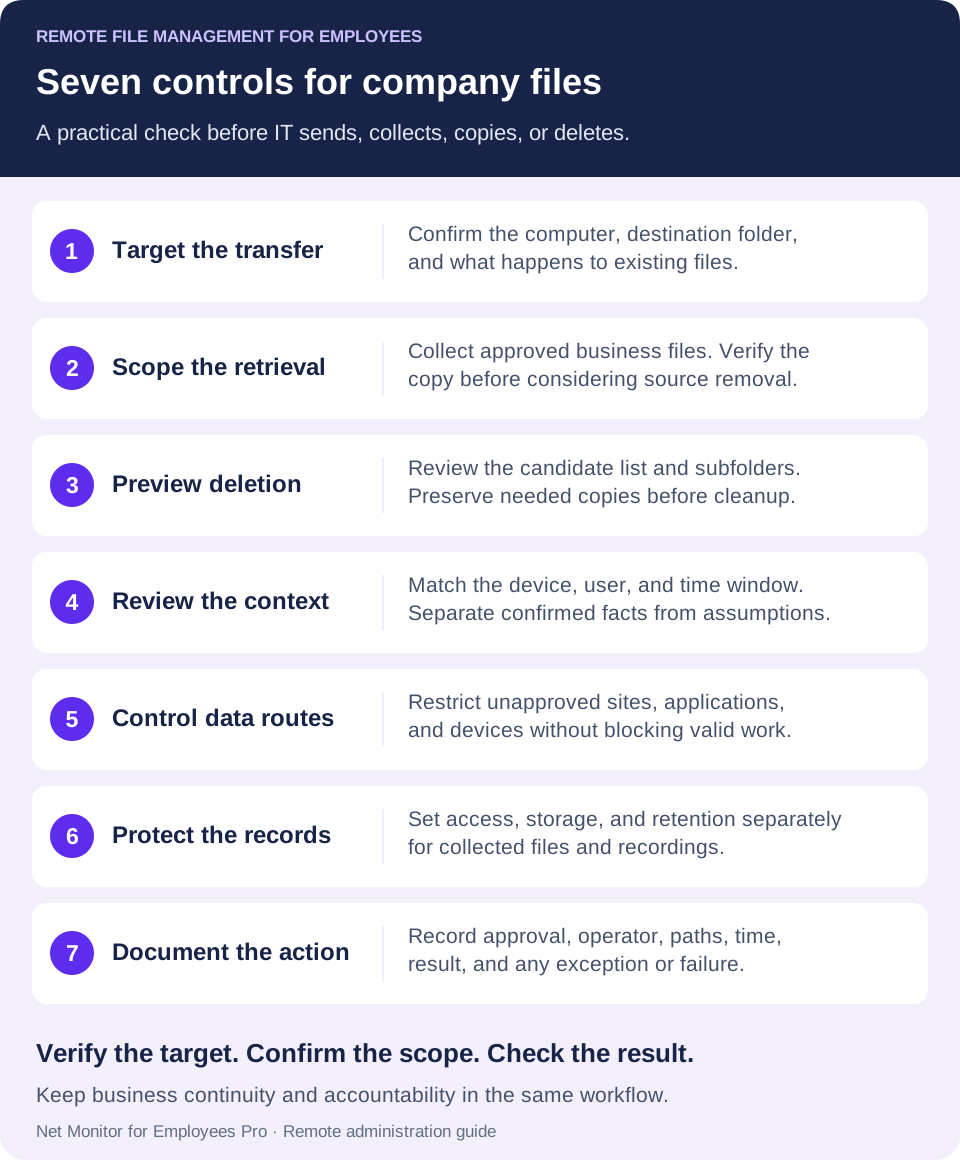
027 controls for remote file management for employees
1. Transfer files to the right employee computer and folder
A remote administrator should be able to copy files to and from an employee computer without asking the user to open a chat session, locate folders, or attach files to email. This is useful for deploying updated templates, collecting logs, retrieving completed work, and providing a corrected document immediately. The employee computer must be reachable through your configured connection, with the required agent and permissions in place.
Speed is important, but destination matters too. Set clear folder standards for business documents, approved software packages, and temporary support files. A file sent to an employee desktop may solve a short-term problem while creating a long-term records-management issue.
In the File Manager, use Send Files to deliver local files to selected employee computers. Confirm the destination folder, existing-file behavior, and transfer status. Sending a replacement proposal should not unintentionally overwrite the employee’s current draft. Leave Run files after sending off for ordinary documents; distribution and execution are separate decisions.
2. Retrieve business files during offboarding or absence
Employees take vacations, become unavailable, change roles, and leave. Business files should not become inaccessible because one person is away from a company computer. Remote retrieval gives IT a controlled method to collect project materials, customer records, exports, and locally stored documents when business continuity requires it.
Use this authority carefully. Define who can retrieve files, under what circumstances, and how the action is documented. Offboarding, incident response, evidence-preservation requests, and urgent customer support can be legitimate use cases when the retrieval is approved and appropriately scoped. Broad, undocumented access creates its own management risk.
Use Collect Files to bring files into console storage. Start with the narrowest suitable folder and exact file name or pattern. Organize results by computer or user so identical names do not lose their context. Verify the collected copy before considering any option that removes the remote original. Use VSS can help with locked files on supported systems, but it is not a substitute for a tested backup.
3. Preview files before deleting unapproved material
Unapproved installers, duplicate exports, and files outside approved business use can consume storage and create security exposure. A remote file management process should allow administrators to remove items that violate policy or interfere with performance.
Combine any approved removal with a record of the decision. Before deleting a suspicious file, capture the relevant activity record, file path, and reason for action when appropriate. If the item is connected to a policy violation, that record helps managers make decisions based on facts instead of assumptions.
The Delete Files workflow lists candidates before deletion. Run Find Files for Deletion, review the computer, folder, file pattern, and resulting list, and then approve the deletion. Treat Delete in subfolders as a scope change: a broad pattern can include legitimate work. Removing an installer does not uninstall an application already installed on the computer.
4. Put remote file actions in context
A file name rarely tells the whole story. A folder called "Client Data" may contain approved records, personal copies, or an export prepared for legitimate work. A relevant screen recording may show visible activity around a file operation if recording was enabled and captured that period. Live viewing shows the current screen; it cannot reconstruct an earlier event.
This is where endpoint administration and employee monitoring work better together than separate tools. Live screen viewing, desktop recording, website usage reports, application activity, and file control give managers context. If a confidential report was exported while an employee was logged into an unapproved web service, investigators can review that context alongside other records instead of relying solely on a file timestamp. Neither a website visit nor an application-use entry proves that a particular file was uploaded.
Use live screen viewing for an immediate support question and retained recordings for a relevant earlier period. Compare the device, user, time window, and available records before drawing a conclusion. File access, screen capture, and an administrator’s incident notes serve different purposes; none should be described as a complete file-transfer audit unless your systems actually provide that record.
5. Restrict unapproved routes for moving company data
Remote file management cannot prevent every data loss event by itself. Employees can move information through browsers, email clients, USB devices, personal applications, and cloud drives. Organizations need policy controls around the most common routes.
Before restricting a transfer route, verify an approved destination for the employee’s work. Test USB-storage restrictions separately from website and application rules, then document the result. A successful remote file collection proves that copy arrived; it does not prove all other copies or transfer routes are controlled.
Check the scope of each setting in the Tools and Restrictions guide before applying it. Test that a restriction blocks the intended route while approved work still succeeds. Define an exception owner and review date. For a broader prevention plan, connect these controls to your employee data-breach prevention process.
6. Protect collected files and supporting records
File operations are more useful when supported by reliable activity records. Store desktop recordings, screen captures, and available audit records in a business-controlled location with retention rules that match your security and compliance needs.
Net Monitor for Employees Pro supports local recording storage and external storage profiles for desktop and audio recordings, including SMB, FTP, SFTP, WebDAV, Amazon S3-compatible storage, Google Cloud Storage, and Azure Blob Storage, subject to platform support. These recording destinations are separate from the File Manager location used to collect business files. An off-network device must be able to reach its configured storage destination for uploads to succeed.
Storage decisions involve trade-offs. Longer retention may extend investigative coverage but increases storage cost and administrative responsibility. Keep high-value records long enough to support policy enforcement and incident review, then apply documented deletion schedules rather than accumulating data indefinitely.
Set access and retention separately for collected documents, recordings, exported reports, and incident notes. Recording encryption is configured independently of the recording destination; it does not automatically encrypt business files collected with File Manager. For recording storage, prefer secure supported protocols such as SFTP or WebDAV over HTTPS to unencrypted FTP. Verify platform compatibility and a successful upload before relying on an external copy.
7. Authorize and document administrator actions
Remote administration is powerful. It should be limited to authorized personnel and supported by internal rules. Establish role-based access where possible, require strong administrator credentials, and define escalation procedures for sensitive actions such as retrieving executive files or deleting employee data. Match each responsibility to the permissions available in the tool, administrator workstation, and storage system. Where approval or audit controls are not built in, record them in your service desk or another approved process.
Employees should also receive clear notice consistent with applicable requirements and a documented workplace monitoring policy. A monitoring and file-management program works best when it is presented as a business control for company systems, productivity, security, and records protection. Hidden or inconsistent practices create avoidable legal and employee-relations problems.
For each sensitive job, keep the request or ticket number, approver, operator, device, source and destination paths, action, time, and result. Note exceptions and failures as well as successes. An approval record and a verified outcome make a file operation easier to explain than an undocumented administrator session.
03A practical workflow for remote file incidents
When a manager reports that a needed file is missing or data may have been mishandled, avoid acting on guesswork. Start by confirming the device, user, file name or type, and relevant time window. Review available file, application, and security records to investigate whether the file was created, moved, uploaded, deleted, or simply saved in the wrong location. Distinguish confirmed facts from possibilities; an absent local file does not establish where it went.
Next, use remote access to retrieve a copy or place a required replacement file on the endpoint. If the activity indicates policy violations, follow the incident-response plan and preserve relevant evidence before changing files where practicable. Urgent containment may take priority when there is an active threat. Then apply the needed control, whether that means removing an unauthorized application, blocking a website, restricting a device, or escalating the matter to HR or security leadership.
Finally, document the outcome. Record what was found, what was transferred or removed, who approved the action, and whether a broader policy gap was identified. This turns isolated support work into an auditable process that improves future response.
Example: collect project files before a laptop is reassigned
Confirm the approved project folder and receiving owner. Collect a copy into a restricted destination organized by device or user, verify that the expected files are present and usable, and record the outcome. Only then carry out separately approved cleanup. If files need reorganizing on the same remote computer, use Copy Files and review Find Files to Copy before choosing whether existing targets are overwritten, renamed, or skipped. This is a local copy on the endpoint, not a transfer to the console.
04Remote file management mistakes to avoid
Do not treat remote file access as a substitute for backups. If a laptop is lost, encrypted by ransomware, or unable to connect, endpoint access may not be available. Maintain tested backups for critical business data and keep important work in approved shared systems when possible.
Do not give every manager administrative file access. Department leaders may need reports and visibility, but unrestricted endpoint control should stay with qualified IT or security personnel. Separation of duties reduces misuse and mistakes.
Do not focus only on deletion. Recovering a file is useful, but the larger question is why business data was stored locally, copied outside approved systems, or handled in a way that created risk. Use incident findings to tighten workflow rules and employee training.
Remote teams do not need less oversight because they work outside the office. They need practical controls that let management protect files, respond quickly, and verify that company data stays under company authority. Start by defining who can access endpoints, where business files belong, and what evidence your organization must retain when a file incident occurs.
05Remote file management questions
Can IT transfer files without starting remote desktop control?
Yes. File Manager in Net Monitor for Employees Pro provides send, collect, copy, and delete operations without opening a full remote-control session. The managed endpoint still needs the required agent, permissions, and a working connection.
What is the difference between collecting and copying files?
Collect Files downloads files from employee computers into console storage. Copy Files copies files between folders on the same remote computer. Choose the operation that matches the intended destination, and check how existing files will be handled.
Can remote file management recover files from an offline laptop?
It cannot retrieve a file while the endpoint is unreachable. In the documented collection workflow, unfinished downloads continue after reconnection. A lost device, deleted file, or damaged disk may require an existing backup or a separate recovery process.
Does external recording storage back up employee documents?
No. External storage profiles described in the recording help store desktop and audio recordings. Files collected through File Manager go to the selected console storage location. Plan and test backups for business documents separately.
What should IT check before deleting files remotely?
Confirm authorization, the target computer, source folder, file pattern, any subfolder option, and the previewed candidate list. Preserve needed evidence or copies under your incident process, then verify and document the approved result. Do not treat remote deletion as a substitute for application uninstallation or a backup policy.