Remote administration / Practical guide
Remote Computer Administration Software: SMB Checklist
Follow a support ticket from authorized access through an approved change, recovery planning, and verified resolution.

Remote computer administration software gives a small IT team a practical way to maintain computers across offices and homes. The task might be replacing a configuration file, stopping a failed application, or restarting a device after maintenance. Success means verifying the change and restoring the employee's workflow, not merely establishing a connection.
For businesses managing hybrid staff, traveling employees, branch offices, or fully remote teams, the issue is not simply technical support. It is accountability. Managers need to know whether devices are being used for work, whether users are following policy, and whether a problem can be corrected before it becomes downtime, lost data, or a security incident.
01Remote administration tasks an SMB should test
Evaluate remote computer administration software against a real support ticket. Record the requested change, target computer, employee contact, maintenance window, and technician. A successful connection is only the starting condition; the employee must be able to complete the original task afterward.
Use a simple acceptance worksheet: task, prerequisite, expected result, observed result, and recovery route. Test an office desktop and an authorized remote laptop separately. Check connection requirements with the remote deployment guide; do not assume a successful LAN test proves off-network availability.
Choose three representative jobs: deliver a replacement file, inspect a service through an approved shell, and restart a reachable computer. The file-management, remote-shell, and power-management guides cover those operations. Compare completion and recovery, not the length of a feature list.
02Plan and verify a remote maintenance task
Before changing a remote computer, confirm its identity, the employee's availability, and a maintenance window. Record the intended change and keep a recovery copy of any configuration you will replace. Use remote file management to place the approved file in the correct location, then verify the destination before continuing.
Run approved commands on one test endpoint first. Check the result, reconnect after a permitted restart, and confirm that the business application works. A command sent is not proof of a completed repair. Document failures and recovery steps before applying the same change to additional computers.
Illustrative ticket: an accounts workstation needs an approved configuration file replaced before its next shift. Record the existing file location and application state, retain a recovery copy, and identify who will confirm that the accounting application opens correctly after the change.
Define failure before execution. If the endpoint disconnects, the destination is wrong, or the application fails its check, stop further rollout. Reconnect and inspect the actual state before retrying; repeating a command without knowing its first result can compound the problem.
03Combine Monitoring With Direct Control
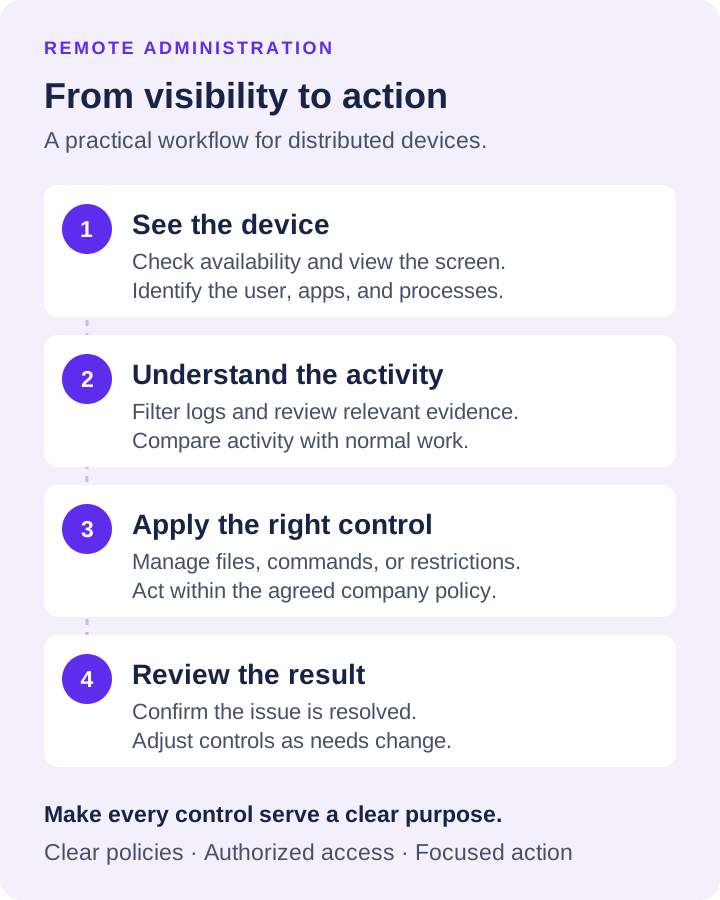
Monitoring without the ability to intervene forces administrators into a slow, manual workflow. They identify a problem, contact the employee, wait for a response, and hope the issue is resolved correctly. For a minor issue, that may be acceptable. For unauthorized software, data handling concerns, or a device that needs immediate attention, it wastes time.
A more practical approach combines observation and response in the same administrative console. If an administrator sees an unapproved application running, they can document the activity, restrict the application, and follow up with the employee or manager. If an application stops responding but the agent and management connection still work, they can send an appropriate command or perform a controlled restart. If the endpoint is unreachable, do not assume it received or executed a command. If a work file must be recovered or transferred, remote file management avoids unnecessary delays.
This is particularly useful for small IT teams. A business with one administrator cannot spend the day moving between disconnected tools for remote support, activity reports, file transfers, web filtering, and power management. Consolidating these functions reduces administrative overhead and makes enforcement more consistent.
Use Live Views Carefully and Purposefully
Live screen viewing is one of the fastest ways to understand what is happening on an endpoint. It can confirm whether a user is working in the assigned system, reveal an error message during support, or show whether a supposedly completed task is actually being performed.
However, continuous live observation is not always necessary or productive. It should be governed by a written employee monitoring policy, role-based permissions, and a clear business purpose. Managers should have access to the information they need, while sensitive administrative access remains restricted to approved personnel. The right system supports managerial authority without creating uncontrolled access to employee data.
Turn Logs Into Actionable Reports
Raw activity data has limited value if it cannot be filtered and reviewed quickly. Administrators and department managers need reports that answer practical questions: Which applications consume the most work time? Which websites are being visited? Which devices show repeated policy violations? When did a specific event occur?
Filtering by employee, device, date range, website, application, or process helps teams isolate the information that matters. This is more useful than relying on a vague productivity score. A detailed report can identify a recurring bottleneck, support a coaching conversation, document a policy breach, or provide an audit trail after an incident.
04Keep a support record and recovery route
The support record should connect authorization to a verified outcome. Keep the ticket number, technician, device, original configuration, approved replacement, action time, observed result, and recovery instructions. A screen recording can supplement that record when justified, but it does not replace it.
Keep the recovery copy somewhere the technician can still reach if the target computer stops responding. A second file on the same inaccessible laptop is not a complete recovery plan. Confirm the authorized local contact or alternative support route before a disruptive change.
Recordings have their own access and retention requirements. Use the screen-recording guide for capture and retrieval; keep business-file backups and administrative change records separate. The evaluation question is whether the team can recover the task, not how many recording destinations are offered.
05A Practical Deployment Approach
Pilot the support workflow on a small, representative set of authorized devices. Include different operating systems and connection conditions actually used by the business. List unavailable permissions, unreachable endpoints, and steps requiring employee assistance rather than marking the whole trial successful.
Establish the starting state: confirm the application opens, identify the file to replace, and record the relevant configuration. Perform one approved change at a time. This makes it possible to explain which action helped and to restore the previous state if needed.
Close the sample ticket only after checking the destination file, reconnecting after any approved restart, and having the employee repeat the affected task. Record elapsed technician time and interruptions. Expand to another device only when the procedure and recovery steps are repeatable.
Net Monitor for Employees Pro brings these functions together for organizations that need live screen viewing, recordings, activity logs, reports, website and application restrictions, file management, power controls, and remote commands from one administration platform. A fully functional trial gives IT and operations leaders a chance to test the workflow on real company devices before committing to licenses.
06Choose Control That Fits the Actual Risk
The best deployment is not necessarily the one with the most surveillance settings enabled. It is the one that gives your business enough visibility to protect assets, verify work, resolve endpoint problems, and enforce clear policies without burying administrators in unnecessary data.
Choose software using completed support jobs: could the technician connect, make the approved change, handle a failed attempt, and prove the task worked again? Use the endpoint-control feature map for broader restrictions while keeping this checklist focused on safe administration.