Live screen monitoring / Practical guide
Live Employee Screen Monitoring: A Practical Workflow
Confirm the current screen, read the problem, choose the right level of assistance, and verify the employee can continue.
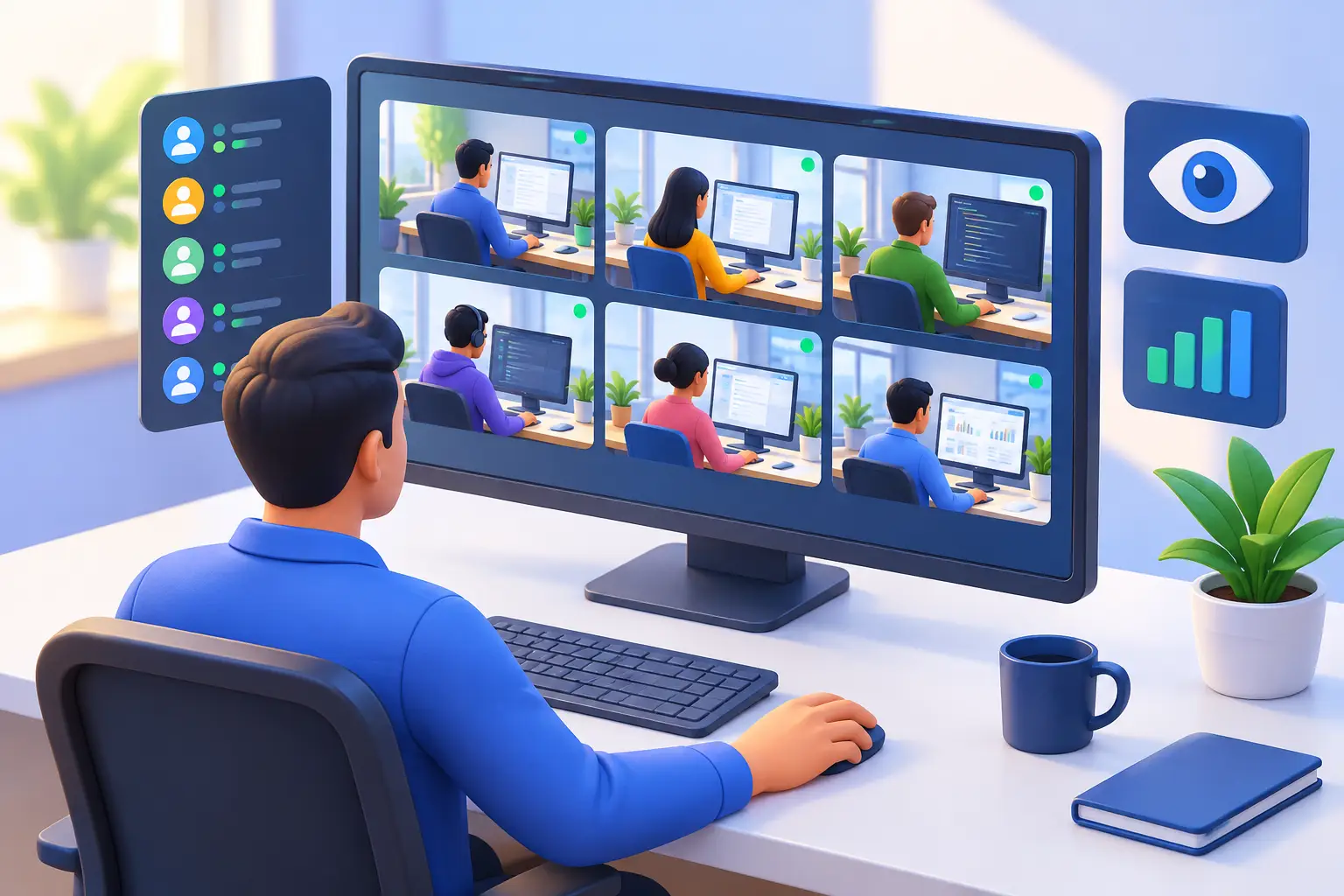
Live employee screen monitoring is useful when the answer cannot wait for a historical report. An employee is blocked at a payment screen, a new hire cannot complete a task, or an administrator needs to verify an unexpected window. A current desktop view helps identify what is happening and choose the next action.
For small and midsize businesses, the practical value is simple: see the work, identify the problem, and take the appropriate action from one administrative console. Used with clear policies and a defined purpose, live monitoring turns scattered endpoint activity into evidence managers can act on.
01What a live employee screen view can confirm
Live screen viewing displays the current desktop of selected company devices in real time. An administrator can view one screen for focused troubleshooting or multiple screens at once to supervise a department, training room, or remote team. Instead of relying on self-reported status, managers can confirm whether work is progressing, whether required software is being used, and whether a user is stuck.
A live view answers what is visible now. It cannot recover the screen from an earlier complaint. Use recorded desktop history for that question and the multiple-screen guide to organize a console grid. Keep this workflow focused on one workstation and one current issue.
The goal is not to watch every user every minute. That wastes management time and creates more data than anyone can review. The goal is to give authorized personnel the ability to verify activity quickly when productivity, security, or accountability requires it.
02When Real-Time Screen Visibility Is Worth Using
The strongest use cases are operational, not theoretical. A department manager may notice repeated delays in processing customer requests. Live viewing can reveal whether employees are waiting on a slow business application, following an inefficient manual process, or spending time on unrelated websites. Each cause needs a different response.
IT teams benefit when users report vague problems such as “the system is frozen” or “the file disappeared.” With a live view, the technician can see the error message, the application state, and the user’s workflow without turning a basic support request into a long remote call. If permitted by company policy, remote administration tools can then help resolve the problem through desktop sharing, file transfer, command execution, or a controlled restart.
Security teams use live monitoring differently. A sudden upload to an unapproved service, an attempt to run unauthorized software, or unusual access to sensitive records can be reviewed immediately. That does not mean every alert proves malicious intent. It means the company has a way to investigate before the issue becomes a data loss event.
Live visibility is also valuable during onboarding and training. Supervisors can confirm that new hires can access the required systems and follow the expected process. When employees work from home, travel between client sites, or use off-network company laptops, cloud-based monitoring can preserve that same management visibility.
03Live Employee Screen Monitoring Needs Clear Rules
Monitoring technology is effective only when the business defines how it will be used. Company-owned equipment, written acceptable-use rules, authorized administrators, and a documented business purpose should come first. Requirements vary by state, industry, collective bargaining agreement, and the locations where employees work, so businesses should obtain appropriate legal and HR guidance before deployment.
A workable policy explains that company systems may be monitored, identifies the types of activity that may be collected, and tells employees who can access the records. It should also define when monitoring data is reviewed and how long recordings and logs are retained. Vague rules invite disputes. Specific rules protect the business and set expectations for the workforce.
Access control matters just as much. Not every manager needs the ability to view every screen, read every log, or retrieve every recording. Limit authority by role, require strong administrator credentials, and retain an audit trail of administrative actions. Monitoring data can contain sensitive business information, so it must be treated as protected operational evidence rather than casual management material.
04Build Monitoring Around Action, Not Observation
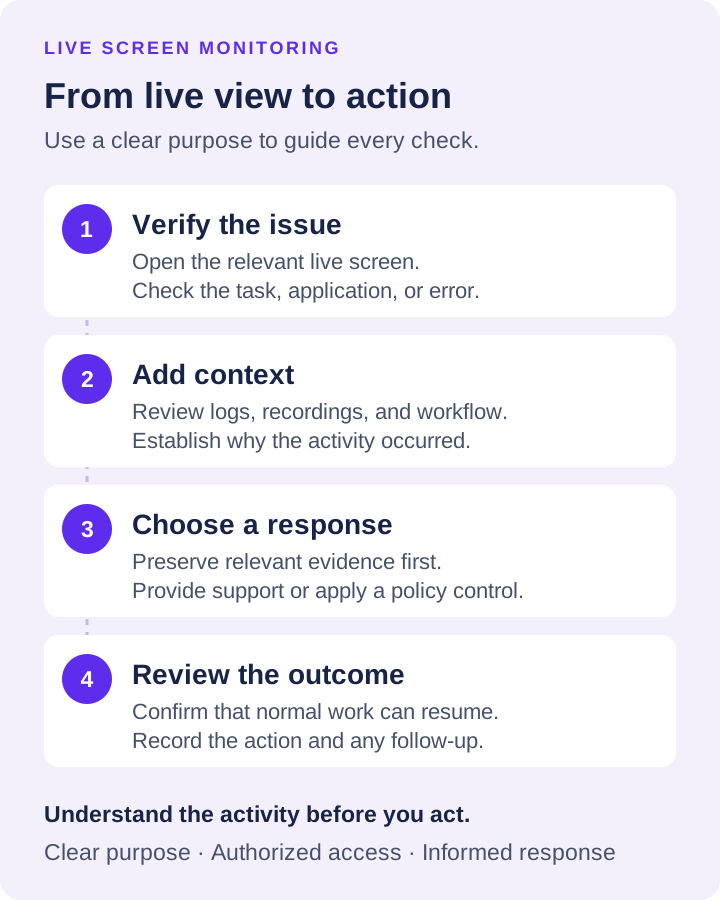
Begin a live check by confirming the selected computer and user. Ask which task is blocked, open the relevant screen, and check that the image is updating. A frozen preview is not evidence that the employee is inactive. Use the screen-view controls, including Refresh, when you need to request a new frame.
Read the error or application state before taking control. If remote assistance is needed, coordinate with the employee and follow the support procedure. Record the resolution in the ticket. Live viewing answers what is visible now; use the screen recording guide when you need to reconstruct an earlier event.
Then pair visibility with an appropriate response. If a website repeatedly disrupts work, block it on managed devices. If a prohibited application appears, restrict the application and investigate how it was installed. If a user is struggling with a required task, provide training or technical support. If evidence points to an insider threat or policy breach, preserve the relevant recordings and logs before changing the endpoint.
This approach keeps live monitoring tied to productivity, security, and cost control. It also prevents the common mistake of treating all unexpected activity as misconduct. An employee switching between applications may be completing a legitimate task. A long idle period may reflect a meeting, a system outage, or a break allowed by policy. Managers need context before they make decisions.
05Inspect a current workstation issue
Illustrative support case: an employee says the order form will not submit. Confirm the computer and user, ask which step fails, and observe a harmless repeat of that step. Note the visible message without recording unrelated customer details in the ticket.
Check freshness before diagnosing. Verify that Pause monitoring is not freezing updates, request a frame with Refresh, and ask the employee to make a harmless visible change. If the view does not update, investigate the connection before treating the displayed state as current. Follow the employee monitoring troubleshooting guide to separate paused or hidden views from connection and capture failures.
Make the relevant detail readable. Open Zoom Remote Screen... for a view-only inspection. On a workstation with several displays, confirm which display contains the error; a healthy-looking primary screen may omit the dialog blocking work elsewhere.
Before rolling out the system broadly, test it with a small group of devices. Verify that screen views are useful at the selected display settings, recordings play back correctly, reports identify the information managers need, and endpoint controls do not interfere with required work. A pilot also exposes permission gaps and policy language that needs revision.
06Escalate to assistance and verify the result
If hands-on help is required, agree on the next action and use Remote Control.... The console asks for confirmation before keyboard and mouse takeover. View-only observation and active control are different permissions and should follow the organization’s support procedure.
Verify the fix with the employee: repeat the original task, check the resulting screen, and return control when assistance ends. Record the error, action, and outcome. If the reported event predates the live session, leave that question open until relevant historical evidence is available.
Net Monitor for Employees Pro supports this model by combining live screen viewing, recording, activity logging, reporting, restrictions, and remote administration in one administrator-focused system. A no-registration trial gives IT and operations teams a practical way to test how monitoring fits their actual devices, workflows, and policies before committing to licenses.
Start with the issue that costs the business the most time or creates the greatest exposure. Configure live visibility around that issue, establish who can act on what they see, and use the resulting evidence to improve the work instead of merely watching it.