Remote shell administration / Practical guide
Remote Shell Administration: CMD, PowerShell, sh & ksh
Troubleshoot company computers, choose the right shell, and turn remote commands into repeatable maintenance with clear scope and verified results.
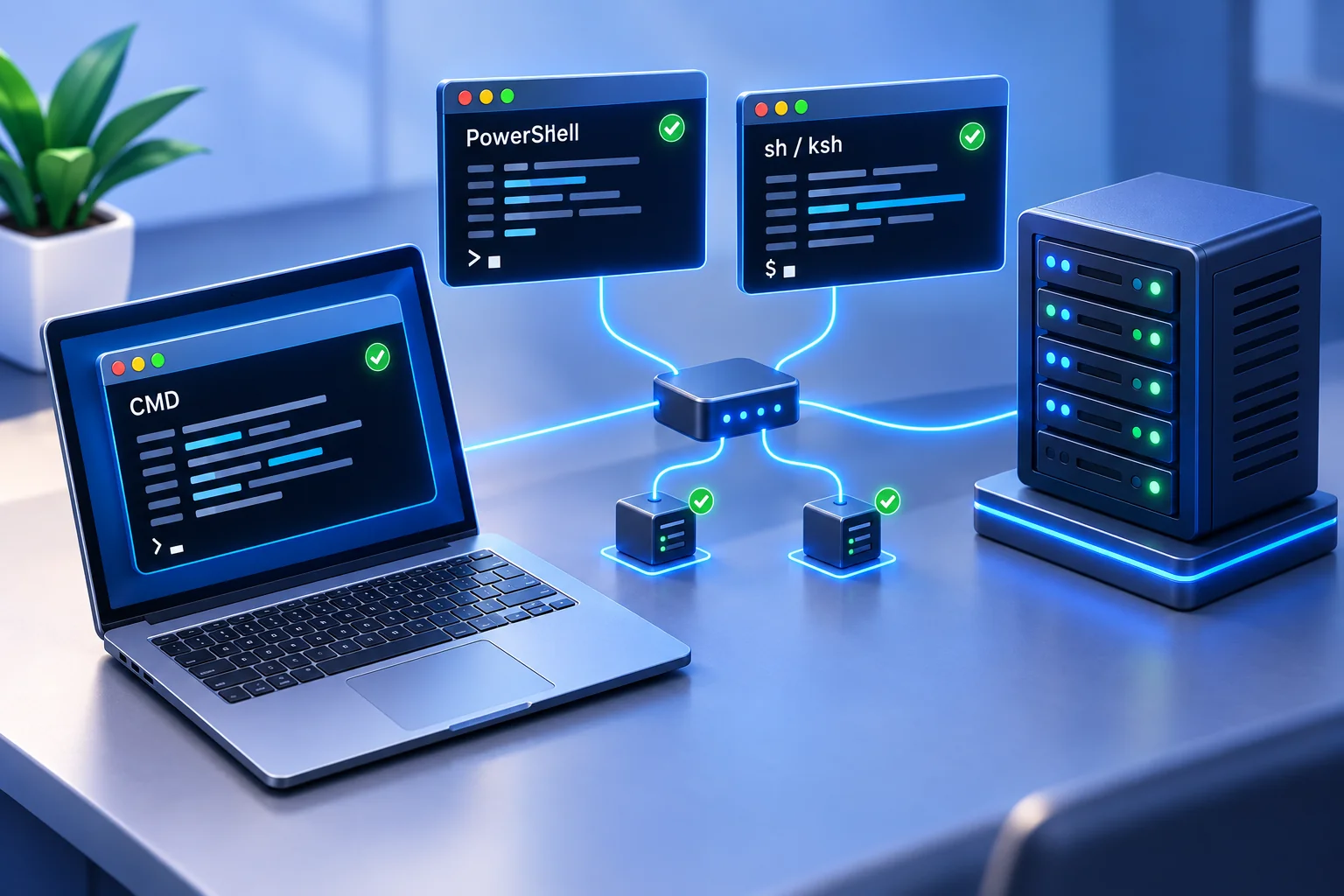
A stalled workstation should not require a technician to walk across the building, call an employee, or wait for a remote worker to become available. Remote shell administration gives authorized IT staff a direct way to inspect, repair, and configure company endpoints using command-line tools such as CMD, PowerShell, sh, and ksh. The value comes from reaching the right computer, running a controlled action, and verifying the result.
For small and midsize businesses, remote shell access helps keep systems working, remove delays, enforce policy, and document changes. Used with a clear administrative process, it turns routine endpoint maintenance into repeatable work instead of a chain of interruptions.
01Why remote shell administration matters for IT teams
Graphical remote desktop tools are useful when an administrator needs to see exactly what a user sees. For repetitive maintenance, a remote terminal can provide a more direct route. A specific task might be to check disk capacity, query a service, collect a log, inspect an installed program, change a setting, or run an approved maintenance script.
The business value is straightforward. Faster remediation can reduce downtime. Tested commands reduce the chance that two technicians solve the same problem differently. A central administration workflow also helps preserve accountability when the team records commands and results alongside the relevant endpoint and support history.
Remote shell access is particularly valuable when staff work across offices, homes, customer sites, and travel locations. A computer does not need to be physically nearby for IT to check whether a process is running, a security agent is active, or a setting has been applied, provided that an authorized connection is available. That visibility matters when a minor issue could become a security gap or a lost workday.
Use this guide for command-line troubleshooting and maintenance. For a broader view of file handling, remote support, and endpoint management, see our guide to remote computer administration software.
02Choose CMD, PowerShell, sh, or ksh for the task
The shell should match the operating system, the task, and the team's established administration practices. Confirm which interpreter is installed on the endpoint and which account it runs under. A familiar command is useful only if its syntax, permissions, and expected behavior match that environment.
CMD for direct Windows checks and existing batch scripts
Command Prompt remains useful for familiar Windows administrative commands and legacy batch scripts. It can query network settings, test connectivity, examine running tasks, manage local files, or initiate power actions when the account has the required rights. For a simple, controlled task on a Windows endpoint, CMD can be a short path from instruction to result.
CMD is less suited to handling structured system objects and building complex, maintainable automation than PowerShell. Use it for established commands and straightforward tasks. Microsoft's CMD command reference explains command syntax, quoting, and how commands are chained; those details matter when paths contain spaces or a follow-up action depends on success.
PowerShell for structured administration and automation
PowerShell is a strong choice for Windows endpoint administration. With the appropriate commands, modules, and permissions, it can retrieve details about services, processes, event logs, users, applications, and configuration. Approved scripts can also standardize a task across multiple computers through a deployment or remoting workflow that supports that scope.
For example, an administrator can check available disk space, verify a required service, or perform an approved software removal. Repeatability is the advantage: a carefully tested script follows the same steps instead of relying on manual clicks or undocumented technician habits. Define how it reports failures and how the operator confirms the desired state.
That power requires discipline. A poorly scoped PowerShell command can make broad changes quickly. Use approved scripts, test them on a limited group, and avoid elevated execution unless the task needs it. Check the installed PowerShell edition and module availability before assuming a script behaves identically on every endpoint.
sh and ksh for compatible Unix-like environments
On systems where they are installed, sh and ksh provide command-line access for Linux, Unix, and other Unix-like environments. Together with the available system utilities, they can support log review, storage checks, file management, permissions work, and process administration. Service-management commands and administrative rights depend on the operating system.
The choice between sh and ksh often depends on the system and existing scripts. Compatibility is the practical concern. A script written for sh should not assume KornShell-specific features; a ksh script needs a compatible KornShell installation. Confirm the interpreter path, account permissions, and command syntax before remote execution. The KornShell project documentation provides implementation and platform information. Do not assume ksh is preinstalled or that a shell's availability means a remote-management product supports that operating system.
03Understand the remote connection before running commands
A shell interprets commands; the remote connection carries input and output between computers. Opening PowerShell inside an existing remote terminal is different from creating a native PowerShell remoting session. CMD, sh, and ksh likewise need an authorized connection mechanism to be used remotely.
Microsoft's PowerShell remoting requirements describe the Windows WinRM-based approach and SSH support in PowerShell 7 and later. Those methods have their own configuration and authentication requirements. They are separate from using the Terminal feature over an established Net Monitor for Employees Pro connection.
For company computers managed with Net Monitor for Employees Pro, configure the console and agent using the local network and VPN setup guide or the Internet connection and Cloud licensing guide. Cloud access requires the appropriate Cloud account and subscription. Verify that the intended computer is connected before starting a terminal session.
04Use the remote terminal in Net Monitor for Employees Pro
Net Monitor for Employees Pro includes an interactive Terminal for the selected connected remote computer. The remote Terminal help documents how sessions start, how input and output work, and when to reset a session. Its examples include cmd.exe on Windows and /bin/bash on Linux/macOS.
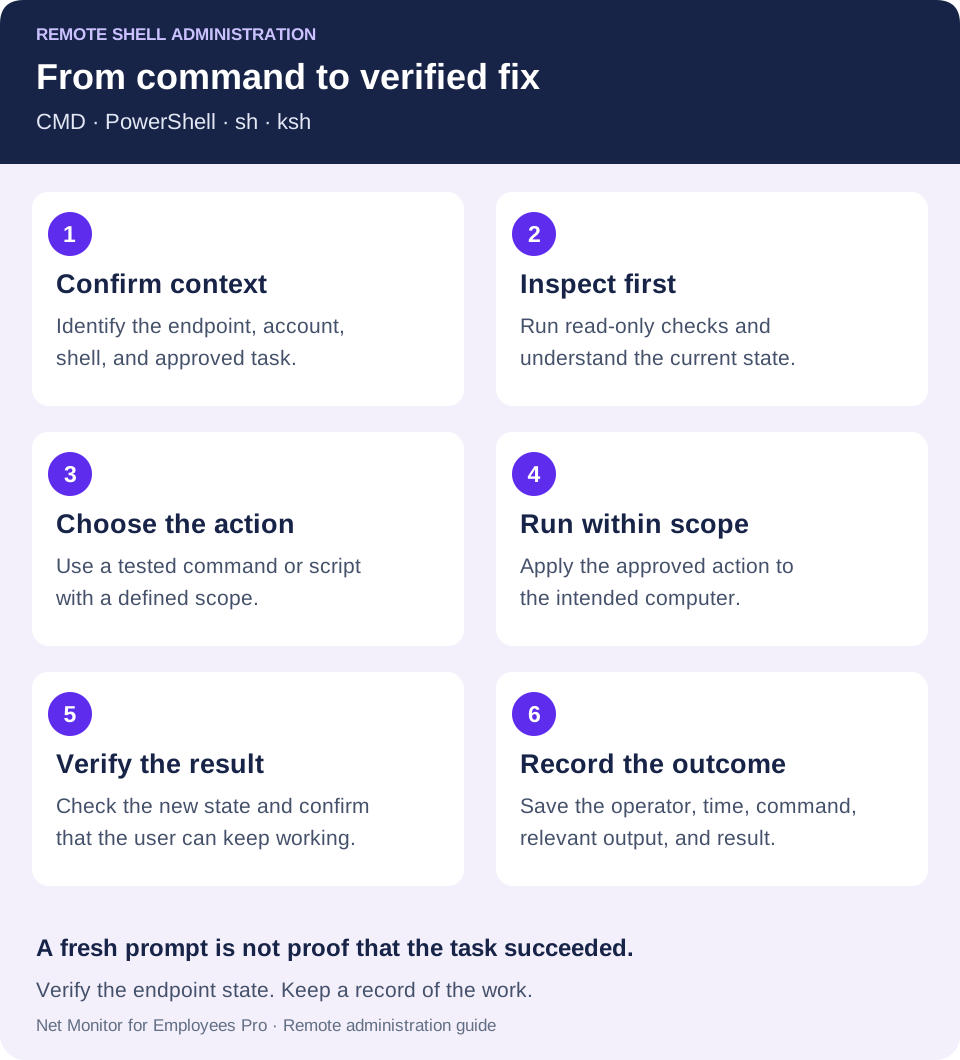
- Select the intended computer. Confirm the device identity, connection, and maintenance task. Check the endpoint's operating system and the account context available to the terminal.
- Open Terminal. Selecting the Terminal tab starts a session automatically for the current connected remote computer. Keyboard input goes directly to that computer's shell, and output appears in real time.
- Confirm the shell and start with a read-only check. Use commands appropriate to the interpreter you actually have. If your workflow requires PowerShell, sh, or ksh, first confirm that the interpreter is available and that invoking it is supported by the endpoint configuration.
- Run the approved action and examine the result. Work on the selected computer, inspect errors, and verify the state afterward. A selected-computer terminal session should not be treated as a bulk command deployment feature.
- Keep each computer's context clear. The terminal keeps output separated when switching between computers. Confirm the active target each time before typing or pasting a command.
- Use Reset terminal when needed. Reset terminal stops the current shell and starts a fresh session when the prompt is broken, the shell appears stuck, or output stops unexpectedly. It is a session reset, not an undo operation for commands already executed.
Visible terminal output helps with troubleshooting, but do not assume it is a retained audit trail of every command. Establish the recording, retention, and access controls your team needs separately, and preserve relevant results before resetting or closing a session.
05Make remote command execution a repeatable control
Remote shell access creates value when it is tied to a defined administrative process. Unrestricted command execution for every manager or technician creates unnecessary risk. Specify which roles can use it, on which devices, and for which maintenance or investigation tasks.
Limit access to authorized IT and security personnel. Use individually attributable administrative credentials where supported, and apply the minimum permissions needed for the role. A help desk technician who needs to restart a service may not need permission to create local administrators, alter security settings, or erase files. Verify the effective account rather than assuming the shell uses the signed-in employee's identity.
Define approved command categories for routine work. Read-only checks, log collection, software inventory, and established remediation can often be standardized. Actions such as account changes, firewall edits, software removal, broad file operations, service restarts, and shutdowns need controls proportionate to their impact and a documented approval path when required.
Record who initiated the action, which endpoint received it, when it ran, the exact command or script version, the relevant output, and the verified outcome. If an employee reports that an application stopped working or a setting changed, this record helps establish what happened. Keep it in the approved support, change-management, or logging system; a terminal window alone does not establish retention or audit completeness.
A useful command record includes the reason for the task, the target scope, expected output, rollback instructions where applicable, and the follow-up check. Avoid putting passwords or other secrets in command text or tickets. Limit access to collected logs according to their contents and purpose.
06Combine shell results with screen visibility
A command result does not always explain the full condition of a workstation. A process may be active while the employee sees an error message, a frozen application, or unexpected browser behavior. Live screen viewing and remote desktop control add that operational context.
Net Monitor for Employees Pro supports this combined workflow with screen visibility, activity reporting, remote control, and the Terminal feature. Instead of guessing why a command did not solve the problem, IT can verify the user experience, use the File Manager to transfer a needed file, inspect an application, or arrange a restart when appropriate. Each action should follow the team's access and change procedures.
When an application fails a command-line check, use live screen inspection to verify the employee’s visible result. A successful command and a successful user task are separate checks. Record both, and use the administration checklist to retain the recovery route and ticket outcome.
07Practical remote shell checks for company computers
The most useful commands have a clear business outcome. Checking uptime can identify devices that may have missed restart cycles. Reviewing processes can reveal resource-heavy or unfamiliar software. Querying services can help confirm whether a backup, security, or monitoring agent is running, although a running process alone does not prove that its service is healthy.
Start with read-only checks
These small examples illustrate inspection after you have established an authorized connection. Run each in the stated shell on a compatible endpoint; they do not establish a remote connection themselves.
- CMD on Windows:
hostnamedisplays the computer name;whoamireports the account identity;tasklistlists running processes. - PowerShell on Windows:
Get-Servicelists services and their status.Get-PSDrive -PSProvider FileSystemshows filesystem drives, including available space where reported. - sh or ksh on a compatible Unix-like system:
id -undisplays the effective user name,uname -sidentifies the operating-system name, anddf -Preports filesystem space. Confirm the utilities are available on the target system.
Use the results to decide the next step. A low-space report calls for identifying the cause and reviewing the target path before cleanup. An unfamiliar process calls for checking its owner and purpose before stopping it. Read-only output can still contain operational information, so keep it in the approved support record.
Incident investigation and file maintenance
Remote shell tools can reduce delays during incident response. Depending on the incident procedure, IT may need to collect logs, stop a problematic process, disable a risky service, or isolate access. Preserve relevant evidence before changes where required. For remote employees, a prepared response avoids relying on the user to follow complex instructions while a problem remains unresolved.
File management is another practical use. Administrators can check whether required files exist, remove approved temporary data that consumes storage, or prepare an endpoint for an update. Commands that alter or delete files deserve extra care: confirm the resolved target path, use clear naming, and avoid broad wildcards unless the entire scope is verified. Plan how to retain access if a change affects the network connection.
08Avoid remote shell mistakes that create more downtime
A command window should be part of change management. Fast action is valuable, but untested commands can disrupt users, remove needed data, or leave different computers with inconsistent configurations. Confirm the affected devices and the required outcome before execution.
Build a small library of approved commands and scripts for recurring tasks. Document what each does, the permissions and shell it needs, the output that indicates success, and how to reverse the change when possible. Test on a representative device before wider use, especially when operating systems, PowerShell modules, or endpoint configurations differ.
Timing matters. Restarting a service can interrupt active work; rebooting a computer can end unsaved sessions. A technically successful command may still be a poor decision during payroll processing, customer support, or a deadline. Use screen visibility, user communication, and your maintenance scheduling process when the action affects employees.
Use remote shell access only on company-authorized devices under the organization's written access policies and applicable employee notices. Keep permissions, record access, and retention aligned with the purpose of the task. Administrative control should protect business systems and data without creating an unmanaged source of exposure.
Remote shell administration works best as a controlled, repeatable process: the right technician runs the right command on the right endpoint, verifies the result, records the outcome, and keeps the business moving.
09Remote shell administration questions
What is the difference between a remote shell and remote desktop?
A remote shell sends text commands to a remote computer and returns output. Remote desktop lets the technician interact with the graphical interface. Use a shell for specific checks and repeatable maintenance, and screen viewing or remote control when the user's visual context matters.
Should I use CMD or PowerShell for remote administration?
CMD suits familiar Windows commands and existing batch files. PowerShell is useful for structured system information and maintainable automation. Choose the interpreter that supports the task, then check its version, available commands, and execution account.
Can I use sh and ksh on every remote computer?
No. The shell and required utilities must be installed on a compatible system, and your remote access method must support that endpoint. Check the actual interpreter path. A script requiring ksh features should not be run under sh without testing compatibility.
Does remote terminal output provide a complete audit log?
Not by itself. Terminal output is useful during a session, but durable records depend on the logging and retention you configure. Preserve the operator, endpoint, time, command or script version, relevant output, and verified result in your approved system.
Does Reset terminal reverse changes made by commands?
No. It stops the current shell and starts a clean session. Files, settings, or other state already changed by a command need their own recovery procedure.