Employee idle time / Practical guide
How to Identify Idle Time Across Your Team
Identify idle time using activity reports, work context, and clear review rules. Learn which signals to check, how to calculate a meaningful rate, and what to do about recurring downtime.

A computer can appear active while work has stopped. An employee may leave a business application open, move the mouse occasionally, or remain signed in during a long personal break. That is why learning how to identify idle time requires more than looking at login hours or checking whether a device is online. Managers need evidence of actual work activity, clear expectations, and a consistent review process.
Idle time is not automatically misconduct. It can reveal a stalled approval, slow system, missing assignment, training gap, or workload imbalance. The objective is to separate legitimate downtime from avoidable lost productivity and policy violations before they become a recurring cost.
How do you identify idle time?
Review recorded gaps in keyboard and mouse input during expected working hours. Check that the data is complete, then compare each recurring gap with the employee’s role, meetings, breaks, application use, and completed work. Classify explained downtime separately from periods that still need a conversation.
01What counts as idle time at work?
In a computer activity report, idle time usually means a period without recorded keyboard or mouse input. Operational downtime is broader: an employee may be scheduled to work but unable to progress because of a missing assignment or slow system. Repeated use of non-work websites is a separate issue: a person can be actively using a computer while doing something unrelated to work. Keep these categories separate when reviewing a company computer.
- Input inactivity: no recorded keyboard or mouse input during a monitored interval. Reading, calls, and thinking can still be productive work.
- Operational downtime: work cannot progress because of a process, workload, or technical problem.
- Active non-work use: input is present, but the activity may be outside the acceptable-use policy.
- Unknown or missing coverage: the computer is offline, collection is disabled, or records have not been downloaded. Missing records are not proof of idle time.
The definition should reflect the role. A customer service representative with no ticket, call, or case activity for 25 minutes may require follow-up. A designer, analyst, developer, or manager may spend long periods reading, planning, or thinking with limited input activity. Treating every low-input period as unproductive creates bad data and worse management decisions.
Set role-specific standards before reviewing employees. Define expected work hours, approved break periods, permitted personal use, required applications, and the types of work that may not generate frequent keyboard activity. Written standards make reports more useful and help managers act fairly.
02How to identify idle time: review five activity signals
The strongest approach combines several signals. No single metric can prove that someone was or was not working. A mouse-and-keyboard inactivity record can show a gap in input, but it cannot establish whether the device was unattended or explain why input stopped. Website history can reveal distractions, but it may not show work performed in offline software.
Start by reviewing activity in context: time of day, assigned work, department expectations, and output. Look for patterns that repeat across days or weeks, not one isolated quiet period.
1. Check keyboard and mouse inactivity
Inactivity logs provide a direct first signal. If a workstation shows no keyboard or mouse activity for extended periods during scheduled work hours, review the duration and frequency. A single 10-minute gap may be a restroom break or a conversation with a supervisor. Several 30-minute gaps every afternoon deserve attention.
Use review thresholds that reflect your policy and each role. For example, a manager might choose to review gaps longer than 10 or 15 minutes, while summarizing longer periods in an exception review. This is an illustrative review rule, not a universal benchmark or a claim that the software sends an inactivity alert. Avoid using a raw inactivity total as a payroll or disciplinary decision by itself. It is a flag for investigation, not the full record.
2. Compare application and website activity
Application and web reports add context about the tools and sites used. Compare recorded business-system use with social media, streaming platforms, online shopping, games, personal email, or other non-work destinations. Check what each report measures: an application remaining open or a website appearing in history does not establish continuous attention to it.
The concern is not an occasional personal visit. The concern is repeated, extended use that occurs during work periods and displaces assigned tasks. As an illustrative case, two hours of business software use alongside three hours of entertainment browsing would give a manager a specific issue to investigate, once the report’s timing, overlap, and work context are checked.
Application data can also expose hidden operational problems. If several employees spend excessive time switching between tools, waiting in a legacy system, or using unauthorized software to complete routine work, the problem may be process design rather than employee effort.
3. Connect activity to completed work
Computer activity has value only when it is connected to work results. Compare inactive or low-activity periods with measurable output such as closed tickets, completed orders, calls handled, cases processed, documents produced, project milestones, or response times.
A productive employee may have low keyboard activity while handling phone calls, attending approved meetings, or reviewing a complex document. Conversely, an employee can generate constant input while making little progress. The useful question is not, “Were they touching the keyboard?” It is, “Did their recorded activity align with the work they were assigned to deliver?”
4. Review screen evidence when it is relevant
When reports identify a recurring concern, screen monitoring and recorded desktop activity can provide additional evidence to interpret it. A manager may see a visible meeting, a locked screen, a business application, or personal browsing. Screen evidence alone cannot establish whether an employee is making a phone call, reading paper records, or away from the workstation. Corroborate it with the schedule, work records, and the employee’s explanation.
Use this level of review selectively. Live screen viewing and recordings are most effective for investigating repeated exceptions, suspected time theft, policy violations, or high-risk roles. Reviewing every minute of every employee's day wastes management time and can bury the events that need action.
5. Look for patterns across comparable work periods
A reliable idle-time review identifies behavior that persists. Watch for late starts, early logoffs, repeated long breaks, frequent idle periods after assignments are issued, or predictable stretches of non-work browsing. Compare patterns across similar roles and shifts to identify whether the issue is individual, departmental, or system-wide.
If an entire team becomes inactive at the same time, investigate the workflow. They may be waiting for customer volume, inventory data, supervisor approval, or access to a required system. If one device regularly shows inactivity while peers complete comparable work, first check that the records cover the correct user, session, and working hours. A direct conversation can then clarify what the report cannot.
03Review idle time in Net Monitor for Employees Pro
The employee activity reporting guide documents a User activity report with active and idle periods plus a logon/logoff timeline. Use that report as the starting point, then open application or web reports when you need more context.
- Check collection and coverage. In Reporting, confirm that the required report is enabled. The console downloads logs from connected computers, so check for missing devices or periods before comparing totals.
- Select the review period. Set Time range to a relevant day, week, or custom interval. Keep shifts and time zones in mind when matching records to schedules.
- Choose the correct computer and user. Use the report filters to isolate the relevant records. Shared workstations and remote sessions need particular care so one user’s activity is not attributed to another.
- Load the records. Use Refresh, then inspect the active/idle timeline and session boundaries. A logoff or missing record should not silently become an unexplained work gap.
- Add context and retain the review. Consult Application usage report or Web browsing report where needed. Use Export... to save the current report, and keep your interpretation and agreed action in an access-controlled review record.
Start with the least detailed information that answers the question. Identifying a gap in computer input does not require capturing the content of what someone types. Enable additional collection only for a defined, appropriate purpose, with the relevant notice and access restrictions.
04Calculate an idle-time rate without misreading it
A percentage is useful only when its denominator is clear. For a review of computer input, use the same user, device or session scope, and time interval for both figures. Exclude missing coverage from the measured interval and report it separately; do not divide by a full scheduled shift when only part of that shift was recorded.
Worked example — illustrative figures
Recorded input-idle rate = recorded idle minutes ÷ monitored minutes × 100.
If a report covers 360 minutes and records 90 minutes without input, the input-idle rate is 25%. This describes the observed computer activity, not the employee’s productivity.
- 30 of the idle minutes coincide with an approved meeting.
- 15 coincide with an approved break.
- 20 coincide with a confirmed system incident.
- 25 remain unclassified and need follow-up.
These intervals do not overlap: 30 + 15 + 20 + 25 = 90 minutes. Record the explanations alongside the original report. The remaining 25 minutes are a question to resolve, not proven time theft.
When intervals overlap, count each minute only once. Keep approved breaks, productive work away from the keyboard, and downtime caused by IT issues distinct: each calls for a different response. Compare rates only across similar roles, shifts, and data coverage, and review completed work alongside them.
05Build a consistent idle-time review process
A simple process prevents managers from reacting emotionally to a screenshot or a single report. First, establish an acceptable-use and monitoring policy that explains what is monitored on company devices, why monitoring occurs, and what behavior is prohibited. Have employees acknowledge the policy and apply it consistently.
Next, organize reports around the decisions managers need to make. A daily review can identify long recorded inactivity periods and unusual application use. Weekly comparisons are better for identifying recurring trends by employee or comparable groups. Record approved breaks, known meetings, and authorized work in your review notes so managers do not repeatedly investigate normal work. Do not assume these exceptions are automatically excluded from the activity report.
Then verify the exception. Check the employee's schedule, assigned workload, output, application history, and relevant screen evidence. Document the facts before drawing a conclusion. This protects the business if you need to address repeated behavior and prevents managers from penalizing legitimate work patterns.
Finally, respond at the right level. A workload problem may require better task assignment. A training problem may require coaching. Repeated personal use or deliberate time theft may require a documented warning, tighter web controls, or disciplinary action under company policy.
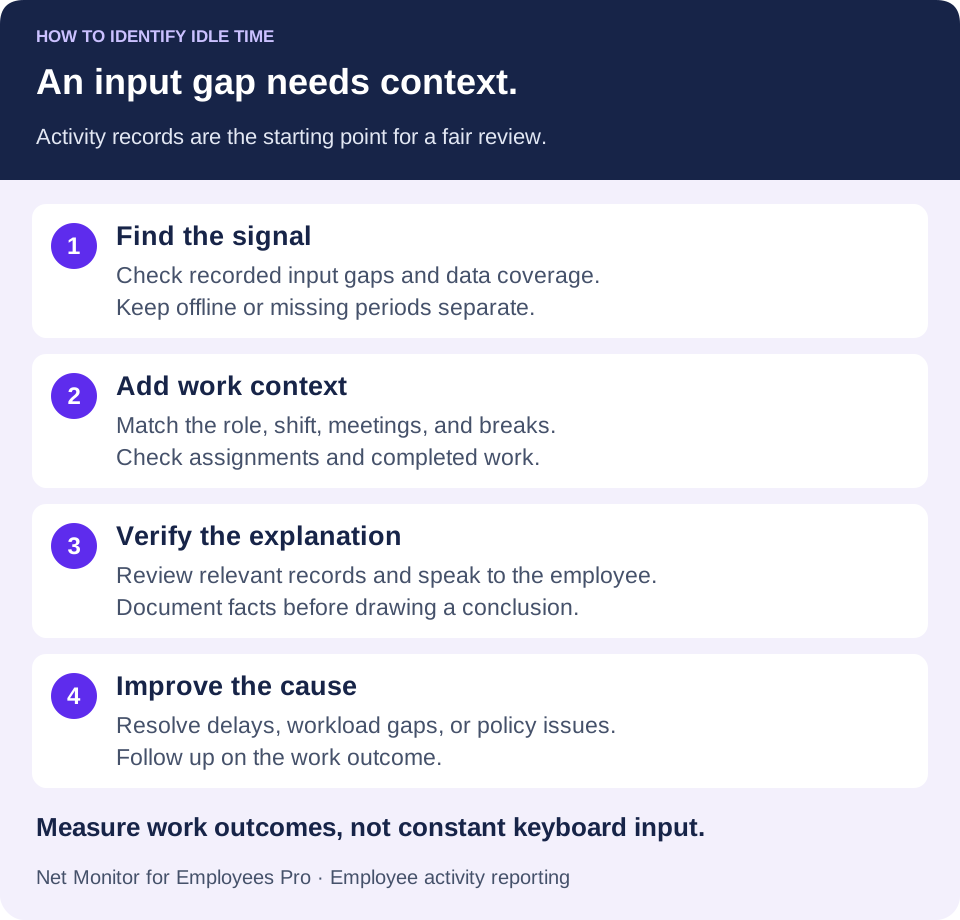
Give each recurring issue an owner and a follow-up date. Track whether the agreed change reduces waiting time, improves service levels, or resolves a technical problem. A falling idle total is useful only when the work outcome also improves.
06Reduce avoidable downtime and policy violations
Identification alone does not stop recurring waste. If reports show that the same entertainment sites, social platforms, or unauthorized apps consume work hours, apply controls on company-owned endpoints. Blocking access to clearly non-work sites during shifts reduces temptation and gives employees a clear operating boundary.
Choose the next action from the explanation, not from the idle total alone. A missing assignment belongs with the manager; a slow application belongs with IT; a verified policy concern follows the documented review process. Use the activity timeline to reconcile users and devices, and the productivity worksheet to check whether the agreed change improved completed work.
Use controls proportionately. Blocking every non-business site may make sense in a tightly regulated or high-security environment, but it may be excessive for a creative or flexible team. The right policy protects paid work time while allowing the reasonable breaks and role-specific tools employees need.
Match the action to the cause. A stalled approval needs a clearer handoff, a slow application needs IT support, and a lack of assignments needs workload planning. Repeated non-work browsing needs a separate acceptable-use review. For distributed teams, the hybrid work oversight guide explains how to align schedules, availability, and follow-up across locations.
07Avoid mistakes that make idle-time reports misleading
The most common mistake is equating inactivity with laziness. Employees may be in meetings, on calls, working with paper records, assisting a colleague, or waiting for a system to respond. Managers should always investigate context before acting.
Another mistake is measuring time without measuring results. If a team meets service levels and completes high-quality work, low-input periods may be normal. If output falls while idle time rises, investigate the relationship and possible process or technical causes before attributing it to effort.
Do not hide monitoring practices. Company-owned devices, remote access, and employee monitoring can involve federal, state, local, contractual, and privacy requirements. Publish clear notices, use a legitimate business purpose, limit access to authorized personnel, and obtain legal guidance for your locations and workforce structure.
For UK workplaces, the ICO’s worker-monitoring guidance addresses transparency, necessity, and proportionality. Review the requirements that apply to your workforce, including the scope of collection, access, retention, and any employee consultation. A monitoring report does not by itself establish that a management decision is lawful or justified.
The goal is not to create a workplace where every pause is treated as a violation. It is to find the difference between normal work rhythms and recurring, unexplained lost time. When managers review meaningful evidence, clarify expectations, and act consistently, idle-time data becomes a practical tool for protecting productivity, controlling costs, and keeping remote operations accountable.
08Questions about identifying employee idle time
Does idle time mean an employee is not working?
No. A computer may record little input while someone reads, takes a call, attends a meeting, or helps a colleague. An idle-time record shows a signal to interpret alongside the role, schedule, and output. It does not measure effort or motivation.
What is a reasonable idle-time threshold?
There is no single threshold that suits every role. Choose a review interval based on the work pattern and published policy, then test it against legitimate calls, reading, meetings, and breaks. A 10- or 15-minute example is a review choice, not a universal standard or automatic proof of a problem.
Is an offline computer counted as idle?
Offline status alone does not establish employee inactivity. Records may be unavailable until the device reconnects and logs are downloaded. Mark incomplete coverage as unknown and verify the reporting interval before calculating an idle-time rate.
How can I see active and idle time in Net Monitor for Employees Pro?
Open Reporting and use User activity report. Choose a Time range, filter the relevant computer and user, and use Refresh to load the available records. Review the active/idle and logon/logoff timeline, then investigate context through the relevant reports and work records.
Can I identify idle time without recording typed content?
Yes. Reviewing active/idle periods is different from collecting keystroke content. Begin with user activity records and work outcomes. Additional screenshots, recordings, or other detailed data should have a separate, appropriate purpose and access controls.
How should managers reduce recurring idle time?
First establish the cause. Fix slow systems, improve task allocation, or remove approval delays where those explain the gaps. Address repeated, verified policy violations through a consistent review process. Check results after the change instead of treating constant keyboard input as the goal.