USB storage controls
How to Block USB Storage on Company Computers
Restrict removable storage without confusing a selected-computer action with a global rule. Follow a practical Windows workflow, test the result, and keep an approved route for business files.

01Define what you need to block
To block USB storage on company computers, first decide which computers need a restriction, what file-transfer risk it addresses, and how employees will complete legitimate work. Apply the appropriate control, then verify it on the endpoint with a harmless test file. A selected option in the console is not the same as a confirmed result.
USB storage includes devices such as flash drives and external disks. A keyboard, mouse, headset, phone, and docking station may also connect through USB, but they are not interchangeable device classes. Define storage as the target rather than asking to disable every USB port. Test the actual hardware your teams use; a phone using a different transfer protocol needs its own assessment.
The Lock USB drives workflow in Net Monitor for Employees Pro described here applies to Windows employee computers. Do not assume that this USB-storage action is supported on macOS, Linux, or ChromeOS simply because other product features support those platforms. For a mixed fleet, select and validate the appropriate platform-specific device controls.
Write a short acceptance condition, such as: “On the pilot accounting PC, the test user cannot copy a harmless file to or from the test USB drive; the keyboard and mouse still work; authorized IT can restore access.” Add the computer name, user, operating system, device type, control owner, and approved file-sharing alternative.
02Choose the control with the right scope
The Tools and Restrictions help distinguishes an immediate action on selected computers from a persistent restriction applied globally. This matters more than the similarity of the labels.
| Control | Intended scope | Check before using it |
|---|---|---|
| Tools → Lock USB drives | An immediate action on selected computers. | Confirm the selected computers and prepare the corresponding unlock action. |
| Restrictions → Lock USB drives | A persistent setting applied globally to employee computers, not just the current selection. | Use an isolated test setup; understand every computer affected before enabling it. |
| Windows policy or dedicated device control | Managed policies whose scope and capabilities depend on the chosen system. | Use this when requirements include supported device-identity exceptions or separate read/write rules; verify the exact feature set. |
Windows also provides removable-storage access policies. For more granular requirements, review Microsoft’s device-control documentation. These are separate policy systems, not settings that Net Monitor for Employees Pro automatically configures. Document which system owns enforcement so that an administrator does not undo one restriction while another remains active.
An instruction to “allow approved USB drives only” needs more than a general storage lock. Verify support for the required identity, permission and exception rules in the selected solution. Do not assume that the product’s USB lock provides serial-number allowlists, read-only access, file-content inspection, or automatic exception expiry.
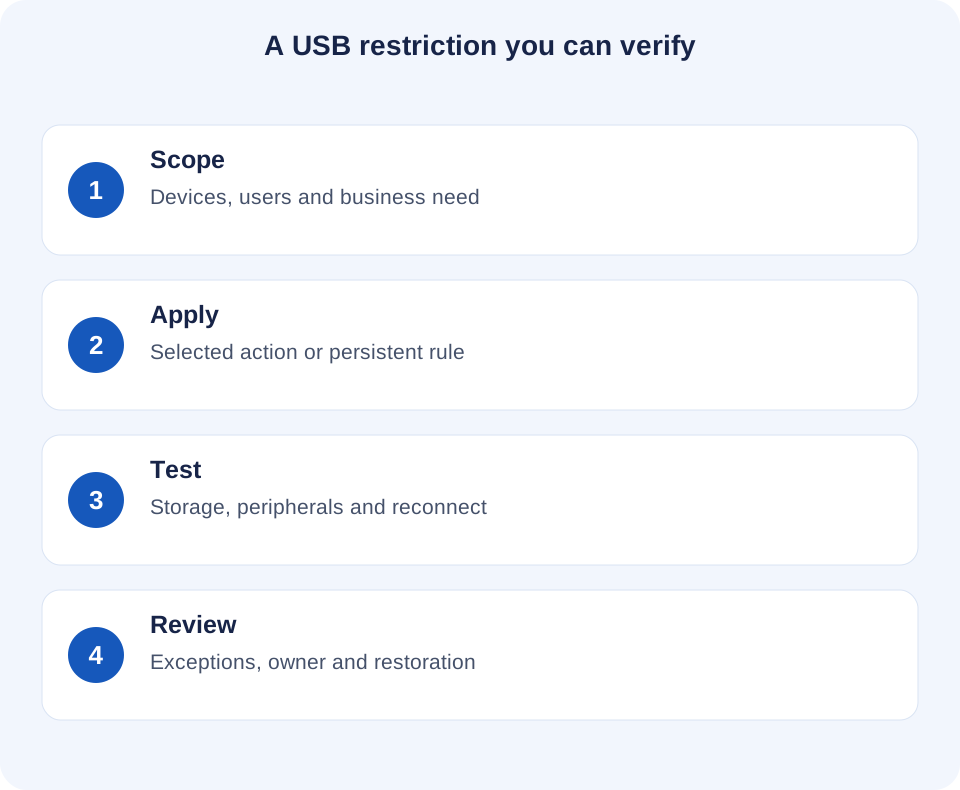
03Block USB storage on selected Windows computers
- Identify the company Windows computers in scope and confirm that the agent is connected. Start with a pilot machine where interruption will not affect production work.
- Record the current access state and ask the user to finish legitimate transfers. Use a test USB drive containing only harmless files; do not interrupt a real backup or an active business-file write.
- In the console, select the intended computers, open Tools and Restrictions, and use Lock USB drives in Tools. Check the selection before sending the action.
- On the target computer, test access to the drive and a harmless copy in both directions. Check the already-connected drive and a newly inserted drive. Record what actually happened, not just that the command was sent.
- When the authorized test or temporary restriction ends, use Unlock USB drives for the intended computers and verify restored access. If another policy still denies access, resolve it through its owner rather than repeatedly sending unlock actions.
Treat an unreachable computer as not verified. Sending an action from the console does not establish that an offline endpoint received or applied it. Reconnect the computer, confirm the relevant state, and repeat the endpoint test before recording the task as complete.
04Verify persistent restrictions before wider rollout
For a rule that should remain active, use Lock USB drives in Restrictions only after checking the global scope. The documented behaviour applies these settings to all employee computers rather than only the selected ones. A department selection does not turn a global restriction into a department-only policy.
Test this mode in a separate, limited environment. The help describes restriction settings as stored on the remote computer and applied again after reconnect. Verify the behaviour after reconnecting and after any planned restart; do not substitute that description for a test on your deployed agent, Windows version and storage hardware.
Disabling the persistent setting sends its reverse action. Plan the affected scope and restoration checks before doing so. If a global lock must remain active, do not assume an individual unlock will create a lasting exception. Use an approved transfer route or a device-control system that supports the required exception model.
05Handle business exceptions without weakening the rule
An exception should name the business task, computer, person approving access, permitted data, start and end time, and the person responsible for restoring the restriction. A written expiry time is an operational reminder unless the chosen system actually supports and enforces automatic expiry.
For example, a finance employee needs to deliver an export to an approved recipient. First check whether an authorized shared location or managed file-transfer workflow can complete the task. If removable media is necessary, IT must choose a technically supported exception, verify the transfer destination, and confirm the restriction is restored afterwards. Do not open USB access across the whole fleet for one person’s transfer.
Keep the exception record separate from assumptions about what a tool logs automatically. Note the approver, actual access window, validation result and closure. Describe the approved transfer route in the workplace monitoring and access policy so that employees know what to do when a blocked drive interrupts legitimate work.
06Use a repeatable USB-blocking test
Run the same small set of checks before expanding the rollout and whenever a relevant policy, agent, operating system or device type changes. Define the expected result in advance and keep a recovery route available.
| Test | What to verify | Record |
|---|---|---|
| Existing and newly inserted drive | The intended storage access is denied in both states. | Device model, connection state and result. |
| Read and write | A harmless read/copy from the drive and a write/copy to it meet the intended rule. | Each operation separately; do not infer one from the other. |
| Keyboard, mouse and required peripherals | Business-critical non-storage functions still work. | Actual peripheral and connection type. |
| Reconnect and planned restart | The intended persistent state is present when the computer returns. | Computer, time, policy mode and retest result. |
| Authorized restoration | Access returns when the correct restriction is lifted; other policies are considered. | Who restored it and the successful test. |
| Approved file-transfer alternative | The user can finish the required work without unapproved removable media. | Destination, task and confirmation. |
A failed check is useful evidence about coverage. Investigate the device type, policy source, endpoint connection and supported operating system. Avoid marking a heterogeneous fleet as protected after testing one flash drive on one Windows computer.
07Keep the protection in context
Blocking USB storage closes one possible transfer route; it does not prove that a file was never copied or stop every form of data loss. Email, cloud sharing, printing and access through other systems need their own controls. Use the employee data-breach prevention guide to map the wider routes, and the endpoint control overview to compare available actions.
If a suspected transfer needs investigation, separate the control’s observed state from evidence of an actual file operation. A screen image or application entry may supply context without proving which files reached a USB drive. Preserve relevant independent records and use a structured evidence register to distinguish observations, explanations and findings.
The operational result should be specific: the intended Windows computers passed the defined storage test, necessary work still functions, exceptions have owners, and restoration has been verified. That is a stronger basis for rollout than a broad claim that every USB risk has been eliminated.
08USB storage blocking: common questions
Does blocking USB storage also block a keyboard or mouse?
A storage restriction targets a different function from ordinary keyboard or mouse input. Do not treat it as a blanket USB-port shutdown. Test the actual keyboards, mice, docks and other essential peripherals used by your employees.
Can I allow just one approved flash drive?
Only if the chosen device-control system supports the required exception. A general Lock USB drives action does not establish a serial-number allowlist. Verify identity-based access separately or use an approved alternative transfer route.
Does a selected-computer lock affect the same scope as Restrictions?
No. Tools sends immediate actions to selected computers. Restrictions applies persistent settings globally. Check the mode and affected computers before changing either one.
Will this product workflow block storage on every operating system?
No. The USB-storage locking action described here is for Windows employee computers. macOS, Linux and ChromeOS need an appropriate supported device-control method; cross-platform monitoring does not imply identical USB enforcement.
Why is USB storage still blocked after I unlock it?
Check whether a persistent restriction or a separate Windows/device-management policy still applies, and whether the computer received the change. Identify the enforcing policy, restore access through the correct owner, and confirm the result on the endpoint.