Endpoint controls / Practical guide
7 Endpoint Control Features to Protect Workstations
Compare seven endpoint control features for safer company workstations. Learn what each control does, how to test its scope, and how to keep approved work moving.
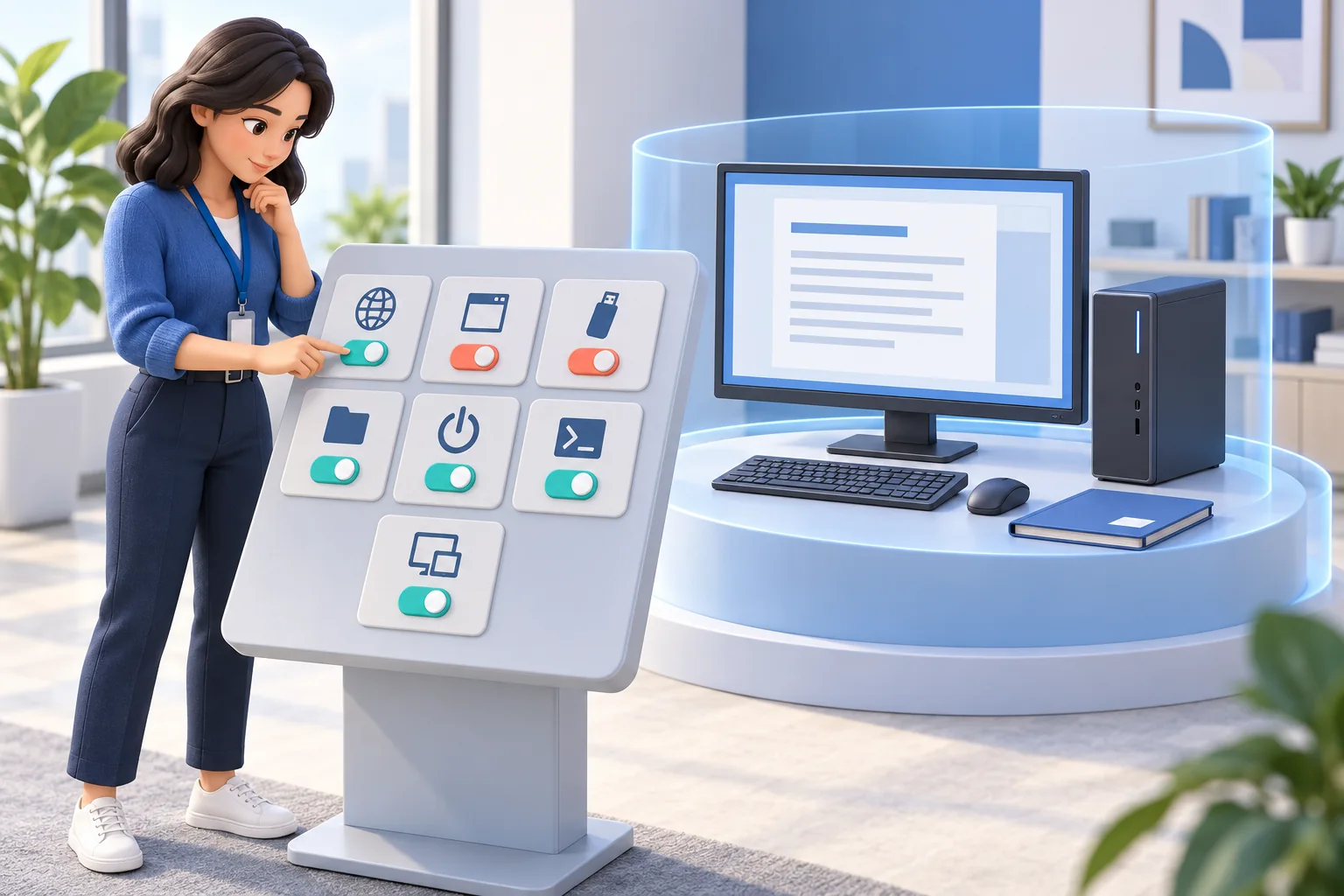
A workstation can become a security and productivity problem long before an incident reaches the IT help desk. An employee may install unapproved software, copy sensitive files to removable media, spend hours on distracting websites, or leave a remote computer running with a critical update pending. Endpoint control features give managers and administrators a direct way to restrict risky actions, resolve device problems, and combine those actions with monitoring records.
For small and midsize businesses, the goal is not to turn every computer into a locked-down box that employees cannot use. The goal is to apply the right restrictions to company-owned devices, protect business data, and give authorized administrators the ability to act without waiting for someone to be physically present.
Which endpoint control features matter most?
Start with website restrictions, application controls, USB and printing restrictions, remote file management, power and session controls, remote commands, and live desktop assistance. Choose each control for a specific business risk, confirm which computers it affects, and test both enforcement and the return to normal access.
01What are endpoint control features?
Endpoint controls are administrative functions that let an organization manage what users can access, what actions they can perform, and how a computer behaves. Monitoring tells you what occurred. Control features let you respond while the issue is happening or prevent it from happening again.
That distinction matters. A report showing that an employee visited a risky website is useful evidence. Blocking that website across a department is a preventive control. A recording that shows an unauthorized file transfer helps an investigation. Restricting USB storage can reduce the chance of the next transfer.
Effective endpoint administration combines visibility with action. Administrators should be able to view screens, identify policy violations, apply restrictions, manage files, send commands, and control computer power from one central computer-management console. This reduces the delay between finding a problem and fixing it.
For a small IT team, the buying question is practical: can a technician move from a reported problem to an appropriate action on the right workstation? Evaluate the exact control, its scope, its operating-system support, and the evidence available afterward. A long feature list is less useful than a tested workflow.
027 endpoint control features for company workstations
Not every business needs the same level of restriction. A design team may need access to large cloud files and specialized applications, while an accounting department may require tighter limits on web access, external storage, and software installation. The controls below address the most common operational and security risks.
1. Website access controls
Website restrictions reduce access to distracting sites, gambling and streaming platforms, known risky domains, or web services that create data leakage concerns. An allow list limits browsing to approved destinations; a block list keeps wider browsing available while restricting selected sites. Choose the approach that fits the work.
The practical value is immediate: employees retain access to work resources while IT limits known distractions and risky destinations. Blocking should be targeted, however. Overly broad rules can interfere with legitimate research, vendor portals, or job-specific tools. Start with documented website lists and exceptions that managers can justify.
In Net Monitor for Employees Pro, Internet Control supports website allow/block modes and address lists. Test a complete task, including sign-in redirects and supplier portals, before broadening the rule. See the practical guide to blocking websites on work computers for exception handling.
2. Application and process controls
Application rules can prevent users from running unauthorized remote-access tools, games, file-sharing clients, or unlicensed software. Process controls also let an administrator stop a stuck program that is affecting a workstation. These serve different needs: closing an application resolves the current session, while a run policy determines whether it may run again.
The Applications and Processes help explains how to inspect running programs, end selected tasks, and configure allow or block lists. Inventory required tools and background helpers before choosing an allow-only policy. Test again after software updates. Running restrictions do not by themselves prevent software installation, so manage installation permissions separately.
3. USB, removable-media, and printing restrictions
USB drives, external disks, optical media, and printing can create avoidable data-handling risks. A removable drive can introduce unwanted files or carry sensitive customer information out of the business. Restricting USB storage or printing provides a practical boundary when these channels are unnecessary for a role.
This is especially useful for departments handling financial records, customer information, intellectual property, or regulated data. It also helps prevent accidental copying when employees use personal devices at home or while traveling.
Net Monitor for Employees Pro’s USB-storage lock is Windows-specific; it does not establish equivalent support on macOS, Linux, or ChromeOS. Test the scope, a USB-storage device, and an approved alternative. The USB-storage blocking guide explains the workflow. Do not assume per-device exceptions when the selected feature does not support them.
Use the Tools and Restrictions guide to check available actions and their scope. Confirm that an approved transfer or printing alternative remains available before restricting a business-critical route.
4. Remote file management
When a user cannot locate a document, has saved a file in the wrong place, or has left sensitive data exposed on a remote computer, an administrator needs more than a ticket and a promise to handle it later. Remote file management lets authorized staff find, send, collect, copy, or delete files on managed endpoints.
This can speed up routine support work and reduce the business impact of employee mistakes. It is also valuable during offboarding, internal investigations, and incident response, when recovering company records quickly matters more than waiting for a device to be returned.
Access to remote file tools should be limited to trusted administrators and supported by clear internal procedures. These functions are powerful, which is precisely why an approved task, a verified file list, and a record of the result matter.
The remote File Manager provides separate send, collect, copy, and delete workflows. Preview matching files before a destructive action, verify the destination and overwrite behavior, and confirm that collected records are readable. Remote file operations support administration; shared-folder permissions, backups, and content-aware data-loss prevention still need their own controls.
5. Remote power and workstation session controls
A computer that is frozen, left unattended, or operating outside policy can require immediate action. Remote power and session controls allow administrators to restart, shut down, lock, or wake managed machines where supported. Each action has a different effect on the employee’s work and the computer’s availability.
These features help IT teams manage systems outside normal office hours and recover from selected technical problems. For a small IT team, the reduction in travel and desk-side troubleshooting can be significant. Plan a restart around unsaved work and active transfers. During a suspected security incident, follow the response procedure before shutting down a device and losing volatile evidence.
A workstation lock protects the local session; it does not isolate the computer from the network. Wake-on-LAN also depends on device configuration and a working network path. The remote computer power management guide explains how to plan shutdowns and verify that devices can return online.
6. Remote commands and shell access
Command execution supports administrative tasks without long support calls. A technician can inspect a service, collect a diagnostic result, or check a setting on a connected computer. Terminal opens an interactive shell on the selected remote computer; the commands available depend on its operating system and shell.
Remote commands should be tested and scoped carefully. A command that works correctly on one group of workstations may disrupt another group that uses different applications or configurations. Use explicit device selections, documented scripts, and phased deployment when changes affect many computers.
Begin with a read-only check, confirm the target computer, and verify the result before expanding the action. Keep command output with the support ticket when needed. An interactive terminal is not automatically a centrally retained command audit trail or a patch-management service.
7. Live desktop visibility and remote assistance
Live screen viewing gives supervisors and support staff direct context. Instead of guessing why a task is delayed or why an application is failing, they can see the active desktop and determine the next step. Remote desktop control can also help a manager or technician guide an employee through a process without needing physical access to the device.
For productivity management, screen visibility can expose repeated workflow errors, confusing internal systems, or an application holding up a task. It gives a technician context for a specific intervention. A screen view alone does not establish an employee’s effort or explain all time away from the keyboard; compare it with the work and the employee’s explanation.
Use these capabilities under a written workplace monitoring policy. Employees should understand the company’s device-management rules, the purpose of monitoring, who may review records, and how long records are retained. Have the rollout reviewed for the obligations that apply to the workforce.
Activity Monitoring provides screen visibility, while Remote Desktop Control enables hands-on assistance. Choose the least intrusive access that resolves the issue, then verify that the employee can complete the task.
03Check control scope before changing a workstation
A control can be technically correct and still affect the wrong people. Before applying it, answer three questions: is this an immediate action or an ongoing rule, which computers receive it, and what happens after a restart or reconnect?
- Selected computers: immediate actions in Tools target selected computers. Confirm the selection before acting.
- Global restrictions: the Restrictions tab applies persistent settings globally, rather than only to the selected machines. Selecting a pilot computer does not narrow these settings.
- Website and application policies: check their shared-settings options. Where per-computer configuration is supported, keep the intended scope explicit.
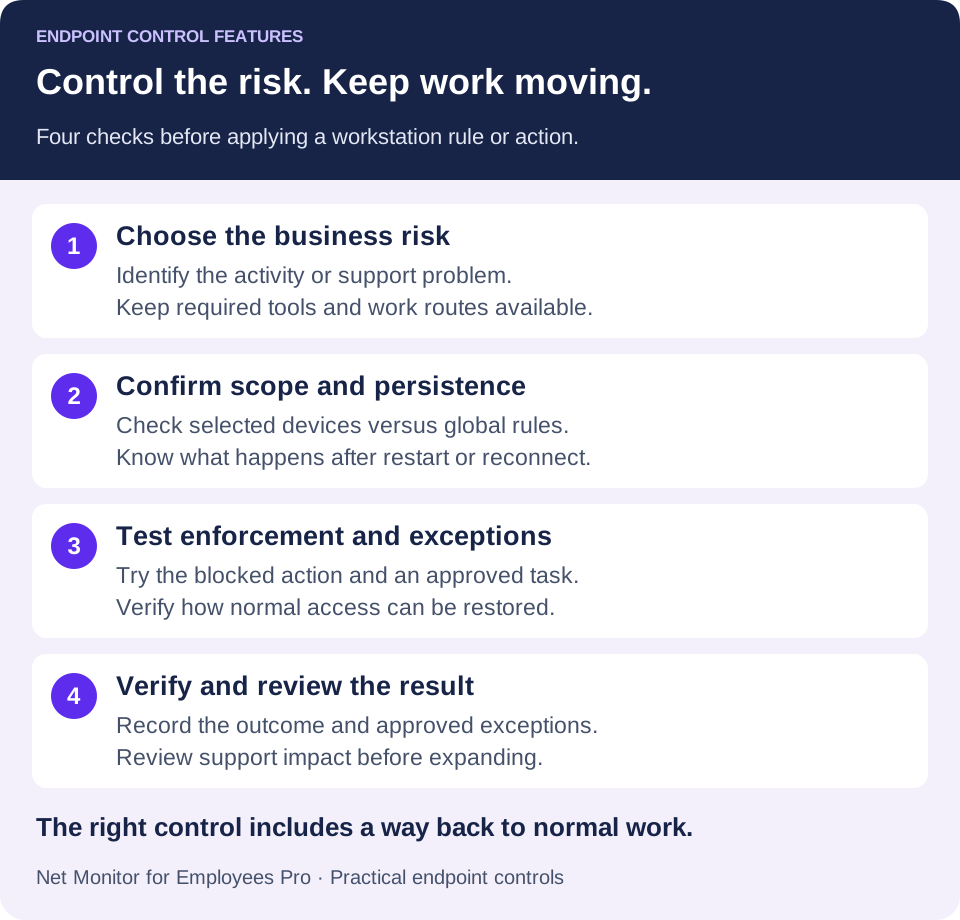
For example, an accounting team may need restricted USB storage while a design team needs an approved file-transfer route. Establish the required policy for each team, then verify that the selected feature can enforce that scope. Test global settings in a separate, limited test setup before using them in a broader managed environment.
04Pair endpoint controls with relevant monitoring records
Restrictions alone do not provide the full picture. A failed test visit can show that a website rule is working, while relevant activity records and support requests help explain whether a legitimate exception is needed. Verify which events are actually recorded; do not assume every blocked attempt appears in a report.
Combine controls with the records needed for the task: website and application reports for usage patterns, selected screen recordings for visual context, and a support or incident ticket documenting the action. More sensitive collection, such as keystroke records, needs a separate justified purpose and appropriate safeguards. A useful evidence trail combines relevant facts rather than relying on an isolated screenshot or an incomplete claim.
Recording retention deserves planning. Businesses should determine what needs to be retained, who can retrieve it, how long records remain available, and where recordings are stored. Recording storage options can support local infrastructure or approved cloud storage, but access permissions and retention limits should be defined before a dispute or breach occurs.
For each change, record the reason, affected computers, administrator, time, rule or action, observed result, and any approved exception. Keep this change record in your established ticketing process. Monitoring reports and administrative change records serve related purposes, but neither should be assumed to document every event automatically.
05Deploy endpoint controls without disrupting operations
The fastest way to create resistance is to apply strict controls to every employee without considering how each department works. A better rollout begins with the highest-risk systems and the clearest policies. Finance, HR, customer support, remote employees handling sensitive data, and shared workstations are often sensible starting points.
Before enabling restrictions, identify the approved applications, websites, storage locations, and device types each group actually requires. Define role-based requirements, then match them to the configuration scope the software supports. Review available records, test results, and exception requests during the first few weeks. If employees repeatedly need a legitimate resource, adjust the policy. Investigate repeated prohibited activity in context before drawing a conclusion.
- Define a measurable problem. Choose a concrete objective, such as preventing an unapproved application from running or reducing manual visits for routine file collection.
- Prepare the pilot. Confirm company-owned devices, supported operating systems, administrator access, and connectivity. Document essential work tasks.
- Test the intended scope. Include restart and reconnect checks for persistent rules. Confirm that unaffected users can still work.
- Test the exception process. Record who approves access, how it is restored, and when a temporary exception will be reviewed or removed.
- Measure the outcome. Review successful enforcement, support time, unnecessary blocks, and recovery problems before expanding.
Net Monitor for Employees Pro helps organizations combine live visibility, activity records, restrictions, remote file actions, and computer controls in one administrator-focused system. A fully functional trial is a practical way to test rules in a limited test environment before committing to a wider deployment.
06What to verify when choosing endpoint control software
Use the trial to prove the workflows you will depend on. A successful demonstration should answer these questions:
- Does each required control work on the actual workstation operating systems and agent configurations?
- Can approved software, business websites, and file-transfer routes remain available?
- Are selected-computer actions clearly distinguished from global policies?
- Do persistent rules behave as expected after restarts and reconnections?
- Can technicians restore normal access and verify the result?
- Can the business retain the monitoring records it needs with appropriate access and retention limits?
Endpoint controls work best as routine operational tools. Managers can review recurring workflow problems early, IT can stop unapproved software use, and authorized staff can limit unnecessary data-transfer routes. These controls complement antivirus or EDR, patching, access management, and backups; they do not replace those protections.
Start with the controls tied to your most expensive risks: unauthorized software, sensitive file movement, unsafe web use, unmanaged remote systems, and support delays. Then review the evidence those controls produce. The right endpoint policy gives employees clear boundaries and gives the business the authority to enforce them when it counts.
07Endpoint control features: common questions
What is the difference between endpoint monitoring and endpoint control?
Monitoring collects or displays activity information, such as an application report or a live screen. Control changes what the workstation or user can do, such as blocking a website, restricting USB storage, or restarting a selected computer. Combining both helps IT investigate a problem and verify an appropriate response.
Which endpoint control features should an SMB start with?
Start with the controls tied to a documented business problem. Website and application rules address unapproved tools and destinations. USB restrictions address one data-transfer route. Remote files, commands, and assistance can reduce support delays. Pilot a small number of controls with clear success criteria before expanding.
Can USB restrictions prevent every kind of data loss?
No. USB-storage restrictions address a specific route. Files may also leave through email, cloud services, printing, or other channels. Combine device restrictions with appropriate access permissions, approved transfer methods, backups, and additional data-protection tools where required.
Do endpoint controls work on remote employee computers?
Supported controls can be used on managed remote computers when the agent, operating system, permissions, and connection meet the requirements. Test the employee’s real network setup and reconnect behavior. Offline operation, wake-up capability, and feature availability should be checked individually.
Does a screen lock isolate a compromised workstation?
No. Locking a user session or local input does not disconnect network access. If compromise is suspected, follow the organization’s incident-response procedure and use the appropriate containment tools. Preserve needed evidence before taking disruptive actions.