Multi-screen monitoring / Practical guide
How to Monitor Multiple Computer Screens at Work
Build a readable console grid, check missing or stale views, and open the right computer when a tile needs attention.
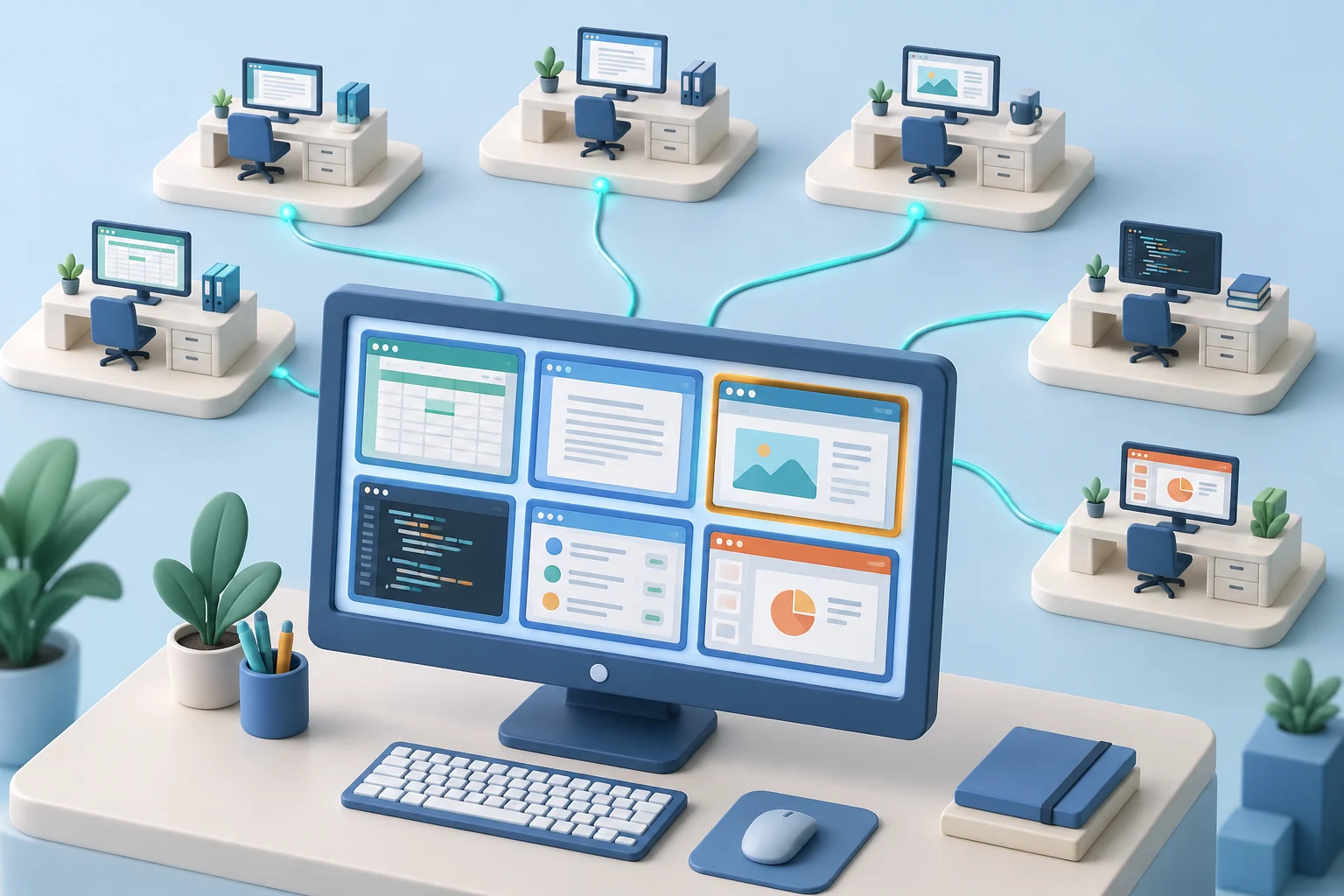
To monitor multiple computer screens, you need a central console displaying desktops from separate managed computers. This differs from connecting several physical monitors to your own PC. The practical challenge is keeping a growing screen grid readable, current, and organized so a supervisor can spot a problem and open the right device.
This is not about watching every employee for its own sake. It is about managing company-owned systems, protecting business data, enforcing acceptable-use rules, and resolving problems before they become expensive. The right setup lets authorized managers see what matters, investigate exceptions, and act without disrupting the entire workforce.
01Monitor multiple computers from one screen grid
A single computer can be managed informally. A team of 10, 25, or 100 endpoints cannot. Once employees work across offices, homes, customer locations, and travel schedules, fragmented oversight creates blind spots. A supervisor may see completed work but miss the hours of blocked progress, personal browsing, unauthorized software, or data handling that occurred beforehand.
Central screen monitoring replaces assumptions with evidence. A live thumbnail view can show whether a team is working in the required business application, stuck in an error loop, or using a system outside its assigned purpose. When a user reports that a program is slow or a file is missing, IT can inspect the desktop remotely instead of relying on incomplete descriptions.
The security value is just as direct. Unapproved remote-access tools, suspicious downloads, personal cloud storage, and attempts to bypass policy often appear first as visible desktop activity. Screen monitoring does not replace endpoint protection, access controls, or audit logs. It adds operational context that automated alerts alone may not provide.
02Start with a defined monitoring purpose
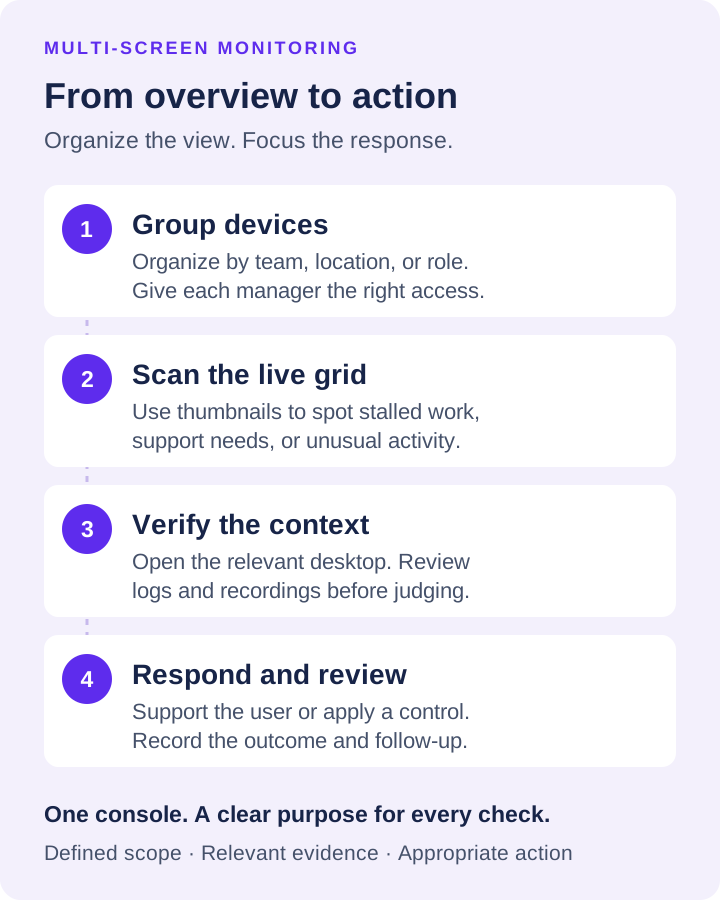
Before installing any monitoring agent, decide what your organization needs to see and who has authority to see it. A sales manager may need visibility into CRM usage and follow-up workflows. IT may need access to all company endpoints for troubleshooting, application control, and incident response. Security personnel may need reports and recordings when investigating a specific policy violation.
Avoid treating every screen equally. Create logical groups based on department, location, role, or risk level. For example, finance devices may need tighter controls around file transfers and cloud services, while a support team may need closer attention to response tools and approved knowledge bases. Grouping systems makes a large screen grid manageable and reduces unnecessary access to information outside a manager's responsibility.
A written acceptable-use and monitoring policy matters here. Inform employees that company devices and accounts may be monitored, explain the business reasons, identify the types of activity collected, and apply the policy consistently. Requirements differ by state, industry, employment agreement, and whether a device is company-owned or personally owned. Use legal and HR guidance to set the policy before expanding surveillance.
03Build a screen view that supports fast decisions
In the screen-view settings, use Filter to select a group and Thumbnail size to balance the number of visible computers against readable detail. Keep original aspect ratio avoids stretched previews. For a computer with several displays, Extend multiple monitor screen shows its desktop as an extended area.
Do not confuse frequent viewing with effective oversight. Constantly staring at a wall of desktops wastes management time and can create noise. The better approach is to use live views for active supervision, support, and exception handling, then rely on recorded activity and reports for investigation.
Test the grid with the number of computers you expect to supervise. Increase Refresh interval if frequent updates strain the connection, and open an individual desktop when a thumbnail is too small. Show connected only reduces clutter, but review disconnected devices separately so a hidden computer is not mistaken for a healthy one.
Treat the grid as a current navigation workspace. Use single-screen inspection for an individual support task and recorded history for an earlier event. Increasing the number of visible thumbnails does not create a historical record or make tiny text readable.
04Work through a twelve-computer grid
Illustrative setup: a supervisor manages twelve training computers, including one with two displays. Select that group with Filter, then increase Thumbnail size until the required application can be recognized. The example is a layout exercise, not a recommended device limit.
Keep original aspect ratio preserves proportions. Enable Extend multiple monitor screen to inspect a computer’s combined desktop, then open the individual view when a dialog becomes too small. Verify the display containing the task instead of assuming the primary screen shows everything.
Use the least intrusive level of review that solves the business problem. A monthly application report may be enough to identify recurring distractions. A live screen view may be enough to help an employee who is blocked. Detailed recordings should be reserved for security reviews, compliance needs, performance investigations, or other documented business reasons. This approach keeps oversight purposeful and easier to defend.
05Open the right computer and return to the grid
Make the grid a route to the right computer. When a tile needs attention, confirm its identity and open the Object Menu. Choose Zoom Remote Screen... for observation or Remote Control... for authorized assistance; the latter can take over keyboard and mouse.
Do not apply an action to a whole selection simply because one tile looks wrong. Check the selected computers before acting, and follow the control-scope guide. A group used for viewing is not proof that every administrative setting has that same scope.
After solving an issue, return to the grid and confirm the expected group and connection visibility. Inspect disconnected devices separately when Show connected only is enabled. A tile hidden by that option is not evidence that its computer is healthy or no longer needs attention.
Authority should be assigned carefully. Department managers may need reports and limited live viewing, while IT administrators need broader endpoint controls. Security leaders may need access to recordings and investigation exports. Role-based practices reduce the chance that sensitive employee information is viewed or changed by the wrong person.
06Prepare the deployment before the first screen appears
Technical deployment is straightforward only when the operational groundwork is finished. Inventory the endpoints you intend to manage, confirm operating system support, identify office and remote network conditions, and decide where recordings and logs will be stored. Retention decisions affect storage cost, search speed, and exposure during a legal or compliance review.
Test the same grid on the networks supervisors will use. Change Refresh interval gradually and observe whether previews remain useful during normal work. Measure traffic if capacity matters; there is no universal interval that guarantees responsiveness on every connection.
Set up alerts and review routines early. A system that generates reports no one reads will not improve productivity or security. Managers should know which exceptions require action, who owns follow-up, and how findings are documented. A short weekly review of policy violations, inactive systems, unauthorized applications, and recurring support issues is often more useful than a daily flood of unfiltered data.
07Avoid the mistakes that undermine monitoring
The most common failure is deploying a tool without a clear management process. Another is using raw activity data as if it automatically proves poor performance. An employee may have a legitimate reason to visit an external site, run an unfamiliar application, or appear inactive while handling a phone call, meeting, or offline task. Verify context before making a judgment.
Include two deliberate checks in the pilot: pause and resume updates, then disconnect and reconnect an authorized test computer. Confirm how each state appears to the operator. Document the selected group, visible count, and missing devices so a display setting is not mistaken for employee inactivity.
Finally, do not rely on monitoring as a substitute for management. Set clear output expectations, maintain security policies, train employees on approved tools, and address performance issues directly. Screen visibility works best when it supports accountable management rather than replacing it.
A centralized view of company computers gives managers the evidence to protect time, systems, and data. Start with a controlled pilot, test the reports and response tools on real workflows, and make sure the information you collect leads to a clear, fair action. Download the free trial and evaluate whether your team can identify and resolve issues faster with direct visibility.