RDP session monitoring / Practical guide
Monitoring RDP Sessions for Security and Control
See what happens after a remote desktop sign-in. Combine live session visibility, recorded evidence, and endpoint controls to investigate risk and support your team.
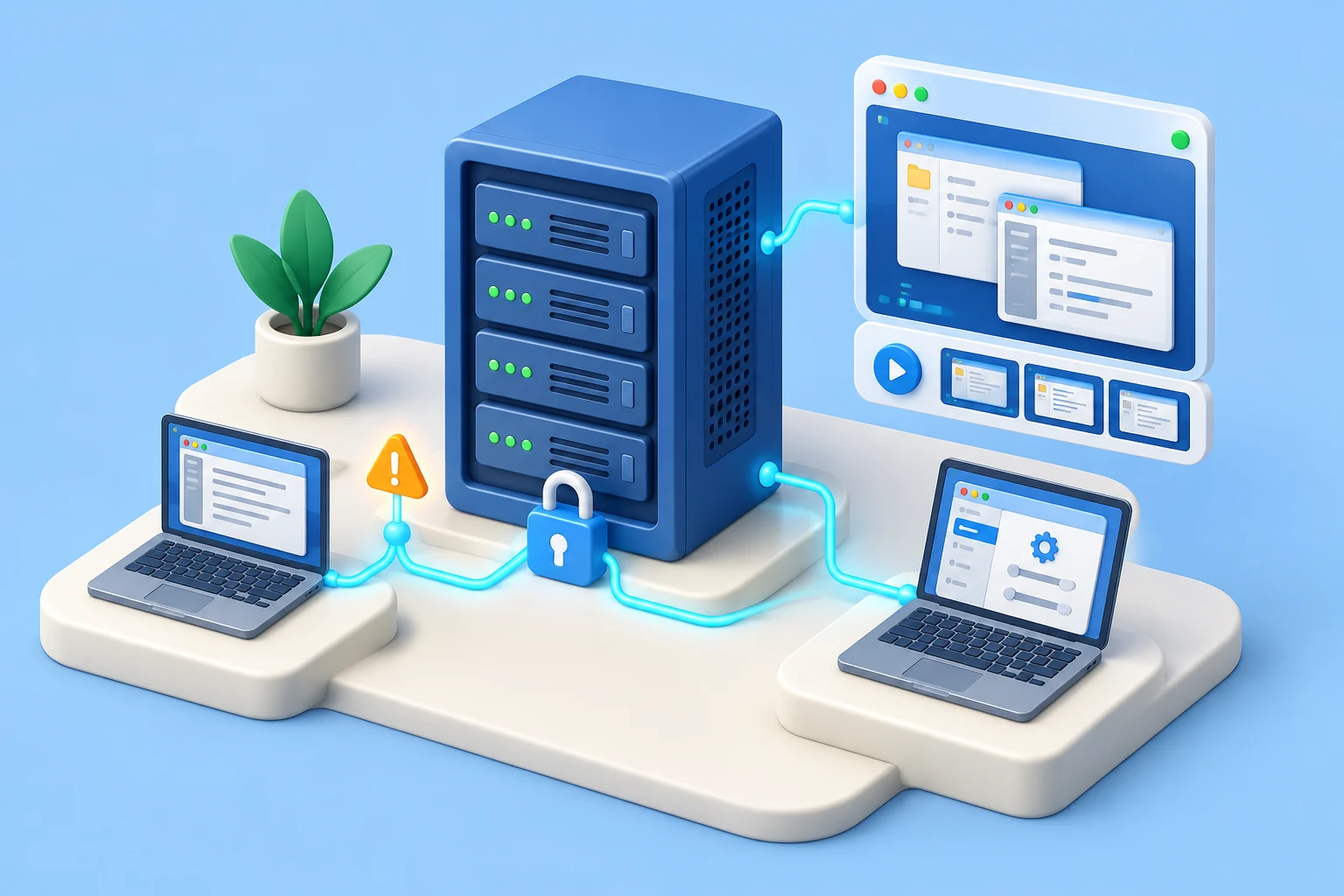
An RDP connection can look harmless in an authentication log: a valid user signed in at a known time from a permitted device. That record does not show what happened after the desktop opened. Monitoring RDP sessions gives IT and operations leaders the visibility to verify work, investigate suspicious activity, and respond before a remote-access problem becomes a data-loss event.
Remote Desktop Protocol (RDP) is often necessary for supporting distributed staff, administering servers, accessing line-of-business software, and helping users without traveling to their desks. It also creates a high-value access path. A user who can control a remote computer may open customer files, move data, install tools, change settings, or use company time for unrelated work. For small and midsize businesses, the challenge is not simply whether to allow RDP. It is whether that access is controlled, visible, and supported by evidence.
01What is RDP session monitoring?
RDP session monitoring is the process of observing and reviewing activity inside a Remote Desktop session. It combines connection records with live screen visibility, session recordings, and relevant activity reports to show what happened after sign-in. This gives IT teams evidence for troubleshooting, policy enforcement, and incident investigation.
Authentication and connection logs help establish who connected, when, from where, and for how long, depending on the events collected. Those details are useful, but they leave a major gap. A two-hour RDP session could represent approved maintenance, productive remote work, an employee browsing unrelated sites, or an attacker using legitimate credentials.
For a Windows audit trail, successful logon event 4624 with logon type 10 (RemoteInteractive) identifies a Remote Desktop or Terminal Services logon. It is a useful starting point for correlation, but it is not a recording of the desktop. See Microsoft’s event 4624 reference for the fields and their meaning.
Session-level monitoring fills that gap. Live screen viewing shows what is happening while it can still be corrected. Screen and activity recordings provide a reviewable record when a manager or security administrator needs to investigate later. Application, website, and process reports add searchable context. File audit records and keystroke logs can supplement that evidence where configured and justified, helping reconstruct details that are difficult to recall after an incident.
Illustrative correlation: account A signs in to host H at 09:10, and a session recording shows an application at 09:14. Match host, account, time zone, and available session identifiers across sources. A Windows logon identifier is not automatically the recorder’s session key. Record uncertainty if simultaneous sessions or shared credentials prevent attribution.
02How to monitor RDP sessions with Net Monitor for Employees Pro
Net Monitor for Employees Pro supports monitoring individual Terminal Services (TS/RDP) sessions. The monitoring agent belongs on the RDP server that hosts the sessions. Use the RDP session monitoring setup guide for the configuration:
- 1. Install the Console. Set up the monitoring Console on the administrator’s computer in your network.
- 2. Install the Agent on the RDP server. Follow the local network installation instructions for the session host.
- 3. Add the server to the Console. Under Advanced Options, select This computer is a terminal server (TS, RDP). Add the server once; its sessions appear automatically.
- 4. Validate a permitted test session. Confirm that the correct user session is visible, then test your chosen recording settings, timestamps, storage, and reviewer access before extending the rollout.
For monitoring over the Internet, the documented Use direct or cloud connection option makes TS/RDP sessions accessible through the cloud connection. This requires a subscription-based Cloud license; review the cloud connection instructions when planning access for a distributed IT team.
03Define the scope of RDP monitoring
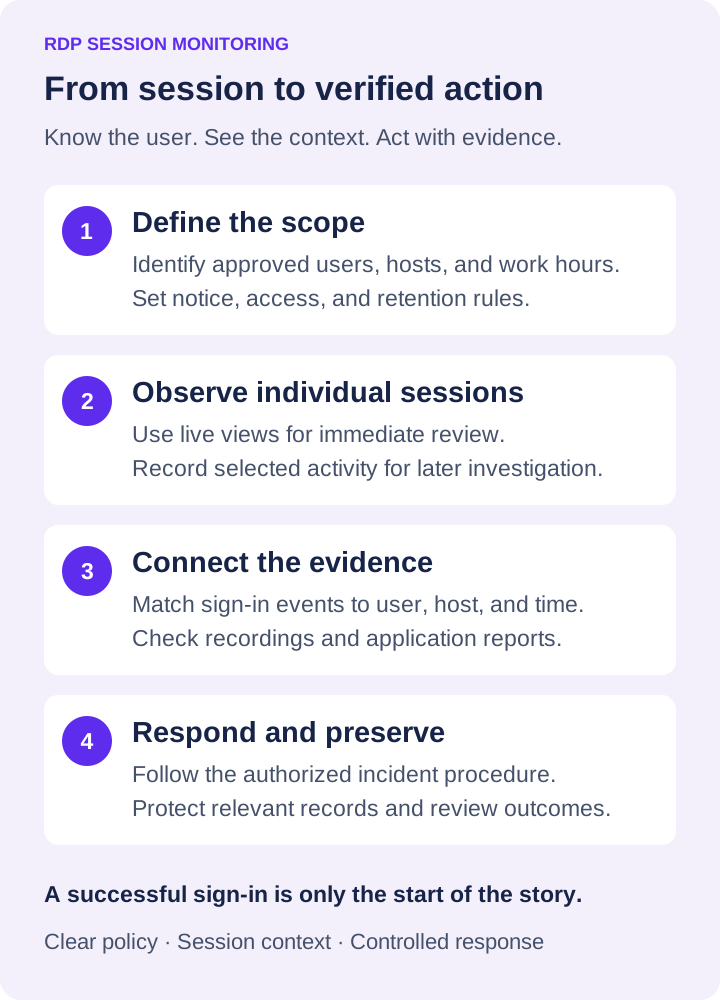
Not every RDP connection requires the same level of oversight. A help desk technician connecting to reset a password is different from an administrator accessing a finance server, and both are different from an employee using a remote office workstation throughout the day. Monitoring should match the role, the data available through the session, and the risk of the system being accessed.
Start by identifying the systems that need the strongest controls. Servers containing customer information, payroll data, intellectual property, financial records, or administrative tools should receive priority. Then define what a normal session looks like for each role. Expected applications, work hours, connection locations, typical session length, and approved file-transfer behavior all create a baseline.
Without a baseline, monitoring produces noise. A long session may be normal for a developer or accountant at month-end. A short connection to a server at 2:00 a.m. may be legitimate emergency support, or it may require immediate review. Context determines whether an event is routine or risky.
Live RDP monitoring vs. session recording
Live RDP monitoring supports immediate operational control. An administrator may see an unauthorized program being launched, a user attempting to copy sensitive files, or a remote worker repeatedly blocked by an error. Following the agreed response procedure, the administrator can contact the user, end the session through the appropriate administration tools, lock the endpoint, or take another defined action.
Recording and logging are for accountability and investigation. They allow an authorized reviewer to verify a sequence of actions, identify the files or applications involved, and preserve evidence when the original screen state is gone. Both functions matter. Live viewing without records leaves no audit trail. Records without live visibility can delay containment when every minute matters.
04Build an RDP monitoring policy before collecting data
Technology does not replace policy. Before recording remote desktop sessions or collecting detailed activity data, set clear rules covering authorized use, notice, access to records, and retention. Employees and contractors should understand that company-owned systems and remote-access sessions may be monitored under company policy. Requirements vary by state, industry, contract, and jurisdiction, so use legal counsel to review your policy and notification process.
For UK workplaces, the ICO’s worker-monitoring guidance explains the importance of a defined purpose, transparency, and necessary, proportionate monitoring. Apply the requirements relevant to your workforce rather than assuming one policy fits every location.
The policy should state who may use RDP, which devices are approved, when access is permitted, and what activity is prohibited. It should also define who can view recordings and reports. Security administrators may need broader access than department managers, while managers may only need reports for their own teams. Restricting access to monitoring records protects employees and keeps sensitive evidence from becoming another internal risk.
Retention requires practical judgment. Keeping every recording forever creates storage costs and expands the amount of sensitive material that must be protected. Keeping records for too short a period can leave the business without evidence when an issue is discovered weeks later. Set retention periods based on operational needs, investigation timelines, storage capacity, and applicable obligations.
05What to capture in an RDP session audit trail
The strongest RDP monitoring program captures useful evidence without forcing administrators to watch screens all day. Focus on signals that answer a business or security question, and correlate them by user, host, and time.
For most organizations, that means collecting these categories:
- Connection details, including user, endpoint, source device, start time, end time, and session duration.
- Screen activity or recordings for systems where visual verification is necessary.
- Application, website, and process activity to expose unauthorized tools, distraction, or suspicious execution.
- File activity and remote transfer behavior where sensitive information can be copied or exported.
- Alerts for high-risk events, such as unusual hours, repeated failed sign-ins, prohibited applications, device changes, or access to restricted locations.
Collect connection and sign-in events from Windows or your existing identity and security tools, then compare them with session recordings and activity reports. File auditing and security alerts depend on the tools and audit settings enabled in your environment. Confirm the evidence each source actually captures before relying on it during an incident.
Avoid treating every alert as equally urgent. An administrator who receives hundreds of low-value notifications will eventually miss the event that matters. Prioritize conditions tied to clear risk: access outside approved hours, a privileged account opening an unfamiliar program, a user attempting to disable security software, or repeated transfers from a system containing protected data.
06Pair RDP visibility with endpoint control
Seeing a problem is useful. A defined response makes that visibility actionable. RDP session monitoring is most effective when it is connected to endpoint controls that let IT act through a clear administrative process.
If a user accesses an unapproved website or application during a remote session, block the site or prevent the application from running. If an endpoint appears compromised, disconnect access, lock the computer, or shut it down according to incident procedures. If a support technician needs to correct a configuration, transfer the required file, run an approved command, or restart the machine remotely rather than waiting for the user to respond.
Control should be applied carefully. Blocking a program without checking its business purpose can interrupt legitimate work, especially in organizations with specialized or legacy software. Use pilot groups and documented exceptions when introducing restrictions. The goal is to remove avoidable risk and wasted time, not create a new service desk backlog.
07Protect RDP recordings and activity logs
RDP recordings, screenshots, and activity logs can contain confidential information. Treat them as sensitive business records. Limit administrative access, use strong account controls, and keep records in storage that fits your security and retention requirements. Configure recording encryption where appropriate and test access with the accounts authorized to review evidence.
Keep recording storage requirements in the recording guide. For RDP, test retrieval for two permitted sessions on the same host and verify that reviewers can distinguish their users and time ranges. A shared server name alone does not identify the session responsible for an action.
The storage choice depends on your environment. Internal storage may offer tighter local control, while cloud storage can simplify capacity planning and access for distributed IT teams. In either case, test restore procedures and verify that recordings remain available to authorized reviewers when an investigation occurs.
08Turn RDP session records into management decisions
The value of monitoring is not the volume of data collected. It is the decisions made from that data. Review activity reports on a schedule that matches the risk level of the systems involved. Look for recurring patterns: excessive time in nonbusiness applications, repeated failed tasks, off-hours access, prohibited software, or abnormal file activity.
When an issue appears, investigate the facts before making assumptions. A recording may show that apparent idle time was actually caused by a frozen application. An unusual connection may be an approved maintenance window. Evidence protects the business, but it also supports fair and defensible management decisions.
Net Monitor for Employees Pro helps administrators combine live screen visibility, recording, filtered activity reporting, and remote endpoint controls in one operational system. A controlled free-trial evaluation on a limited group of company devices is a practical way to confirm what your team needs to see, how much storage it requires, and how the session evidence works alongside your existing security alerts.
The most useful RDP monitoring program is the one your team can act on quickly: clear policy, focused alerts, protected records, and defined authority to intervene when a remote session puts productivity, data, or operations at risk.
09RDP session monitoring: common questions
Can Windows logs show everything that happened in an RDP session?
No. Logon and connection events help identify access and timing, but they do not provide a visual replay of the remote desktop. Combine those events with authorized screen recording and activity reports when an investigation needs the sequence and context of on-screen actions.
Where should the monitoring agent be installed for RDP sessions?
For Net Monitor for Employees Pro, install the Agent on the Terminal Services/RDP server. Add that server to the Console with the terminal-server option enabled. Individual sessions then appear automatically, as described in the RDP setup help.
How long should you keep RDP session recordings?
Set a documented retention period based on your investigation needs, contractual and legal obligations, data sensitivity, and storage capacity. Restrict access, test retrieval, and preserve relevant records when an incident requires further review. Avoid an indefinite default for every recording.