Browser policies / Practical guide
How to Enforce Browser Policies on Work PCs: 7 Steps
Turn browser rules into settings that work. Manage approved browsers and extensions, restrict risky web access, and verify enforcement on office and remote PCs.

A browser is one of the applications employees use most, yet its settings can fall outside routine IT oversight. An unmanaged browser can become a channel for unauthorized cloud storage, risky downloads, shadow IT, malware, data leakage, and wasted work time. Knowing how to enforce browser policies means turning acceptable-use rules into controls you can verify on company-owned work PCs.
A written policy alone cannot stop an employee from visiting a streaming site, installing an unapproved extension, uploading files to a personal drive, or bypassing a basic block with another browser. Effective enforcement combines browser configuration, endpoint restrictions, network controls, activity records, and manager follow-up.
How do you enforce browser policies?
Define a browser baseline, deploy mandatory settings through Group Policy or a supported management service, control extensions and website access, and verify the result on an employee PC. Add endpoint controls and activity review to address gaps. Test approved work, exceptions, restarts, and remote connections before expanding the rollout.
01Define browser rules and their exceptions
Vague language creates weak enforcement. “Use the internet responsibly” gives IT no clear basis for blocking a site, reviewing activity, or responding to repeat violations. Define what is allowed, what is restricted, and what requires approval.
For most small and midsize businesses, browser policy should cover business versus personal use, prohibited website categories, file download rules, personal webmail and cloud-storage restrictions, approved browser extensions, password-manager use, private browsing, and the handling of company data in web applications. It should also state whether activity is monitored and what records the business retains.
Avoid treating every department the same. Accounting may need access to banking portals and vendor payment systems. Marketing may need social platforms, media libraries, and publishing tools. A blanket restriction can interrupt legitimate work and drive employees to work around controls. Build a default policy for all users, then create exceptions by role, device group, or department. Use groups only where the chosen management system supports that scope; a department name in your written policy does not automatically create a technical boundary.
Make exceptions time-limited and documented. A temporary need to access a vendor portal should not become a permanent opening in the company’s browser controls.
Make each rule testable. For example: “Only approved extensions may be installed in managed browsers; requests go to IT with a business purpose, an owner, and an expiry date.” Record the affected browser, device or user group, setting, expected result, exception owner, and review date. Your workplace monitoring policy should explain any related activity review.
02Enforce browser settings centrally in Chrome and Edge
Standardize approved browsers and manage them from a central administrative system. A controlled baseline makes it easier to keep security settings consistent, troubleshoot failures, and identify work PCs that have missed an update.
Browser policy settings can be deployed through Windows Group Policy, mobile device management, endpoint management platforms, or the enterprise administration tools provided by supported browsers. The right choice depends on your existing environment. Group Policy may be sufficient for an office with Windows domain-joined PCs. Hybrid and remote teams often need cloud-based device management because computers may spend long periods outside the office network.
Choose the management scope before assigning settings
For Chrome, distinguish policies attached to a managed user account from policies applied to an enrolled browser. Google explains that enrolled-browser policies do not require the user to sign in, while account policies depend on the managed sign-in context. Check which scope covers your work PCs in Google’s Chrome policy deployment guidance.
For Windows PCs managed through Group Policy, install the browser vendor’s current administrative templates, select the intended computer or user scope, and assign the policy to a pilot group. Microsoft Edge supports both mandatory and recommended settings. Use a mandatory policy when employees must not override a setting. Recommended settings are defaults users may change. Follow Microsoft’s Edge policy configuration guide for the supported deployment paths.
Your baseline configuration should prevent employees from changing settings that affect security, data control, or visibility. Review browser updates, extension installation, approved search providers, password export, download handling, and built-in security protections. Check each setting’s browser version, platform support, scope, and restart requirements before treating it as enforced.
Do not overlook alternate browsers. If you lock down Chrome but leave Edge, Firefox, or another installed browser unrestricted, employees can simply switch applications. Either apply matching policies to every approved browser or remove browsers that the business does not support. Endpoint application control is essential here.
Keep a policy register with one owner for each setting. If Group Policy, device management, and a browser cloud service all configure the same option, inspect the effective policy on the PC and resolve conflicts. A successful deployment message alone does not establish which value the employee’s browser is using.
03Control extensions, browser profiles, and downloads
Extensions deserve special attention because their permissions can allow them to read page content, capture screenshots, inject scripts, redirect traffic, or access sensitive information. Many are marketed as productivity tools, but their permissions can expose business information.
Use an allowlist for extensions where practical. Approve only extensions with a documented business purpose, acceptable permissions, and a responsible owner inside the company. Review controls for developer-mode installation and external extension sources in each supported browser, and test that an unapproved extension cannot be added through another installation route.
Chrome and Edge expose an ExtensionSettings policy for extension management. A default rule can restrict unapproved extensions while specific extension IDs receive appropriate exceptions. Check existing policies for conflicts before changing the default. Use the vendor instructions for Chrome extension policy and Edge extension management; do not assume every field or installation option behaves identically across browsers.
This control can also reduce support work. Limiting unapproved coupon tools, download managers, AI assistants, proxy tools, and screen-recording extensions reduces the number of unknown components IT must investigate when a browser slows down or behaves unexpectedly.
Check the account and the action, not only the website
A browser profile, a signed-in web application, and a corporate device are separate things. Allowing a cloud-storage domain may allow both business and personal accounts on that service. Decide which accounts and upload destinations are approved, then use the service’s access controls or an appropriate data-protection tool where account-level or content-aware restrictions are required.
Similarly, download settings do not by themselves prevent file uploads. Include password storage and export, personal sync, guest profiles, private browsing, and downloads in the baseline, but confirm the available policy for each. If private browsing remains available, test your relevant controls in that mode. A URL rule is not a substitute for controls over sensitive file contents.
04Block risky websites while preserving approved work
Website filtering should protect the business while supporting real work. Blocking only obvious distractions is not enough. A useful policy restricts sites and web services that create productivity, security, or data-loss risk.
If your filtering service supports category blocks, use them as a starting point. A legitimate site can be miscategorized, and a risky service can sit inside an otherwise harmless category. Maintain precise block and allow lists so administrators can make exceptions. Review blocked-site requests quickly: delayed access to a legitimate client portal or supplier site can interrupt useful work.
For remote employees, browser policies should not depend entirely on the office firewall. A laptop at home, in a hotel, or on public Wi-Fi may never pass through the company network. Apply suitable controls to the managed browser or endpoint, then test them away from the office. Confirm how policy updates, cached settings, and monitoring behave when the management connection is unavailable.
Browser URL policies, a secure web gateway, DNS filtering, and endpoint website controls operate at different levels. Choose the layer that meets the requirement and test its limits. A native browser URL list is not an automatic website-category database, and blocking a domain does not inspect the contents of every permitted upload.
Test complete business journeys, including sign-in, redirects, payment pages, file previews, and supplier subdomains. The guide to blocking websites on work computers covers targeted website rules and exceptions in more detail.
05Support browser policies with endpoint controls
Browser policies are stronger when the endpoint itself is controlled. If an employee can install a portable browser, run a VPN application, copy files to a USB drive, or use an unauthorized remote desktop tool, browser configuration alone will not solve the problem.
Restrict local administrator rights for standard users. Use suitable operating-system or device-management controls for software installation, and application controls for what employees can run. Control removable storage where data handling requires it. Restrict unapproved proxy, VPN, and remote-access tools while preserving the company-approved tools staff need. These measures address common gaps around browser restrictions.
Net Monitor for Employees Pro adds operational control by allowing administrators to block websites and applications, view live employee screens, record screen activity, and review website and application usage from one administrative console. That helps when a filtering event needs context. An authorized reviewer can compare relevant activity with the reported business need, then discuss the explanation before drawing conclusions about misuse.
Use Internet Control with a verified scope
The Internet Control web help describes website allow/block modes and address lists. Before applying a profile, check Use the same settings for all computers: it determines whether you are applying a global profile or per-computer settings. Confirm Automatically start rules when computer is started when rules need to resume after restart, apply the configuration, and verify the result on a target PC. If you use Temporary allow all websites for troubleshooting, restore and retest the intended policy afterward.
Use Applications and Processes for supported application restrictions and review the unauthorized software guide when planning which browsers and tools may run. Execution controls and installation controls address different actions. Browser settings such as extension management or profile sign-in still belong in your browser or device-management system.
Use control features carefully. The goal is not to create unnecessary friction for employees doing their jobs. It is to stop repeated unproductive behavior, unsafe data handling, and unauthorized tools before they become a security incident or a costly management problem.
06Keep useful activity records and define the response
A recorded block event shows that a particular request was denied. It does not, by itself, explain whether the employee had a business reason, used another service, or repeated the request. Combine the records your tools actually provide with relevant work context; do not assume every website-control feature records every blocked attempt.
Record the information needed for policy review: relevant website visits, browser application use, timestamps, and the device or user context available in your tools. Add download events from a suitable browser or security log when needed, and use screenshots or screen recordings only for a defined review purpose. Use supported report filters to focus on a device, user, application, or period. Verify category classification and event coverage before relying on either.
Net Monitor for Employees Pro’s activity reporting help explains its reporting views. Website and application time can highlight a pattern worth checking, but an open tab or a site name does not prove attention, intent, or data transfer. For an incident, preserve the relevant record with its source, timestamp, device, reviewer, and related support or incident ticket.
Retention matters. Keep records long enough to investigate recurring issues, support disciplinary decisions, and respond to internal security reviews. At the same time, do not collect or retain data without a stated purpose. Storage requirements vary by industry, risk level, and company policy. Restrict access to monitoring records, protect them from alteration, and define who can authorize a review.
When a verified event needs escalation, use the evidence documentation example. Keep this browser review focused on the effective setting and its coverage; the case process owns attribution, explanation, and findings.
Give managers and IT a clear response workflow
Review browser-policy outcomes regularly, rather than only after an incident. Where the records are available, look for repeated blocked requests, new unapproved web tools, unusual download patterns, and recurring nonbusiness activity. These patterns may identify a training problem, a missing approved tool, an overloaded team, or misuse. Review the context before deciding which explanation fits.
07Verify browser policies on real PCs before rollout
Before rolling out a policy, test it from a standard employee account. Try installing an extension, downloading an unapproved browser, using private browsing, accessing personal cloud storage, changing a proxy setting, and connecting from outside the office. Confirm that the rules still apply after browser updates and on devices that have not connected to the corporate network recently.
Do not assume a policy is working because the management console reports it as deployed. Verify results on real endpoints. Pilot the policy with a small department first, correct legitimate workflow issues, then expand it across the organization.
Check the effective browser policy first
Open chrome://policy in Chrome or edge://policy in Edge on the target PC. Review the policy names, values, scope, and any errors; reload policies and restart the browser when the relevant setting requires it. Google’s Chrome configuration verification steps explain checking policy status and values. Microsoft’s Edge deployment guide also describes checking effective settings on the device.
Run an enforcement and exception checklist
- Approved work: complete a normal client or supplier workflow, including authentication and file access.
- Restricted action: confirm the selected website, extension, or download is restricted as intended.
- Other browser contexts: test every approved browser, relevant profile, guest or private mode, and allowed account type.
- Restart and remote use: retest after restarting the browser and PC, then from an approved connection outside the office.
- Exception and rollback: grant a documented test exception, remove it, and confirm the baseline is restored.
- Evidence: confirm which policy state, event, or activity record actually exists. Record missing coverage rather than assuming it.
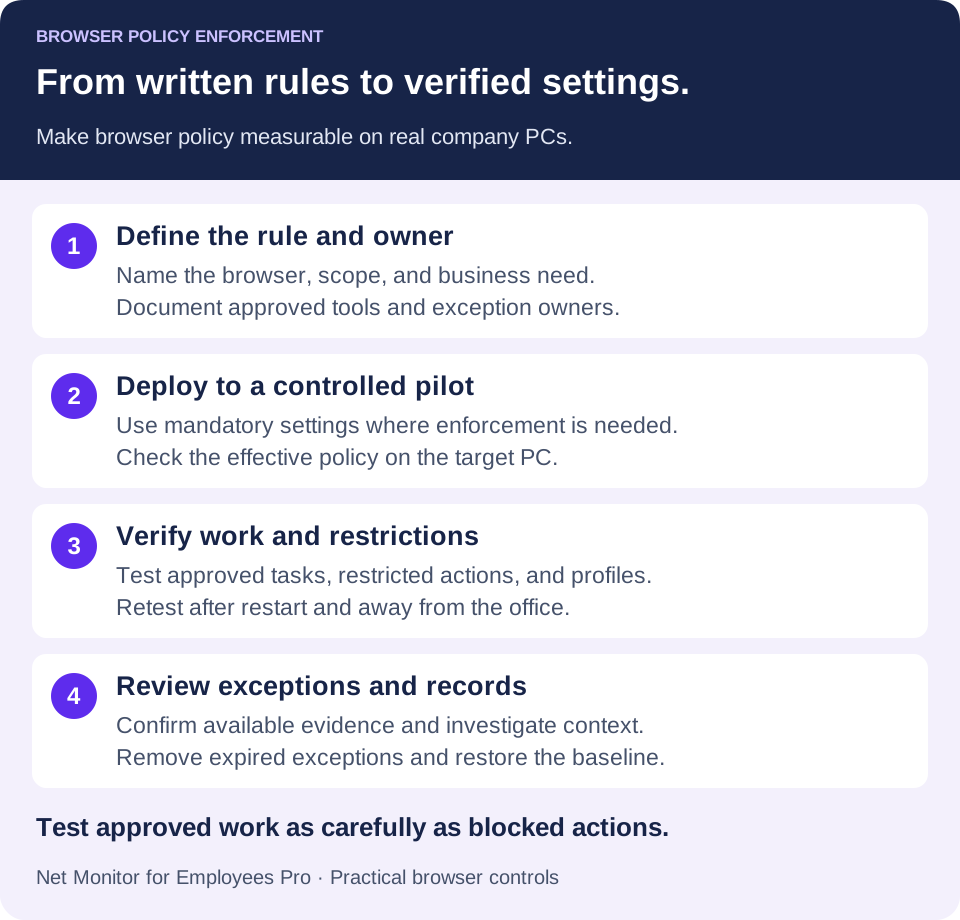
The practical goal is simple: employees should have the web access required to do their jobs, while the company retains the authority, visibility, and evidence needed to prevent misuse. Start with the highest-risk browser behaviors, enforce them consistently, and refine the rules from real activity rather than guesswork.
Policy register and failure diagnosis
For each setting, record its name, intended value, source, user/device scope, owner, exception, effective value, and test result.
- Policy absent: check enrollment, assigned scope, policy delivery, and the account/profile actually in use.
- Wrong value: inspect competing sources and precedence; a recommended default may remain editable.
- Correct value, wrong behavior: check platform/version support, restart requirements, alternate browsers, and the precise action the setting controls.
Verify in chrome://policy or edge://policy, then test the intended action from a normal employee account. Preserve the observed result instead of equating successful delivery with enforcement.
08Browser policy enforcement: common questions
What is the difference between browser policy and website blocking?
Website blocking controls access to selected destinations. Browser policy also covers settings such as extension installation, profiles, downloads, updates, and security preferences. A useful rollout combines those settings with endpoint controls and a documented review process.
Can browser policies apply when employees work from home?
They can when the chosen browser or device-management method supports the required remote deployment and enforcement. Test the actual laptop away from the office, including policy refresh and reconnect behavior. A rule enforced only by the office firewall will not automatically cover a different network.
Why can an employee change a setting marked as managed?
Check whether it is recommended rather than mandatory, whether it applies to the current profile or user, and whether another policy source supplies the effective value. Inspect the browser’s policy page and test the specific setting. A general managed-browser label does not prove every preference is locked.
Does blocking a cloud-storage website prevent all data leakage?
No. It restricts one route. Other accounts, approved services, desktop applications, and removable storage may still allow data movement. Use appropriate identity, access, and data-protection controls for sensitive information and confirm the coverage of each layer.
Can Net Monitor for Employees Pro replace browser management?
Use it for the website, application, screen-monitoring, and reporting features described in its help. Manage browser-native settings such as extension policy and profile configuration through the browser’s supported enterprise controls or your device-management platform. Evaluate both parts together on a small authorized pilot.